---
Order: 2
Area: languages
TOCTitle: JavaScript
ContentId: F54BB3D4-76FB-4547-A9D0-F725CEBB905C
PageTitle: JavaScript Programming with Visual Studio Code
DateApproved: 3/7/2019
MetaDescription: Get the best out of Visual Studio Code for JavaScript development
---
# JavaScript in Visual Studio Code
Visual Studio Code includes built-in JavaScript IntelliSense, debugging, formatting, code navigation, refactorings, and many other advanced language features.

Most of these features just work out of the box, while some may require basic configuration to get the best experience. This page summarizes the JavaScript features that VS Code ships with. Extensions from the [VS Code Marketplace](https://marketplace.visualstudio.com) can augment or change most of these built-in features. For a more in-depth guide on how these features work and can be configured, see [Working with JavaScript](/docs/nodejs/working-with-javascript.md).
## IntelliSense
IntelliSense shows you intelligent code completion, hover info, and signature information so that you can write code more quickly and correctly.
VS Code provides IntelliSense within your JavaScript projects; for many npm libraries such as `React`, `lodash`, and `express`; and for other platforms such as `node`, serverless, or IoT.
See [Working with JavaScript](/docs/nodejs/working-with-javascript.md) for information about VS Code's JavaScript IntelliSense, how to configure it, and help troubleshooting common IntelliSense problems.
## JavaScript projects (jsconfig.json)
A [jsconfig.json](/docs/languages/jsconfig.md) file defines a JavaScript project in VS Code. While `jsconfig.json` files are not required, you will want to create one in cases such as:
- If not all JavaScript files in your workspace should be considered part of a single JavaScript project. `jsconfig.json` files let you exclude some files from showing up in IntelliSense.
- To ensure that a subset of JavaScript files in your workspace are treated as a single project. This is useful if you are working with legacy code that uses implicit globals dependencies instead of `imports` for dependencies.
- If your workspace contains more than one project context, such as front-end and back-end JavaScript code. For multi-project workspaces, create a `jsconfig.json` at the root folder of each project.
- You are using the TypeScript compiler to down-level compile JavaScript source code.
To define a basic JavaScript project, add a `jsconfig.json` at the root of your workspace:
```json
{
"compilerOptions": {
"target": "es6"
},
"exclude": [
"node_modules"
]
}
```
See [Working with JavaScript](/docs/nodejs/working-with-javascript.md) for more advanced `jsconfig.json` configuration.
> **Tip:** To check if a JavaScript file is part of JavaScript project, just open the file in VS Code and run the **JavaScript: Go to Project Configuration** command. This command opens the `jsconfig.json` that the JavaScript file belongs to. A notification is shown if the file is not part of any `jsconfig.json` project.
## Snippets
VS Code includes basic JavaScript [snippets](/docs/editor/userdefinedsnippets.md) that are suggested as you type;
There are many extensions that provide additional snippets, including snippets for popular frameworks such as Redux or Angular. You can even [define your own snippets](/docs/editor/userdefinedsnippets.md).
> **Tip**: To disable snippets suggestions, set `editor.snippetSuggestions` to `"none"` in your [settings](/docs/getstarted/settings.md) file. The `editor.snippetSuggestions` setting also lets you change where snippets appear in the suggestions: at the top (`"top"`), at the bottom (`"bottom"`), or inlined ordered alphabetically (`"inline"`). The default is `"inline"`.
## JS Doc support
VS Code understands many standard [JSDoc](http://usejsdoc.org) annotations, and uses these annotations to provide rich [IntelliSense](#intellisense). You can optionally even use the type information from JSDoc comments to [type check your JavaScript](#type-checking).
Quickly create JS Doc comments for functions by typing `/**` before the function declaration, and select the `JS Doc Comment` snippet suggestion:
To disable JSDoc comment suggestions, set `"javascript.suggest.completeJSDocs": false`.
## Hover Information
Hover over a JavaScript symbol to quickly see its type information and relevant documentation.
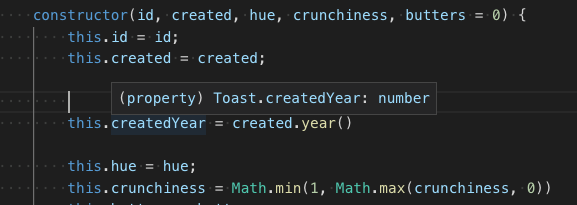
The `kb(editor.action.showHover)` keyboard shortcut shows this hover info at the current cursor position.
## Signature Help
As you write JavaScript function calls, VS Code shows information about the function signature and highlights the parameter that you are currently completing:

Signature help is shown automatically when you type a `(` or `,` within a function call. Press `kb(editor.action.triggerParameterHints)` to manually trigger signature help.
## Auto imports
Automatic imports speed up coding by suggesting available variables throughout your project and its dependencies. When you select one of these suggestions, VS Code automatically adds an import for it to the top of the file.
Just start typing to see [suggestions](#intellisense) for all available JavaScript symbols in your current project. Auto import suggestions show where they will be imported from:

If you choose one of these auto import suggestions, VS Code adds an import for it.
In this example, VS Code adds an import for `Button` from [material-ui](https://material-ui.com) to the top of the file:
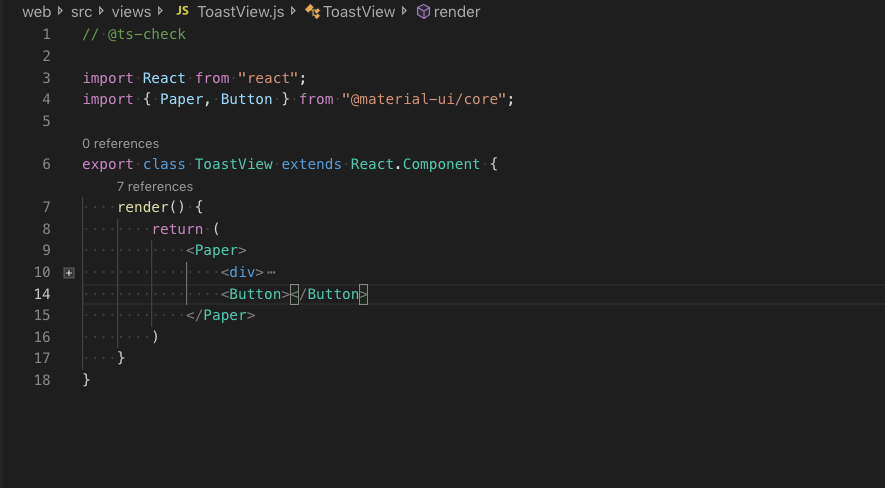
To disable auto imports, set `"javascript.suggest.autoImports"` to `false`.
> **Tip:** VS Code tries to infer the best import style to use. You can explicitly configure the preferred quote style and path style for imports added to your code your code with the `javascript.preferences.quoteStyle` and `javascript.preferences.importModuleSpecifier` settings.
## Formatting
VS Code's built-in JavaScript formatter providers basic code formatting with reasonable defaults.
The `javascript.format.*` [settings](/docs/getstarted/settings.md) configure the built-in formatter. Or, if the built-in formatter is getting in the way, set `"javascript.format.enable"` to `false` to disable it.
For more specialized code formatting styles, try installing one of the JavaScript formatting extensions from the [marketplace](https://marketplace.visualstudio.com/vscode).
## JSX and auto closing tags
All of VS Code's JavaScript features also work with [JSX](https://reactjs.org/docs/introducing-jsx.html):

You can use JSX syntax in both normal `*.js` files and in `*.jsx` files.
VS Code also includes JSX-specific features such as autoclosing of JSX tags:
Set `"javascript.autoClosingTags"` to `false` to disable JSX tag closing.
## Code navigation
Code navigation lets you quickly navigate JavaScript projects.
- **Go To Definition** `kb(editor.action.revealDefinition)` - Go to the source code of a symbol definition.
- **Peek Definition** `kb(editor.action.peekDefinition)` - Bring up a Peek window that shows the definition of a symbol.
- **Peek References** `kb(editor.action.referenceSearch.trigger)` - Show all references to a symbol.
- **Go to Type Definition** `kb(editor.action.goToTypeDefinition)` - Go to the type that defines a symbol. For an instance of a class, this will reveal the class itself instead of where the instance is defined.
You can navigate via symbol search using the **Go to Symbol** commands from the **Command Palette** (`kb(workbench.action.showCommands)`).
- **Go to Symbol in File** `kb(workbench.action.gotoSymbol)`
- **Go to Symbol in Workspace** `kb(workbench.action.showAllSymbols)`
## Rename
Press `kb(editor.action.rename)` to rename the symbol under the cursor across your JavaScript project:

## Refactoring
VS Code includes some handy refactorings for JavaScript such as **Extract function** and **Extract constant**. Just select the source code you'd like to extract and then click on the lightbulb in the gutter or press (`kb(editor.action.quickFix)`) to see available refactorings.
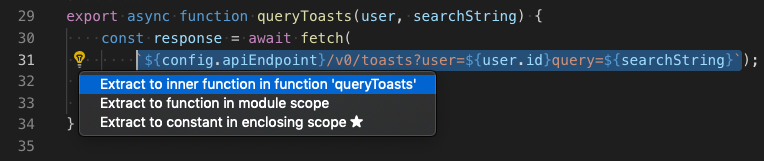
Available refactorings include:
- Extract to method or function.
- Extract to constant.
- Convert between named imports and namespace imports.
- Move to new file.
See [Refactorings](/docs/editor/refactoring.md) for more information about refactorings and how you can configure keyboard shortcuts for individual refactorings.
## Unused variables and unreachable code
Unused JavaScript code, such the else block of an `if` statement that is always true or an unreferenced import, is faded out in the editor:

You can quickly remove this unused code by placing the cursor on it and triggering the Quick Fix command (`kb(editor.action.quickFix)`) or clicking on the lightbulb.
To disable fading out of unused code, set `"editor.showUnused"` to `false`. You can also disable fading of unused code only in JavaScript by setting:
```json
"[javascript]": {
"editor.showUnused": false
},
"[javascriptreact]": {
"editor.showUnused": false
},
```
## Organize Imports
The **Organize Imports** Source Action sorts the imports in a JavaScript file and removes any unused imports:
You can run **Organize Imports** from the **Source Action** context menu or with the `kb(editor.action.organizeImports)` keyboard shortcut.
Organize imports can also be automatically when you save a JavaScript file by setting:
```json
"editor.codeActionsOnSave": {
"source.organizeImports": true
}
```
## Code suggestions
VS Code automatically suggests some common code simplifications such as converting a chain of `.then` calls on a promise to use `async` and `await`
Set `"javascript.suggestionActions.enabled"` to `false` to disable suggestions.
## References CodeLens
The JavaScript references CodeLens displays an inline count of reference for classes, methods, properties, and exported objects:

To enable the references code lens, set `"javascript.referencesCodeLens.enabled"` to `true`.
Click on the reference count to quickly browse a list of references:

## Update imports on file move
When you move or rename a file that is imported by other files in your JavaScript project, VS Code can automatically update all import paths that reference the moved file:
The `javascript.updateImportsOnFileMove.enabled` setting controls this behavior. Valid settings values are:
* `"prompt"` - The default. Asks if paths should be updated for each file move.
* `"always"` - Always automatically update paths.
* `"never"` - Do not update paths automatically and do not prompt.
## Linters
[Linters](https://en.wikipedia.org/wiki/Lint_%28software%29) provides warnings for suspicious looking code. While VS Code does not include a built-in JavaScript linter, many JavaScript linter [extensions](/docs/editor/extension-gallery.md) available in the marketplace.
> **Tip:** This list is dynamically queried from the [VS Code Marketplace](https://marketplace.visualstudio.com). Read the description and reviews to decide if the extension is right for you.
## Type checking
You can leverage some of TypeScript's advanced type checking and error reporting functionality in regular JavaScript files too. This is a great way to catch common programming mistakes. These type checks also enable some exciting Quick Fixes for JavaScript, including **Add missing import** and **Add missing property**.

TypeScript tried to infer types in `.js` files the same way it does in `.ts` files. When types cannot be inferred, they can be specified explicitly with JSDoc comments. You can read more about how TypeScript uses JSDocs for JavaScript type checking [here](/docs/nodejs/working-with-javascript.md).
Type checking of JavaScript is optional and opt-in. Existing JavaScript validation tools such as ESLint can be used alongside built-in type checking functionality.
## Debugging
VS Code comes with great debugging support for JavaScript. Set breakpoints, inspect objects, navigate the call stack, and execute code in the Debug Console. See more about debugging [here](/docs/editor/debugging.md).
### Debug client side
You can debug your client-side code using a browser debugger such as [Debugger for Chrome](https://marketplace.visualstudio.com/items?itemName=msjsdiag.debugger-for-chrome), [Debugger for Edge](https://marketplace.visualstudio.com/items?itemName=msjsdiag.debugger-for-edge) or [Debugger for Firefox](https://marketplace.visualstudio.com/items?itemName=hbenl.vscode-firefox-debug).
### Debug server side
Debug Node.js in VS Code using the built-in debugger. Setup is easy and you can read a tutorial for Node.js debugging [here](/docs/nodejs/nodejs-tutorial.md#debugging-your-express-application).

## Popular extensions
VS Code ships with excellent support for JavaScript but you can additionally install debuggers, snippets, linters, and other JavaScript tools through [extensions](/docs/editor/extension-gallery.md).
> **Tip:** The extensions shown above are dynamically queried. Click on an extension tile above to read the description and reviews to decide which extension is best for you. See more in the [Marketplace](https://marketplace.visualstudio.com).
## Next steps
Read on to find out about:
* [Working with JavaScript](/docs/nodejs/working-with-javascript.md) - More detailed information about VS Code's JavaScript support and how to troubleshoot common issues.
* [jsconfig.json](/docs/languages/jsconfig.md) - Detailed description of the `jsconfig.json` project file.
* [IntelliSense](/docs/editor/intellisense.md) - Learn more about IntelliSense and how to use it effectively for your language.
* [Debugging](/docs/editor/debugging.md) - Learn how to set up debugging for your application.
* [Node.js](/docs/nodejs/nodejs-tutorial.md) - A walkthrough to create an Express Node.js application.
* [TypeScript](/docs/languages/typescript.md) - VS Code has great support for TypeScript, which brings structure and strong typing to your JavaScript code.
Watch these introductory videos:
* [IntelliSense](/docs/introvideos/intellisense.md) - Tutorial on IntelliSense with JavaScript.
* [Debugging](/docs/introvideos/debugging.md) - Learn how to debug a Node.js application.
## Common questions
### Does VS Code support JSX and React Native?
VS Code supports **JSX** and **React Native**. You will get IntelliSense for **React/JSX** and **React Native** from automatically downloaded type declaration (typings) files from the [npmjs](https://www.npmjs.com) type declaration file repository. Additionally, you can install the popular [React Native extension](https://marketplace.visualstudio.com/items?itemName=vsmobile.vscode-react-native) from the Marketplace.
To enable ES6 import statements for **React Native**, you need to set the `allowSyntheticDefaultImports` compiler option to `true`. This tells the compiler to create synthetic default members and you get IntelliSense. **React Native** uses **Babel** behind the scenes to create the proper run-time code with default members. If you also want to do debugging of **React Native** code, you can install the [React Native Extension](https://marketplace.visualstudio.com/items?itemName=vsmobile.vscode-react-native).
### IntelliSense is not working for external libraries
`Automatic Type Acquisition` works for dependencies downloaded by npm (specified in `package.json`), Bower (specified in `bower.json`), and for many of the most common libraries listed in your folder structure (for example `jquery-3.1.1.min.js`).
**ES6 Style imports are not working.**
When you want to use ES6 style imports but some type declaration (typings) files do not yet use ES6 style exports, then set the [TypeScript compiler option](https://www.typescriptlang.org/docs/handbook/compiler-options.html) `allowSyntheticDefaultImports` to true.
```javascript
{
"compilerOptions": {
"target": "ES6",
"module": "commonjs",
// This is the line you want to add
"allowSyntheticDefaultImports": true
},
"exclude": [
"node_modules",
"**/node_modules/*"
]
}
```
### Can I debug minified/uglified JavaScript?
Yes, you can. You can see this working using JavaScript source maps in the [Node.js Debugging](/docs/nodejs/nodejs-debugging.md) topic.
### How do I disable Syntax Validation when using non-ES6 constructs?
Some users want to use syntax constructs like the proposed pipeline (`|>`) operator. However, these are currently not supported by VS Code's JavaScript language service and are flagged as errors. For users who still want to use these future features, we provide the `javascript.validate.enable` [setting](/docs/getstarted/settings.md).
With `javascript.validate.enable: false`, you disable all built-in syntax checking. If you do this, we recommend that you use a linter like [ESLint](https://eslint.org) to validate your source code. Since VS Code's JavaScript support doesn't understand ES7 constructs, features like IntelliSense might not be fully accurate.
### Can I use other JavaScript tools like Flow?
Yes, but some of [Flow's](https://flow.org) language features such as type and error checking may interfere with VS Code's built-in JavaScript support. To learn how to disable VS Code's built-in JavaScript support, see [Disable JavaScript support](/docs/nodejs/working-with-javascript.md#disable-javascript-support).