| | # Text Classification |
| |
|
| | Training a text classification model with AutoTrain is super-easy |
| | proper format and then with just a few clicks, your state-of-the-art model will be ready to |
| | be used in production. |
| |
|
| | ## Data Format |
| |
|
| | Let's train a model for classifying the sentiment of a movie review. The data should be |
| | in the following CSV format: |
| |
|
| | ```csv |
| | review,sentiment |
| | "this movie is great",positive |
| | "this movie is bad",negative |
| | . |
| | . |
| | . |
| | ``` |
| |
|
| | As you can see, we have two columns in the CSV file. One column is the text and the other |
| | is the label. The label can be any string. In this example, we have two labels: `positive` |
| | and `negative`. You can have as many labels as you want. |
| |
|
| | If your CSV is huge, you can divide it into multiple CSV files and upload them separately. |
| | Please make sure that the column names are the same in all CSV files. |
| |
|
| | One way to divide the CSV file using pandas is as follows: |
| |
|
| | ```python |
| | import pandas as pd |
| |
|
| | # Set the chunk size |
| | chunk_size = 1000 |
| | i = 1 |
| |
|
| | # Open the CSV file and read it in chunks |
| | for chunk in pd.read_csv('example.csv', chunksize=chunk_size): |
| | # Save each chunk to a new file |
| | chunk.to_csv(f'chunk_{i}.csv', index=False) |
| | i += 1 |
| | ``` |
| |
|
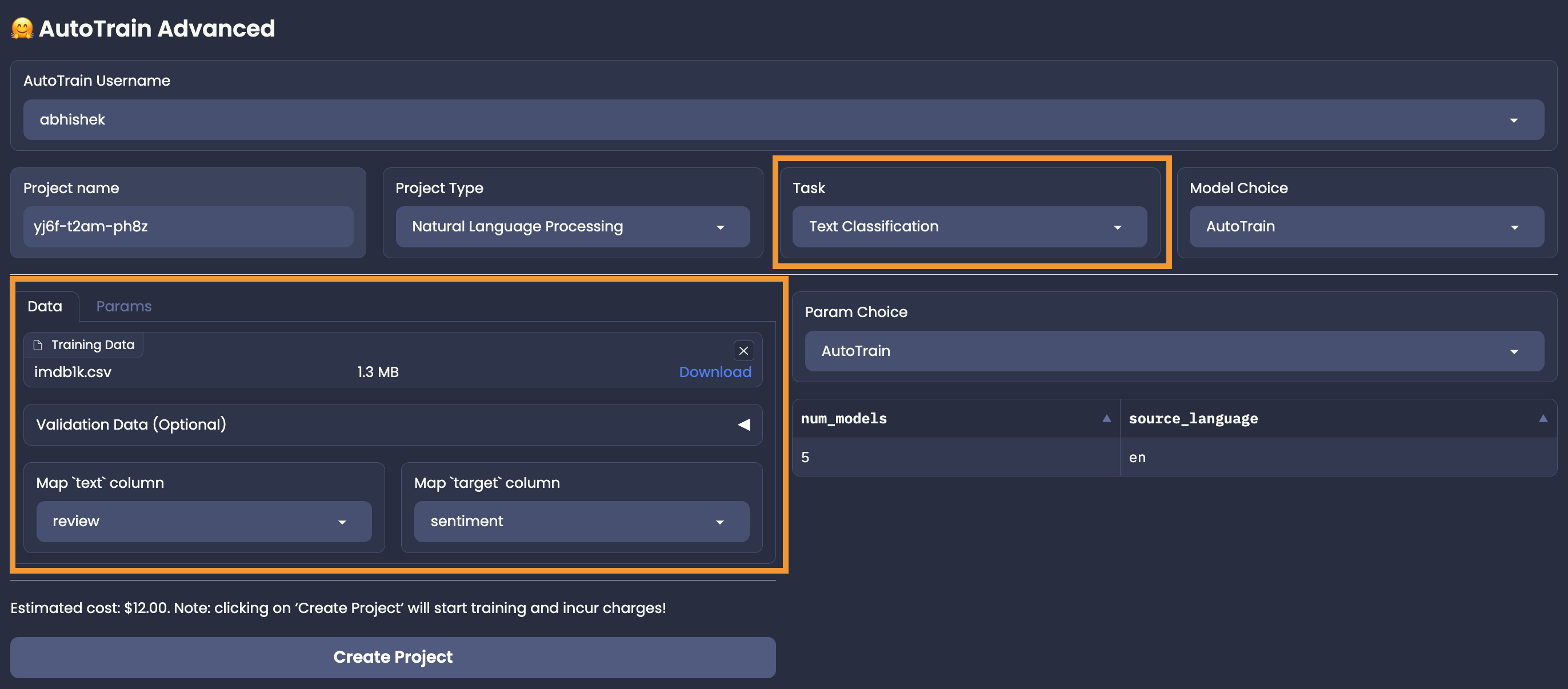
| | Once the data has been uploaded, you have to select the proper column mapping |
| |
|
| | ## Column Mapping |
| |
|
| |  |
| |
|
| | In our example, the text column is called `review` and the label column is called `sentiment`. |
| | Thus, we have to select `review` for the text column and `sentiment` for the label column. |
| | Please note that, if column mapping is not done correctly, the training will fail. |
| |
|
| |
|
| | ## Training |
| |
|
| | Once you have uploaded the data, selected the column mapping, and set the hyperparameters (AutoTrain or Manual mode), you can start the training. |
| | To start the training, please confirm the estimated cost and click on the `Create Project` button. |
| |
|
| |
|
| | |