

File size: 7,272 Bytes
1e92f2d |
1 2 3 4 5 6 7 8 9 10 11 12 13 14 15 16 17 18 19 20 21 22 23 24 25 26 27 28 29 30 31 32 33 34 35 36 37 38 39 40 41 42 43 44 45 46 47 48 49 50 51 52 53 54 55 56 57 58 59 60 61 62 63 64 65 66 67 68 69 70 71 72 73 74 75 76 77 78 79 80 81 82 83 84 85 86 87 88 89 90 91 92 93 94 95 96 97 98 99 100 101 102 103 104 105 106 107 108 109 110 111 112 113 114 115 116 117 118 119 120 121 122 123 124 125 126 127 128 129 130 131 132 133 134 135 136 137 138 139 140 141 142 143 144 145 146 147 148 149 150 151 152 153 154 155 156 157 158 159 160 161 162 163 164 165 166 167 168 169 170 171 172 173 174 175 176 177 178 179 180 181 182 183 184 185 186 187 188 189 190 191 192 193 194 195 196 197 198 199 200 201 202 203 204 205 206 207 208 209 210 211 212 213 214 215 216 217 218 219 220 221 222 223 224 225 226 227 228 229 230 231 232 233 234 235 236 237 |
# Select Dropdown
React component used to display a dropdown selector.
It can be utilized via two different techniques: children components or an options array. These techniques are available because certain use cases prefer the "selection" logic to be built into `SelectDropdown`, while others prefer to explicitly define that logic elsewhere.
---
## Using Children
The children technique is appropriate when you'd like to define the "selection" logic at the same point where `<SelectDropdown>` is implemented.
A good example for this case is navigation. Sometimes the option that is selected is defined by the route, other times it's a state value, external prop, etc.
```jsx
import SelectDropdown from 'calypso/components/select-dropdown';
export default function MyComponent() {
return (
<SelectDropdown selectedText="Published">
<SelectDropdown.Item selected path="/published">
Published
</SelectDropdown.Item>
<SelectDropdown.Item path="/scheduled">Scheduled</SelectDropdown.Item>
<SelectDropdown.Item path="/drafts">Drafts</SelectDropdown.Item>
<SelectDropdown.Item path="/trashed">Trashed</SelectDropdown.Item>
</SelectDropdown>
);
}
```
The key here is that it's up to the parent component to explicitly define things like: which item is selected, what the selected text is (used in the dropdown header), and potentially `onClick` callbacks, etc.
### Props
#### Select Dropdown
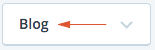
`selectedText`
Used for displaying the text on the dropdown header.
`selectedCount`
Used for displaying the count on the dropdown header.
`selectedIcon`
Used for displaying an icon on the dropdown header.
`className`
Optional extra class(es) to be applied to the `.select-dropdown`.
`tabIndex`
Optional tabIndex setting to override tab order via keyboard navigation. By default this is set to `0` which simply puts the element in the tabbing flow according to the component's placement in the document.
`disabled`
Used to determine whether the select dropdown is in a disabled state. When disabled it will not respond to interaction and will render to appear disabled.
`ariaLabel`
Optional dropdown header label that can be used to improve the accessibility for screen readers.
#### Dropdown Item
`selected`
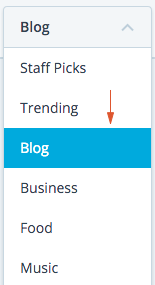
Boolean representing the selected visual state. `selected={ true }` creates a blue background on the selected item.
`count`
Optional number to show a Count next to the item text.
`icon`
Optional icon to show before the item text.
`path`
Optional URL to navigate to when option is clicked.
`disabled`
Optional bool to disable dropdown item.
`onClick`
Optional callback that will be applied when a `SelectDropdown.Item` has been clicked. This could be used for updating a parent's state, tracking analytics, etc.
`ariaLabel`
Optional dropdown item label that can be used to improve the accessibility for screen readers.
### Label
An item "label" can be added like as a sibling to `SelectDropdown.Item`. The purpose
of this `SelectDropdown.Label` component is used to display a static item, for example, to group
items.
### Separator
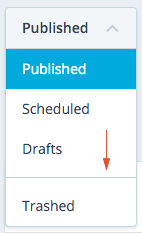
As a sibling to `SelectDropdown.Item`, an item "separator" or horizontal line can be used to visually separate items.
```js
import SelectDropdown from 'calypso/components/select-dropdown';
export default class extends React.Component {
// ...
render() {
return (
<SelectDropdown selectedText="Published">
<SelectDropdown.Label>
<em>Post status</em>
</SelectDropdown.Label>
<SelectDropdown.Item selected path="/published">
Published
</SelectDropdown.Item>
<SelectDropdown.Item path="/scheduled">Scheduled</SelectDropdown.Item>
<SelectDropdown.Item path="/drafts">Drafts</SelectDropdown.Item>
<SelectDropdown.Separator />
<SelectDropdown.Item path="/trashed">Trashed</SelectDropdown.Item>
</SelectDropdown>
);
}
}
```
---
## Using options array
`SelectDropdown` can also be used by passing in an `options` array as a prop. This technique is great for situations where you don't want to explicitly define things like what happens when an item is clicked or which item is currently selected, etc.
A good example for this case is a form element. You don't want to have to write the logic for updating the component when a new selection is made, but you might want to hook into certain events like: when a new selection is made, what was the option?
> **NOTE** - there is still more work here in order to be fully functional as a form element, not recommended use case... yet.
```js
import SelectDropdown from 'calypso/components/select-dropdown';
const options = [
{ label: 'Post status', isLabel: true },
{ value: 'published', label: 'Published' },
{ value: 'scheduled', label: 'Scheduled' },
{ value: 'drafts', label: 'Drafts' },
{ value: 'trashed', label: 'Trashed' },
];
export default class extends React.Component {
// ...
handleOnSelect = ( option ) => {
console.log( 'selected option:', option ); // full object of selected option
};
render() {
return <SelectDropdown options={ options } onSelect={ this.handleOnSelect } />;
}
}
```
Note that all the "selection" logic will be applied in `SelectDropdown` itself using a simple `selected` value comparison in state. It will update itself when an option has been clicked.
### Props
`options`
The main data set for rendering out the various options.
```js
const options = [
{
value: 'the value', // *required* - (string) tracked by component
label: 'the label', // *required* - (string) displayed to user
isLabel: true, // optional - (boolean) set this item like a static label
path: '/', // optional - (string) URL to navigate when clicked
},
// ...
];
```
`initialSelected`
Optional string representing the initial selected option's `value`. Default will be the first option's `value`.
`compact`
Optional boolean indicating the dropdown will be rendered in compact mode
`onSelect`
Optional callback that will be run whenever a new selection has been clicked.
`onToggle`
Optional callback that will be run after the dropdown is opened or closed. An event object is passed, including a `target` property equal to the `SelectDropdown` React element instance, and `open` equal to the current toggle state of the dropdown.
### Label
Adding `isLabel` key set to `true` into the item object will create a `SelectDropdown.Label` component.
```js
const options = [
{ label: 'Post status', isLabel: true },
{ value: 'published', label: 'Published' },
{ value: 'scheduled', label: 'Scheduled' },
{ value: 'drafts', label: 'Drafts' },
null,
{ value: 'trashed', label: 'Trashed' },
];
```
### Separator
Using a `null` or `false` item in the `options` will render an item "separator" or horizontal line can be used to visually separate items.

```js
const options = [
{ value: 'published', label: 'Published' },
{ value: 'scheduled', label: 'Scheduled' },
{ value: 'drafts', label: 'Drafts' },
null,
{ value: 'trashed', label: 'Trashed' },
];
```
|