---
title: TimeLinR
emoji: ⌛
colorFrom: blue
colorTo: pink
sdk: docker
app_port: 8501
app_file: app.py
pinned: false
license: mit
---
TimeLinR
~Your Timeline, Your Way~
[](https://huggingface.co/spaces/Sunwood-ai-labs/TimeLinR)[](https://github.com/Sunwood-ai-labs/TimeLinR)[](https://github.com/Sunwood-ai-labs/TimeLinR)[](https://github.com/Sunwood-ai-labs/TimeLinR)[
](https://github.com/Sunwood-ai-labs/TimeLinR)
## Introduction
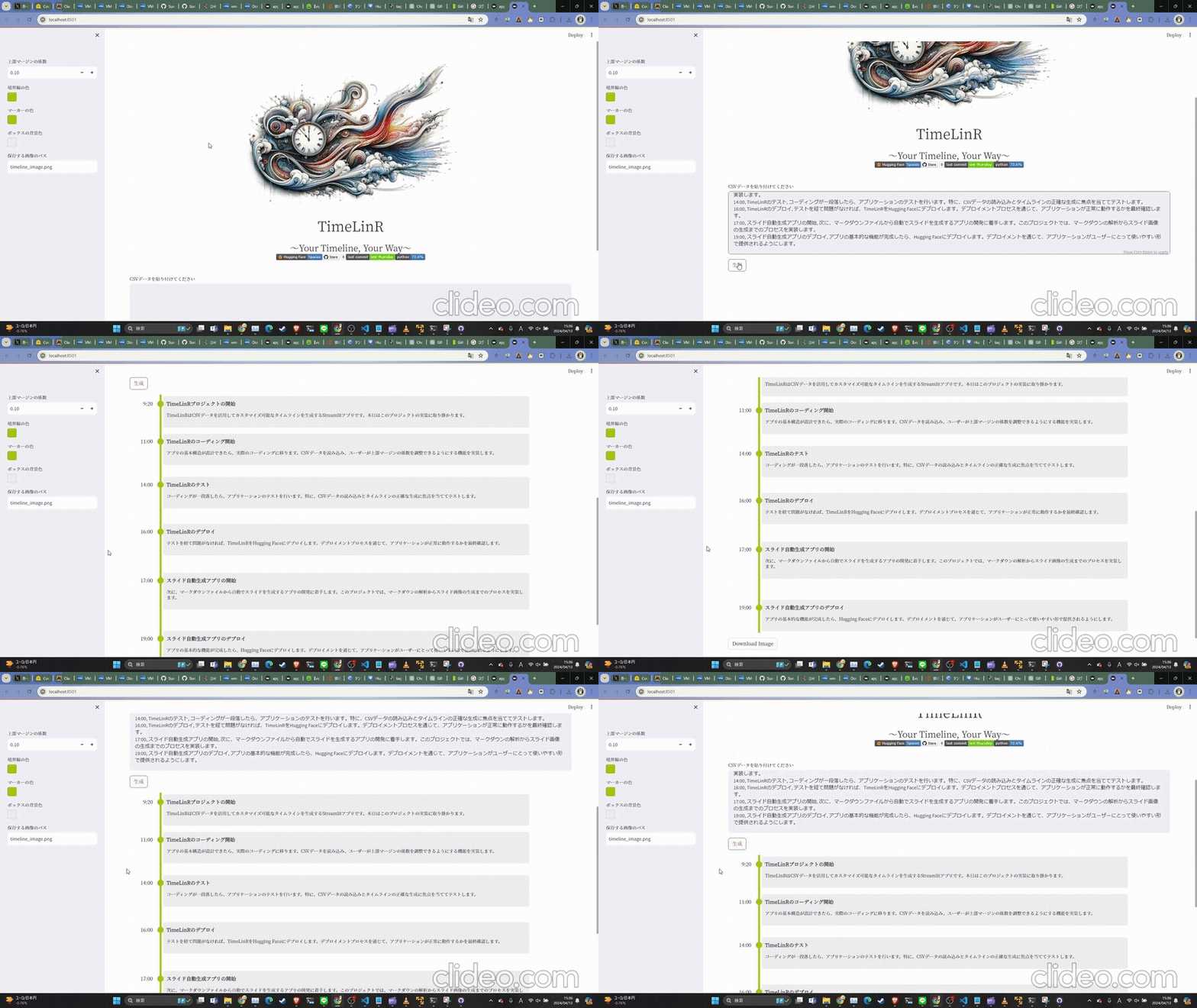
- TimeLinRは、CSVデータを使用してカスタマイズ可能なタイムラインを生成するStreamlitアプリケーションです。
- ユーザーは、CSVデータを入力し、上部マージンの係数やテーマカラーを調整することで、自分だけのユニークなタイムラインを作成できます。
- TimeLinRは、時間の流れを直感的に可視化し、スケジュール管理やイベントの記録に役立ちます。
- 生成されたタイムラインはPNG画像としてエクスポートできます。
>[!TIP]
>このリポジトリは[SourceSage](https://github.com/Sunwood-ai-labs/SourceSage)を活用しており、リリースノートやREADME、コミットメッセージの9割は[SourceSage](https://github.com/Sunwood-ai-labs/SourceSage) + [claude.ai](https://claude.ai/)で生成しています。
## Demo
[](https://huggingface.co/spaces/Sunwood-ai-labs/TimeLinR)
## Updates
- [v3.0.0 (2024-04-13)](https://github.com/Sunwood-ai-labs/TimeLinR/releases/tag/v3.0.0):
- Docker環境設定の導入
- Git LFSを用いた画像ファイルの管理
- HTMLから画像生成機能の強化
- ドキュメント更新とUI改善
- v2.0.0 (2023-04-11):
- タイムラインのテーマカラーのカスタマイズ機能を追加
- タイムラインのPNG画像エクスポート機能を実装
- コードのリファクタリングとバグ修正
- v1.0.0 (2023-04-11): 初回リリース
## Getting Started
### インストール
1. リポジトリをクローンします。
```
git clone https://github.com/Sunwood-ai-labs/TimeLinR.git
```
2. 必要な依存関係をインストールします。
```
pip install -r requirements.txt
```
### 使用方法
1. `app.py`を実行してStreamlitアプリケーションを起動します。
```
streamlit run app.py
```
2. CSVデータを入力欄に貼り付けます。CSVデータのフォーマットは以下の通りです。
```
時間,タイトル,内容
9:20,タイトル1,内容テキストテキストテキスト
10:20,タイトル2,内容テキストテキストテキスト
19:00,タイトル3,内容テキストテキストテキスト
```
3. 上部マージンの係数とテーマカラーを調整して、タイムラインの見た目を変更します。
4. 「生成」ボタンをクリックして、タイムラインを生成します。
5. 生成されたタイムラインをPNG画像としてダウンロードできます。
## Deployment
- TimeLinRは、Streamlitアプリケーションとして構築されているため、Streamlitの公式ドキュメントに従ってデプロイできます。
- Hugging Face Spacesでのデモ: [TimeLinR Demo](https://huggingface.co/spaces/Sunwood-ai-labs/TimeLinR)
## Contributing
- TimeLinRへの貢献を歓迎します。バグ報告、機能リクエスト、プルリクエストをお待ちしております。