
Spaces:
Paused


Paused
File size: 12,795 Bytes
3bc87c7 f4286d8 a3c4d24 f4286d8 a3c4d24 f4286d8 a3c4d24 f4286d8 a3c4d24 f4286d8 a3c4d24 f4286d8 a3c4d24 f4286d8 a3c4d24 f4286d8 a3c4d24 f4286d8 | 1 2 3 4 5 6 7 8 9 10 11 12 13 14 15 16 17 18 19 20 21 22 23 24 25 26 27 28 29 30 31 32 33 34 35 36 37 38 39 40 41 42 43 44 45 46 47 48 49 50 51 52 53 54 55 56 57 58 59 60 61 62 63 64 65 66 67 68 69 70 71 72 73 74 75 76 77 78 79 80 81 82 83 84 85 86 87 88 89 90 91 92 93 94 95 96 97 98 99 100 101 102 103 104 105 106 107 108 109 110 111 112 113 114 115 116 117 118 119 120 121 122 123 124 125 126 127 128 129 130 131 132 133 134 135 136 137 138 139 140 141 142 143 144 145 146 147 148 149 150 151 152 153 154 155 156 157 158 159 160 161 162 163 164 165 166 167 168 169 170 171 172 173 174 175 176 177 178 179 180 181 182 183 184 185 186 187 188 189 190 191 192 193 194 195 196 197 198 199 200 201 202 203 204 205 206 207 208 209 210 211 212 213 214 215 216 217 218 219 220 221 222 223 224 225 226 227 228 229 230 231 232 233 234 235 236 237 238 239 240 241 242 243 244 245 246 247 248 249 250 251 252 253 254 255 256 257 258 259 260 261 262 263 264 265 266 267 268 269 270 271 272 273 274 275 276 277 278 279 280 281 282 283 284 285 286 287 288 289 290 291 292 293 294 295 296 297 298 299 300 301 302 303 304 305 306 307 308 309 310 311 312 313 314 315 316 317 318 319 320 321 322 323 324 325 326 327 328 329 330 331 332 333 334 335 336 337 338 339 340 341 342 343 344 345 346 347 348 349 350 351 352 353 354 355 356 357 358 359 360 361 362 363 364 365 366 367 368 369 370 371 372 373 374 375 376 377 378 379 380 381 382 383 384 385 386 387 388 389 390 391 392 393 394 395 396 397 398 399 400 401 402 403 404 405 406 407 408 409 410 411 412 413 414 415 416 417 418 419 420 421 | ---
title: Gemini Business2API
emoji: 💎
colorFrom: pink
colorTo: blue
sdk: docker
pinned: false
license: mit
---
# Gemini Business2API
将 Google Gemini Business API 转换为 OpenAI 兼容接口,支持多账户负载均衡。
感谢Claude老师!
[](https://opensource.org/licenses/MIT)
[](https://www.python.org/downloads/)
**快速部署到 HuggingFace Spaces:**
[](https://huggingface.co/spaces/xiaoyukkkk/gemini-business2api?duplicate=true)
## ✨ 功能特性
- ✅ **OpenAI API 完全兼容** - 无缝对接现有工具
- ✅ **流式响应支持** - 实时输出
- ✅ **多模态支持** - 文本 + 图片输入
- ✅ **图片生成 & 图生图** - 支持 `gemini-3-pro-preview` 模型
- ✅ **多账户负载均衡** - 支持多账户轮询,故障自动转移
- ✅ **智能会话复用** - 自动管理对话历史
- ✅ **JWT自动管理** - 无需手动刷新令牌
- 📊 **可视化管理面板** - 实时监控账户状态
- 📝 **公开日志系统** - 实时查看服务运行状态
## 📸 功能展示
### 图片生成效果
<table>
<tr>
<td><img src="https://github.com/user-attachments/assets/5378ad0b-2a96-4239-9582-df68e8ffa53f" alt="图片生成示例1" width="800"/></td>
<td><img src="https://github.com/user-attachments/assets/82aeedf8-ad87-40bc-ae41-defa7271e8b1" alt="图片生成示例2" width="800"/></td>
</tr>
<tr>
<td><img src="https://github.com/user-attachments/assets/772d29c3-a75c-4ab8-98eb-cefea164b62c" alt="图片生成示例3" width="800"/></td>
<td><img src="https://github.com/user-attachments/assets/15d36604-dedd-4411-bbfb-f4cf95365101" alt="图片生成示例4" width="800"/></td>
</tr>
</table>
### 管理面板
<table>
<tr>
<td><img src="https://github.com/user-attachments/assets/42c0a906-e926-4199-97e4-73ac06381b07" alt="管理面板1" width="800"/></td>
<td><img src="https://github.com/user-attachments/assets/d6b9a16b-2ed1-4be9-8465-4c28f974daa7" alt="管理面板2" width="800"/></td>
</tr>
</table>
###开日志系统
<table>
<tr>
<td><img src="https://github.com/user-attachments/assets/8640d7ce-9d22-41de-9907-5c2292883f0c" alt="日志系统1" width="800"/></td>
<td><img src="https://github.com/user-attachments/assets/048a6253-fa7d-4e00-a748-2bb615e16638" alt="日志系统2" width="800"/></td>
</tr>
</table>
## 🚀 快速开始
### 方法一: HuggingFace Spaces 部署(推荐)
1. Fork 本项目到你的 GitHub 账户
2. 在 [HuggingFace Spaces](https://huggingface.co/spaces) 创建新 Space
3. 选择 Docker SDK,关联你的 GitHub 仓库
4. 配置环境变量(Settings → Variables and secrets):
```bash
ACCOUNTS_CONFIG='[{"secure_c_ses":"your_cookie","csesidx":"your_idx","config_id":"your_config"}]'
PATH_PREFIX=path_prefix
ADMIN_KEY=your_admin_key
API_KEY=your_api_key
LOGO_URL=https://your-domain.com/logo.png
CHAT_URL=https://your-chat-app.com
```
5. 等待构建完成(约 2-3 分钟)
6. 访问你的 Space URL 开始使用
### 方法二: Docker 部署
```bash
# 1. 克隆项目
git clone https://github.com/YOUR_USERNAME/gemini-business2api.git
cd gemini-business2api
# 2. 构建并运行
docker build -t gemini-business2api .
docker run -d \
-p 7860:7860 \
-e ACCOUNTS_CONFIG='[{"secure_c_ses":"your_cookie","csesidx":"your_idx","config_id":"your_config"}]' \
-e PATH_PREFIX=path_prefix \
-e ADMIN_KEY=your_admin_key \
-e API_KEY=your_api_key \
-e LOGO_URL=https://your-domain.com/logo.png \
-e CHAT_URL=https://your-chat-app.com \
gemini-business2api
```
### 方法三: 本地运行
```bash
# 1. 安装依赖
pip install -r requirements.txt
# 2. 配置环境变量
cp .env.example .env
# 编辑 .env 文件,填入实际配置
# 3. 启动服务
python main.py
```
服务将在 `http://localhost:7860` 启动
## ⚙️ 配置说明
### 必需的环境变量
```bash
# 账户配置(必需)
ACCOUNTS_CONFIG='[{"secure_c_ses":"your_cookie","csesidx":"your_idx","config_id":"your_config"}]'
# 路径前缀(必需)
PATH_PREFIX=path_prefix
# 管理员密钥(必需)
ADMIN_KEY=your_admin_key
# API访问密钥(可选,推荐设置)
API_KEY=your_api_key
# 图片URL生成(可选,推荐设置)
BASE_URL=https://your-domain.com
# 全局代理(可选)
PROXY=http://127.0.0.1:7890
# 公开展示配置(可选)
LOGO_URL=https://your-domain.com/logo.png
CHAT_URL=https://your-chat-app.com
MODEL_NAME=gemini-business
```
### 多账户配置示例
```bash
ACCOUNTS_CONFIG='[
{
"id": "account_1",
"secure_c_ses": "CSE.Ad...",
"csesidx": "498...",
"config_id": "0cd...",
"host_c_oses": "COS.Af...",
"expires_at": "2025-12-23 23:03:20"
},
{
"id": "account_2",
"secure_c_ses": "CSE.Ad...",
"csesidx": "208...",
"config_id": "782..."
}
]'
```
**配置字段说明**:
- `secure_c_ses` (必需): `__Secure-C_SES` Cookie 值
- `csesidx` (必需): 会话索引
- `config_id` (必需): 配置 ID
- `id` (可选): 账户标识
- `host_c_oses` (可选): `__Host-C_OSES` Cookie 值
- `expires_at` (可选): 过期时间,格式 `YYYY-MM-DD HH:MM:SS`
**提示**: 参考项目根目录的 `.env.example` 和 `accounts_config.example.json` 文件
## 🔧 获取配置参数
1. 访问 [Google Gemini Business](https://business.gemini.google)
2. 打开浏览器开发者工具 (F12)
3. 切换到 **Application** → **Cookies**,找到:
- `__Secure-C_SES` → `secure_c_ses`
- `__Host-C_OSES` → `host_c_oses` (可选)
4. 切换到 **Network** 标签,刷新页面
5. 找到 `streamGenerate` 请求,查看 Payload:
- `csesidx` → `csesidx`
- `configId` → `config_id`
## 📖 API 使用
### 支持的模型
| 模型名称 | 说明 | 图片生成 |
| ------------------------ | ---------------------- | -------- |
| `gemini-auto` | 自动选择最佳模型(默认) | ❌ |
| `gemini-2.5-flash` | Flash 2.5 - 快速响应 | ❌ |
| `gemini-2.5-pro` | Pro 2.5 - 高质量输出 | ❌ |
| `gemini-3-flash-preview` | Flash 3 预览版 | ❌ |
| `gemini-3-pro-preview` | Pro 3 预览版 | ✅ |
### 基本对话
```bash
curl -X POST http://localhost:7860/v1/v1/chat/completions \
-H "Content-Type: application/json" \
-H "Authorization: Bearer your_api_key" \
-d '{
"model": "gemini-2.5-flash",
"messages": [
{"role": "user", "content": "Hello!"}
],
"stream": true
}'
```
### 图片输入(多模态)
```bash
curl -X POST http://localhost:7860/v1/v1/chat/completions \
-H "Content-Type: application/json" \
-H "Authorization: Bearer your_api_key" \
-d '{
"model": "gemini-2.5-pro",
"messages": [
{
"role": "user",
"content": [
{"type": "text", "text": "这张图片里有什么?"},
{"type": "image_url", "image_url": {"url": "data:image/jpeg;base64,<base64_encoded_image>"}}
]
}
]
}'
```
### 图片生成
```bash
curl -X POST http://localhost:7860/v1/v1/chat/completions \
-H "Content-Type: application/json" \
-H "Authorization: Bearer your_api_key" \
-d '{
"model": "gemini-3-pro-preview",
"messages": [
{"role": "user", "content": "画一只可爱的猫咪"}
]
}'
```
### 图生图(Image-to-Image)
```bash
curl -X POST http://localhost:7860/v1/v1/chat/completions \
-H "Content-Type: application/json" \
-H "Authorization: Bearer your_api_key" \
-d '{
"model": "gemini-3-pro-preview",
"messages": [
{
"role": "user",
"content": [
{"type": "text", "text": "将这张图片改成水彩画风格"},
{"type": "image_url", "image_url": {"url": "data:image/jpeg;base64,<base64_encoded_image>"}}
]
}
]
}'
```
### 其他端点
| 端点 | 方法 | 说明 |
| -------------------------- | ---- | --------------------- |
| `/{PATH_PREFIX}/v1/models` | GET | 获取模型列表 |
| `/{PATH_PREFIX}/admin` | GET | 管理面板(需ADMIN_KEY) |
| `/public/log/html` | GET | 公开日志页面 |
| `/health` | GET | 健康检查 |
**访问示例**:
假设你的配置为:
- Space URL: `https://your-space.hf.space`
- PATH_PREFIX: `my_prefix`
- ADMIN_KEY: `my_admin_key`
则访问地址为:
- **管理面板**: `https://your-space.hf.space/my_prefix/admin?key=my_admin_key`
- **公开日志**: `https://your-space.hf.space/public/log/html`
- **API 端点**: `https://your-space.hf.space/my_prefix/v1/chat/completions`
## ❓ 常见问题
### 1. 图片生成后在哪里找到文件?
- **临时存储**: 图片保存在 `./images/`,可通过 URL 访问
- **重启后会丢失**,建议使用持久化存储
### 2. 如何设置 BASE_URL?
**自动检测**(推荐):
- 不设置 `BASE_URL` 环境变量
- 系统自动从请求头检测域名
**手动设置**:
```bash
BASE_URL=https://your-domain.com
```
**使用反向代理**:
如果你使用自己的域名反向代理到 HuggingFace Space,可以通过以下方式配置:
**Nginx 配置示例**:
```nginx
location / {
proxy_pass https://your-username-space-name.hf.space;
proxy_set_header Host your-username-space-name.hf.space;
proxy_ssl_server_name on;
}
```
**Deno Deploy 配置示例**:
```typescript
async function handler(request: Request): Promise<Response> {
const url = new URL(request.url);
url.host = 'your-username-space-name.hf.space';
return fetch(new Request(url, request));
}
Deno.serve(handler);
```
配置反向代理后,将 `BASE_URL` 设置为你的自定义域名即可。
### 3. API_KEY 和 ADMIN_KEY 的区别?
- **API_KEY**: 保护聊天接口 (`/v1/chat/completions`)
- **ADMIN_KEY**: 保护管理面板 (`/admin`)
可以设置相同的值,也可以分开
### 4. 如何查看日志?
- **公开日志**: 访问 `/public/log/html` (无需密钥)
- **管理面板**: 访问 `/admin?key=YOUR_ADMIN_KEY`
## 🔧 油猴脚本使用说明
本项目提供油猴脚本辅助获取配置参数,使用前需要配置 TamperMonkey:
### TamperMonkey 设置
1. **配置模式**:改为 `高级`
2. **安全设置**:允许脚本访问 Cookie 改为 `All`
### Google Chrome 额外设置
1. 打开油猴扩展设置
2. 启用 **允许运行用户脚本**
3. 设置 **有权访问的网站** 权限
配置完成后即可使用脚本自动获取 `secure_c_ses`、`csesidx`、`config_id` 等参数。
---
## 📁 项目结构
```
gemini-business2api/
├── main.py # 主程序
├── util/ # 工具模块
│ └── streaming_parser.py
├── requirements.txt # Python依赖
├── Dockerfile # Docker构建
├── README.md # 项目文档
├── .env.example # 环境变量配置示例
├── accounts_config.example.json # 多账户配置示例
└── .gitignore # Git忽略文件
```
**运行时生成的目录**:
- `images/` - 生成的图片存储
- `static/` - 静态文件缓存
- `logs/` - 日志文件
## 🛠️ 技术栈
- **Python 3.11+**
- **FastAPI** - 现代Web框架
- **Uvicorn** - ASGI服务器
- **httpx** - HTTP客户端
- **Docker** - 容器化部署
## 📝 License
MIT License - 查看 [LICENSE](LICENSE) 文件了解详情
---
## 🙏 致谢
- 源项目:[heixxin/gemini](https://huggingface.co/spaces/heixxin/gemini/tree/main) | [Linux.do 讨论](https://linux.do/t/topic/1226413)
- 绘图参考:[Gemini-Link-System](https://github.com/qxd-ljy/Gemini-Link-System) | [Linux.do 讨论](https://linux.do/t/topic/1234363)
- Gemini Business 2API Helper 参考:[Linux.do 讨论](https://linux.do/t/topic/1231008)
---
## ⭐ Star History
[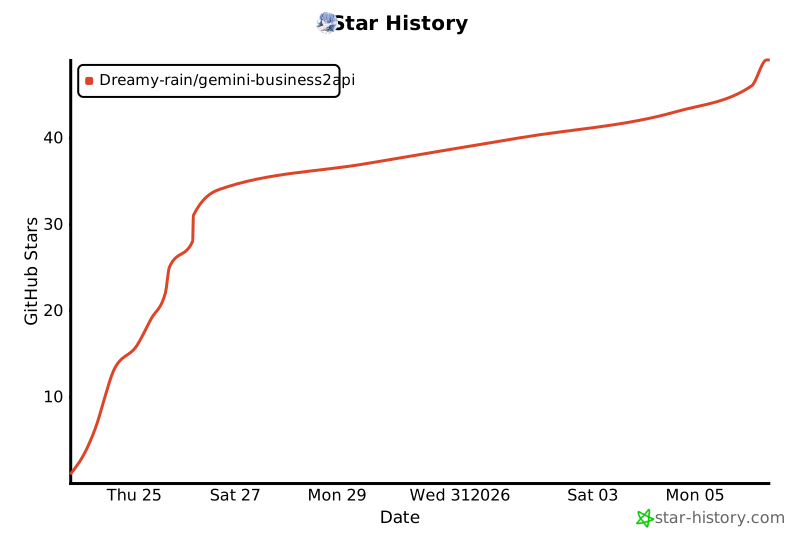](https://star-history.com/#Dreamy-rain/gemini-business2api&Date)
---
**如果这个项目对你有帮助,请给个 ⭐ Star!**
|