

metadata
tags:
  - stable-diffusion-xl
  - stable-diffusion-xl-diffusers
  - diffusers-training
  - text-to-image
  - diffusers
  - lora
  - template:sd-lora
widget:
  - text: >-
      In the style of <s0><s1>, a <s0><s1> 3d app icon of an yellow chicken on a
      yellow background
    output:
      url: image_0.png
  - text: >-
      In the style of <s0><s1>, a <s0><s1> 3d app icon of an yellow chicken on a
      yellow background
    output:
      url: image_1.png
  - text: >-
      In the style of <s0><s1>, a <s0><s1> 3d app icon of an yellow chicken on a
      yellow background
    output:
      url: image_2.png
  - text: >-
      In the style of <s0><s1>, a <s0><s1> 3d app icon of an yellow chicken on a
      yellow background
    output:
      url: image_3.png
base_model: stabilityai/stable-diffusion-xl-base-1.0
instance_prompt: 3d icon in the style of <s0><s1>
license: openrail++
SDXL LoRA DreamBooth - Cicistawberry/3d-icon-v2

- Prompt
- In the style of <s0><s1>, a <s0><s1> 3d app icon of an yellow chicken on a yellow background

- Prompt
- In the style of <s0><s1>, a <s0><s1> 3d app icon of an yellow chicken on a yellow background
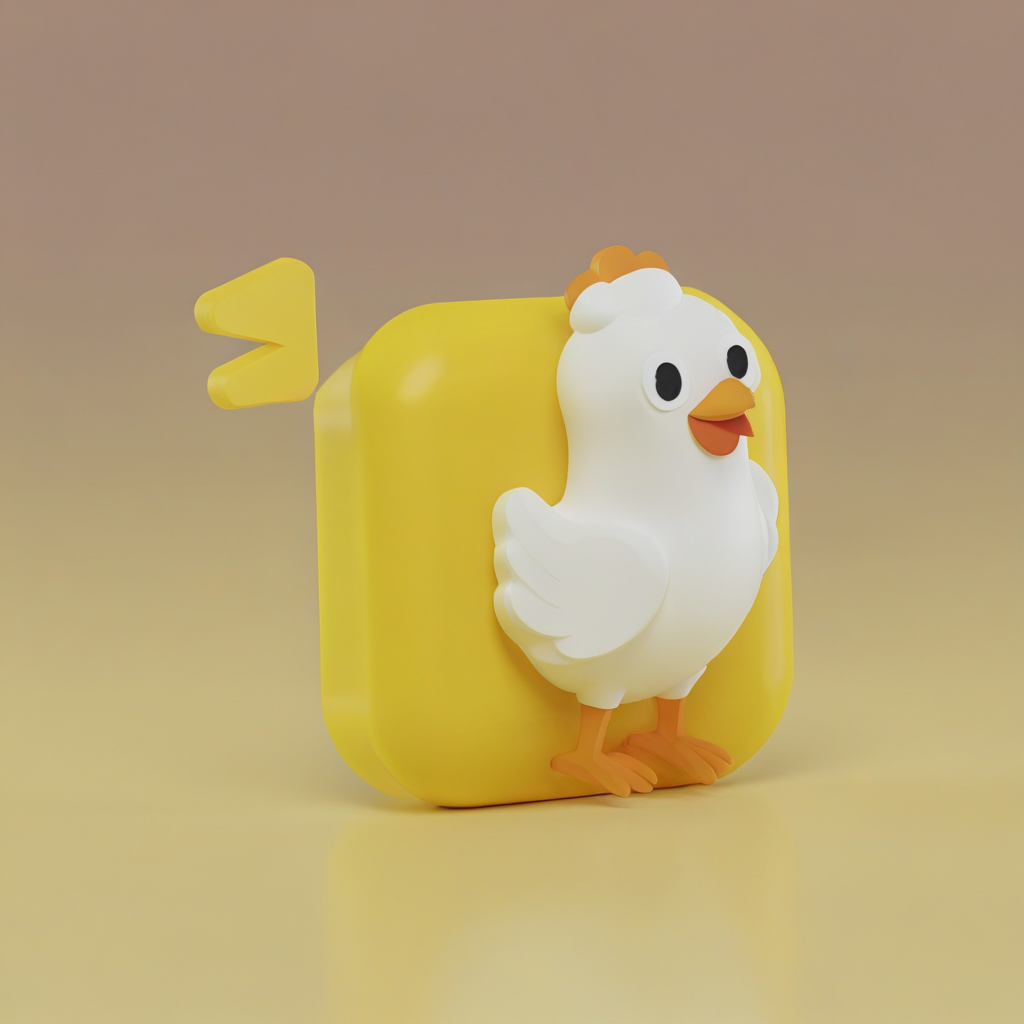
- Prompt
- In the style of <s0><s1>, a <s0><s1> 3d app icon of an yellow chicken on a yellow background

- Prompt
- In the style of <s0><s1>, a <s0><s1> 3d app icon of an yellow chicken on a yellow background
Model description
These are Cicistawberry/3d-icon-v2 LoRA adaption weights for stabilityai/stable-diffusion-xl-base-1.0.
Download model
Use it with UIs such as AUTOMATIC1111, Comfy UI, SD.Next, Invoke
- LoRA: download
3d-icon-v2.safetensorshere 💾.- Place it on your
models/Lorafolder. - On AUTOMATIC1111, load the LoRA by adding
<lora:3d-icon-v2:1>to your prompt. On ComfyUI just load it as a regular LoRA.
- Place it on your
- Embeddings: download
3d-icon-v2_emb.safetensorshere 💾.- Place it on it on your
embeddingsfolder - Use it by adding
3d-icon-v2_embto your prompt. For example,3d icon in the style of 3d-icon-v2_emb(you need both the LoRA and the embeddings as they were trained together for this LoRA)
- Place it on it on your
Use it with the 🧨 diffusers library
from diffusers import AutoPipelineForText2Image
import torch
from huggingface_hub import hf_hub_download
from safetensors.torch import load_file

pipeline = AutoPipelineForText2Image.from_pretrained('stabilityai/stable-diffusion-xl-base-1.0', torch_dtype=torch.float16).to('cuda')
pipeline.load_lora_weights('Cicistawberry/3d-icon-v2', weight_name='pytorch_lora_weights.safetensors')
embedding_path = hf_hub_download(repo_id='Cicistawberry/3d-icon-v2', filename='3d-icon-v2_emb.safetensors', repo_type="model")
state_dict = load_file(embedding_path)
pipeline.load_textual_inversion(state_dict["clip_l"], token=["<s0>", "<s1>"], text_encoder=pipeline.text_encoder, tokenizer=pipeline.tokenizer)
pipeline.load_textual_inversion(state_dict["clip_g"], token=["<s0>", "<s1>"], text_encoder=pipeline.text_encoder_2, tokenizer=pipeline.tokenizer_2)

image = pipeline('In the style of <s0><s1>, a <s0><s1> 3d app icon of an yellow chicken on a yellow background').images[0]
For more details, including weighting, merging and fusing LoRAs, check the documentation on loading LoRAs in diffusers
Trigger words
To trigger image generation of trained concept(or concepts) replace each concept identifier in you prompt with the new inserted tokens:
to trigger concept TOK → use <s0><s1> in your prompt
Details
All Files & versions.
The weights were trained using 🧨 diffusers Advanced Dreambooth Training Script.
LoRA for the text encoder was enabled. False.
Pivotal tuning was enabled: True.
Special VAE used for training: madebyollin/sdxl-vae-fp16-fix.