


| <p align="center"> | |
| <h1 align="center"><strong>LoGoPlanner: Localization Grounded Navigation Policy with Metric-aware Visual Geometry</strong></h1> | |
| <p align="center"> | |
| <a href='https://steinate.github.io/' target='_blank'>Jiaqi Peng</a>  | |
| <a href='https://wzcai99.github.io/' target='_blank'>Wenzhe Cai</a>  | |
| <a href='https://yuqiang-yang.github.io/' target='_blank'>Yuqiang Yang</a>  | |
| <a href='https://tai-wang.github.io/' target='_blank'>Tai Wang</a>  | |
| <a href='https://oa.ee.tsinghua.edu.cn/~shenyuan/' target='_blank'>Yuan Shen</a>  | |
| <a href='https://oceanpang.github.io/' target='_blank'>Jiangmiao Pang</a>  | |
| <br> | |
| Tsinghua University  | |
| Shanghai AI Laboratory  | |
| </p> | |
| </p> | |
| # 🏡 Introduction | |
| Most prior end-to-end navigation approaches rely on separate localization modules that require accurate sensor extrinsic calibration for self-state estimation, limiting their generalization across different robot embodiments and environments. To address this, we introduce **LoGoPlanner**, a localization-grounded, end-to-end navigation framework that advances the field by: | |
| 1. **Finetuning a long-horizon visual-geometry backbone** to ground predictions with absolute metric scale, enabling implicit state estimation for accurate localization. | |
| 2. **Reconstructing surrounding scene geometry** from historical observations to provide dense, fine-grained environmental awareness for reliable obstacle avoidance. | |
| 3. **Conditioning the policy** on implicit geometry bootstrapped by the above auxiliary tasks, thereby reducing error propagation and improving robustness. | |
| <div align="center"> | |
| <img src="https://steinate.github.io/logoplanner.github.io/static/images/motivation.svg" alt="Teaser" width="100%"> | |
| </div> | |
| # 💻 Simulation | |
| ### 🛠️ Installation | |
| We use the same environment as NavDP. Please follow the [installation instructions](https://github.com/InternRobotics/NavDP/blob/master/README.md#%EF%B8%8F-installation) from NavDP to configure the environment: | |
| ```bash | |
| conda activate navdp | |
| ``` | |
| Then install the required packages for the visual geometry model [Pi3](https://github.com/yyfz/Pi3): | |
| ```bash | |
| cd baselines/logoplanner | |
| pip install plyfile huggingface_hub safetensors | |
| ``` | |
| ### 🤔 Run the LoGoPlanner Model | |
| Navigate to `baselines/logoplanner` and run the following command to start the server: | |
| ```bash | |
| python logoplanner_server.py --port ${YOUR_PORT} --checkpoint ${SAVE_PTH_PATH} | |
| ``` | |
| ### 📊 Evaluation | |
| Open a new terminal and run the evaluation script from the `{NavDP_HOME}` directory: | |
| ```bash | |
| conda activate isaaclab | |
| python eval_startgoal_wheeled.py --port {PORT} --scene_dir {ASSET_SCENE} --scene_index {INDEX} --scene_scale {SCALE} | |
| ``` | |
| ### 😉 Example | |
| ```bash | |
| # Start the server | |
| conda activate navdp && python logoplanner_server.py --port 19999 --checkpoint logoplanner_policy.ckpt | |
| # Evaluate on scenes_home | |
| conda activate isaaclab && python eval_startgoal_wheeled.py --port 19999 --scene_dir scenes_home --scene_index 0 --scene_scale 0.01 | |
| # Evaluate on cluttered_hard | |
| conda activate isaaclab && python eval_startgoal_wheeled.py --port 19999 --scene_dir cluttered_hard --scene_index 0 --scene_scale 1.0 | |
| ``` | |
| # 🤖 Real-Robot Deployment | |
| [Lekiwi](https://github.com/SIGRobotics-UIUC/LeKiwi) is a fully open-source robotic car project developed by [SIGRobotics-UIUC](https://github.com/SIGRobotics-UIUC). It includes detailed 3D printing files and operation guides, designed to be compatible with the [LeRobot](https://github.com/huggingface/lerobot/tree/main) imitation learning framework. It also supports the SO101 robotic arm for a complete imitation learning pipeline. | |
| <div align="center"> | |
| <img width="400" src="https://files.seeedstudio.com/wiki/robotics/projects/lerobot/lekiwi/lekiwi_cad_v1.png" alt="LeKiwi CAD"> | |
| </div> | |
| ## 🛠️ Hardware | |
| #### Compute | |
| - Raspberry Pi 5 | |
| - Streaming to a laptop | |
| #### Drive | |
| - 3-wheel Kiwi (holonomic) drive with omni wheels | |
| #### Robot Arm (Optional) | |
| - [SO-ARM101](https://github.com/TheRobotStudio/SO-ARM100) | |
| #### Sensors | |
| - RGBD camera (e.g., Intel RealSense D455) | |
| ### 1️⃣ 3D Printing | |
| #### Parts | |
| SIGRobotics provides ready-to-print STL files for the 3D-printed parts listed below. These can be printed with generic PLA filament on consumer-grade FDM printers. Refer to the [3D Printing](https://github.com/SIGRobotics-UIUC/LeKiwi/blob/main/3DPrinting.md) section for more details. | |
| | Item | Quantity | Notes | | |
| | :----------------------------------------------------------- | :------: | :----------------------------------------------------------: | | |
| | [Base plate Top](https://github.com/SIGRobotics-UIUC/LeKiwi/tree/main/3DPrintMeshes/base_plate_layer2.stl) | 1 | | | |
| | [Base plate Bottom](https://github.com/SIGRobotics-UIUC/LeKiwi/tree/main/3DPrintMeshes/base_plate_layer1.stl) | 1 | | | |
| | [Drive motor mount](https://github.com/SIGRobotics-UIUC/LeKiwi/tree/main/3DPrintMeshes/drive_motor_mount_v2.stl) | 3 | | | |
| | [Servo wheel hub](https://github.com/SIGRobotics-UIUC/LeKiwi/tree/main/3DPrintMeshes/servo_wheel_hub.stl) | 3 | Requires supports<sup>[1](#footnote1)</sup> | | |
| | [Servo controller mount](https://github.com/SIGRobotics-UIUC/LeKiwi/tree/main/3DPrintMeshes/servo_controller_mount.stl) | 1 | | | |
| | [12V Battery mount](https://github.com/SIGRobotics-UIUC/LeKiwi/tree/main/3DPrintMeshes/battery_mount.stl) **or** [12V EU Battery mount](https://github.com/SIGRobotics-UIUC/LeKiwi/tree/main/3DPrintMeshes/battery_mount_eu.stl) **or** [5V Battery mount](https://github.com/SIGRobotics-UIUC/LeKiwi/tree/main/3DPrintMeshes/5v_specific/5v_power_bank_holder.stl) | 1 | | | |
| | [RasPi case Top](https://github.com/SIGRobotics-UIUC/LeKiwi/tree/main/3DPrintMeshes/pi_case_top.stl) | 1 | <sup>[2](#footnote2)</sup> | | |
| | [RasPi case Bottom](https://github.com/SIGRobotics-UIUC/LeKiwi/tree/main/3DPrintMeshes/pi_case_bottom.stl) | 1 | <sup>[2](#footnote2)</sup> | | |
| | Arducam [base mount](https://github.com/SIGRobotics-UIUC/LeKiwi/tree/main/3DPrintMeshes/base_camera_mount.stl) and [wrist mount](https://github.com/SIGRobotics-UIUC/LeKiwi/tree/main/3DPrintMeshes/wrist_camera_mount.stl) | 1 | Compatible with [this camera](https://www.amazon.com/Arducam-Camera-Computer-Without-Microphone/dp/B0972KK7BC) | | |
| | Webcam [base mount](https://github.com/SIGRobotics-UIUC/LeKiwi/tree/main/3DPrintMeshes/webcam_mount/webcam_mount.stl), [gripper insert](https://github.com/SIGRobotics-UIUC/LeKiwi/tree/main/3DPrintMeshes/webcam_mount/so100_gripper_cam_mount_insert.stl), and [wrist mount](https://github.com/SIGRobotics-UIUC/LeKiwi/tree/main/3DPrintMeshes/webcam_mount/webcam_mount_wrist.stl) | 1 | Compatible with [this camera](https://www.amazon.fr/Vinmooog-equipement-Microphone-Enregistrement-conférences/dp/B0BG1YJWFN/) | | |
| | [Modified Follower Arm Base](https://github.com/SIGRobotics-UIUC/LeKiwi/tree/main/3DPrintMeshes/modified_base_arm.stl) | 1 | Use tree supports. **Optional but recommended if you have not built the SO-100 arm** | | |
| | [Follower arm](https://github.com/TheRobotStudio/SO-ARM100) | 1 | | | |
| | [Leader arm](https://github.com/TheRobotStudio/SO-ARM100) | 1 | | | |
| ### 2️⃣ Assembly | |
| Refer to the [Assembly](https://github.com/SIGRobotics-UIUC/LeKiwi/blob/main/Assembly.md) guide for detailed instructions. | |
| We also recommend the following detailed tutorial from [seeedstudio](https://wiki.seeedstudio.com/lerobot_lekiwi/) and its accompanying video series: | |
| [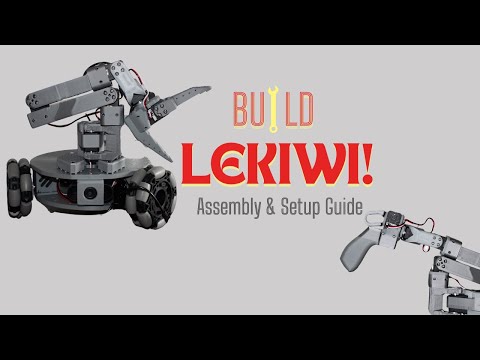](https://www.youtube.com/watch?v=cKWAjEV4aSg) | |
| ### 3️⃣ Installation | |
| #### Install LeRobot on Raspberry Pi | |
| 1. **Install Miniconda** | |
| ```bash | |
| mkdir -p ~/miniconda3 | |
| wget https://repo.anaconda.com/miniconda/Miniconda3-latest-Linux-aarch64.sh -O ~/miniconda3/miniconda.sh | |
| bash ~/miniconda3/miniconda.sh -b -u -p ~/miniconda3 | |
| rm ~/miniconda3/miniconda.sh | |
| ``` | |
| 2. **Restart Shell** | |
| Run `source ~/.bashrc` (or `source ~/.bash_profile` for Mac, or `source ~/.zshrc` for zsh). | |
| 3. **Create and Activate Conda Environment** | |
| ```bash | |
| conda create -y -n lerobot python=3.10 | |
| conda activate lerobot | |
| ``` | |
| 4. **Clone LeRobot** | |
| ```bash | |
| git clone https://github.com/huggingface/lerobot.git ~/lerobot | |
| ``` | |
| 5. **Install FFmpeg** | |
| ```bash | |
| conda install ffmpeg -c conda-forge | |
| ``` | |
| 6. **Install LeRobot with LeKiwi Dependencies** | |
| ```bash | |
| cd ~/lerobot && pip install -e ".[lekiwi]" | |
| ``` | |
| #### Install LeRobot on Laptop/PC | |
| Follow the same steps as above for the Raspberry Pi installation. | |
| #### Install RealSense SDK on Raspberry Pi | |
| Refer to [this guide](https://docs.ros.org/en/humble/p/librealsense2/doc/installation_raspbian.html). | |
| 1. **Check System Version** | |
| ```bash | |
| uname -a | |
| ``` | |
| 2. **Increase Swap Size** | |
| ```bash | |
| sudo vim /etc/dphys-swapfile | |
| # Set CONF_SWAPSIZE=2048 | |
| sudo /etc/init.d/dphys-swapfile restart | |
| swapon -s | |
| ``` | |
| 3. **Install Required Packages** | |
| ```bash | |
| sudo apt-get install -y libdrm-amdgpu1 libdrm-dev libdrm-exynos1 libdrm-freedreno1 libdrm-nouveau2 libdrm-omap1 libdrm-radeon1 libdrm-tegra0 libdrm2 | |
| sudo apt-get install -y libglu1-mesa libglu1-mesa-dev glusterfs-common libglui-dev libglui2c2 | |
| sudo apt-get install -y mesa-utils mesa-utils-extra xorg-dev libgtk-3-dev libusb-1.0-0-dev | |
| ``` | |
| 4. **Update Udev Rules** | |
| ```bash | |
| cd ~ | |
| git clone https://github.com/IntelRealSense/librealsense.git | |
| cd librealsense | |
| sudo cp config/99-realsense-libusb.rules /etc/udev/rules.d/ | |
| sudo udevadm control --reload-rules && udevadm trigger | |
| ``` | |
| 5. **Build and Install librealsense** | |
| ```bash | |
| cd ~/librealsense | |
| mkdir build && cd build | |
| cmake .. -DBUILD_EXAMPLES=true -DCMAKE_BUILD_TYPE=Release -DFORCE_LIBUVC=true | |
| make -j1 | |
| sudo make install | |
| ``` | |
| 6. **Install Python Bindings** | |
| ```bash | |
| cd ~/librealsense/build | |
| cmake .. -DBUILD_PYTHON_BINDINGS=bool:true -DPYTHON_EXECUTABLE=$(which python3) | |
| make -j1 | |
| sudo make install | |
| ``` | |
| 7. **Add to Python Path** | |
| Edit `~/.zshrc` (or your shell config file) and add: | |
| ```bash | |
| export PYTHONPATH=$PYTHONPATH:/usr/local/lib | |
| ``` | |
| Then run `source ~/.zshrc`. | |
| 8. **Test the Camera** | |
| ```bash | |
| realsense-viewer | |
| ``` | |
| ### 4️⃣ Motor Configuration | |
| To identify the port for each bus servo adapter, run: | |
| ```bash | |
| lerobot-find-port | |
| ``` | |
| Example output: | |
| ```bash | |
| Finding all available ports for the MotorBus. | |
| ['/dev/ttyACM0'] | |
| Remove the USB cable from your MotorsBus and press Enter when done. | |
| [...Disconnect the corresponding leader or follower arm and press Enter...] | |
| The port of this MotorsBus is /dev/ttyACM0 | |
| Reconnect the USB cable. | |
| ``` | |
| > **Note:** Remember to disconnect the USB cable before pressing Enter, otherwise the interface may not be detected. | |
| On Linux, grant access to the USB ports: | |
| ```bash | |
| sudo chmod 666 /dev/ttyACM0 | |
| sudo chmod 666 /dev/ttyACM1 | |
| ``` | |
| Run the following command to set up the motors for LeKiwi. This will configure the arm motors (IDs 6–1) followed by the wheel motors (IDs 9, 8, 7). | |
| ```bash | |
| lerobot-setup-motors \ | |
| --robot.type=lekiwi \ | |
| --robot.port=/dev/ttyACM0 # Use the port found in the previous step | |
| ``` | |
| <div align="center"> | |
| <img width="500" src="https://files.seeedstudio.com/wiki/robotics/projects/lerobot/lekiwi/motor_ids.png" alt="Motor IDs"> | |
| </div> | |
| ### 5️⃣ Teleoperation | |
| SSH into your Raspberry Pi, activate the conda environment, and run: | |
| ```bash | |
| python -m lerobot.robots.lekiwi.lekiwi_host --robot.id=my_awesome_kiwi | |
| ``` | |
| On your laptop (also with the `lerobot` environment active), run the teleoperation example after setting the correct `remote_ip` and `port` in `examples/lekiwi/teleoperate.py`: | |
| <div align="center"> | |
| <img width="800" src="https://files.seeedstudio.com/wiki/robotics/projects/lerobot/lekiwi/teleoperate.png" alt="Teleoperation Interface"> | |
| </div> | |
| ```bash | |
| python examples/lekiwi/teleoperate.py | |
| ``` | |
| You should see a connection message on your laptop. You can then: | |
| - Move the leader arm to control the follower arm. | |
| - Use **W, A, S, D** to drive forward, left, backward, right. | |
| - Use **Z, X** to turn left/right. | |
| - Use **R, F** to increase/decrease the robot speed. | |
| ### 6️⃣ Deployment Preparation | |
| Mount the RGBD camera onto LeKiwi and adjust the SO101 arm to avoid obstructing the camera view. | |
| <div align="center"> | |
| <img width="500" src="./assets/camera_mount.png" alt="Camera Mount"> | |
| </div> | |
| > **Tip:** Before running the navigation algorithm, test the robot by having it follow simple trajectories (e.g., a sine wave or "S" curve) to ensure the MPC tracking is working correctly. | |
| ### 7️⃣ Deploy LoGoPlanner | |
| On your laptop or PC, start the LoGoPlanner server: | |
| ```bash | |
| python logoplanner_realworld_server.py --port 19999 --checkpoint ${CKPT_PATH} | |
| ``` | |
| Verify the server IP address: | |
| ```bash | |
| hostname -I | |
| ``` | |
| On the Raspberry Pi, copy `lekiwi_logoplanner_host.py` to your working directory and run the client: | |
| ```bash | |
| conda activate lerobot | |
| python lekiwi_logoplanner_host.py --server-url http://192.168.1.100:8888 --goal-x 10 --goal-y -2 | |
| ``` | |
| The robot will navigate to the target coordinates (10, -2). Without any external odometry module, it will use its implicit localization to reach the goal and stop. | |
| --- | |
| **Footnotes:** | |
| <a name="footnote1">1</a>: Requires 3D printing supports. | |
| <a name="footnote2">2</a>: Raspberry Pi case parts. |