Instructions to use QuantFactory/openchat-3.6-8b-20240522-GGUF with libraries, inference providers, notebooks, and local apps. Follow these links to get started.
- Libraries
- Transformers
How to use QuantFactory/openchat-3.6-8b-20240522-GGUF with Transformers:
# Use a pipeline as a high-level helper from transformers import pipeline pipe = pipeline("text-generation", model="QuantFactory/openchat-3.6-8b-20240522-GGUF") messages = [ {"role": "user", "content": "Who are you?"}, ] pipe(messages)# Load model directly from transformers import AutoModel model = AutoModel.from_pretrained("QuantFactory/openchat-3.6-8b-20240522-GGUF", dtype="auto") - llama-cpp-python
How to use QuantFactory/openchat-3.6-8b-20240522-GGUF with llama-cpp-python:
# !pip install llama-cpp-python from llama_cpp import Llama llm = Llama.from_pretrained( repo_id="QuantFactory/openchat-3.6-8b-20240522-GGUF", filename="openchat-3.6-8b-20240522.Q2_K.gguf", )
llm.create_chat_completion( messages = [ { "role": "user", "content": "What is the capital of France?" } ] ) - Notebooks
- Google Colab
- Kaggle
- Local Apps Settings
- llama.cpp
How to use QuantFactory/openchat-3.6-8b-20240522-GGUF with llama.cpp:
Install (macOS, Linux)
curl -LsSf https://llama.app/install.sh | sh # Start a local OpenAI-compatible server with a web UI: llama serve -hf QuantFactory/openchat-3.6-8b-20240522-GGUF:Q4_K_M # Run inference directly in the terminal: llama cli -hf QuantFactory/openchat-3.6-8b-20240522-GGUF:Q4_K_M
Install from WinGet (Windows)
winget install llama.cpp # Start a local OpenAI-compatible server with a web UI: llama serve -hf QuantFactory/openchat-3.6-8b-20240522-GGUF:Q4_K_M # Run inference directly in the terminal: llama cli -hf QuantFactory/openchat-3.6-8b-20240522-GGUF:Q4_K_M
Use pre-built binary
# Download pre-built binary from: # https://github.com/ggerganov/llama.cpp/releases # Start a local OpenAI-compatible server with a web UI: ./llama-server -hf QuantFactory/openchat-3.6-8b-20240522-GGUF:Q4_K_M # Run inference directly in the terminal: ./llama-cli -hf QuantFactory/openchat-3.6-8b-20240522-GGUF:Q4_K_M
Build from source code
git clone https://github.com/ggerganov/llama.cpp.git cd llama.cpp cmake -B build cmake --build build -j --target llama-server llama-cli # Start a local OpenAI-compatible server with a web UI: ./build/bin/llama-server -hf QuantFactory/openchat-3.6-8b-20240522-GGUF:Q4_K_M # Run inference directly in the terminal: ./build/bin/llama-cli -hf QuantFactory/openchat-3.6-8b-20240522-GGUF:Q4_K_M
Use Docker
docker model run hf.co/QuantFactory/openchat-3.6-8b-20240522-GGUF:Q4_K_M
- LM Studio
- Jan
- vLLM
How to use QuantFactory/openchat-3.6-8b-20240522-GGUF with vLLM:
Install from pip and serve model
# Install vLLM from pip: pip install vllm # Start the vLLM server: vllm serve "QuantFactory/openchat-3.6-8b-20240522-GGUF" # Call the server using curl (OpenAI-compatible API): curl -X POST "http://localhost:8000/v1/chat/completions" \ -H "Content-Type: application/json" \ --data '{ "model": "QuantFactory/openchat-3.6-8b-20240522-GGUF", "messages": [ { "role": "user", "content": "What is the capital of France?" } ] }'Use Docker
docker model run hf.co/QuantFactory/openchat-3.6-8b-20240522-GGUF:Q4_K_M
- SGLang
How to use QuantFactory/openchat-3.6-8b-20240522-GGUF with SGLang:
Install from pip and serve model
# Install SGLang from pip: pip install sglang # Start the SGLang server: python3 -m sglang.launch_server \ --model-path "QuantFactory/openchat-3.6-8b-20240522-GGUF" \ --host 0.0.0.0 \ --port 30000 # Call the server using curl (OpenAI-compatible API): curl -X POST "http://localhost:30000/v1/chat/completions" \ -H "Content-Type: application/json" \ --data '{ "model": "QuantFactory/openchat-3.6-8b-20240522-GGUF", "messages": [ { "role": "user", "content": "What is the capital of France?" } ] }'Use Docker images
docker run --gpus all \ --shm-size 32g \ -p 30000:30000 \ -v ~/.cache/huggingface:/root/.cache/huggingface \ --env "HF_TOKEN=<secret>" \ --ipc=host \ lmsysorg/sglang:latest \ python3 -m sglang.launch_server \ --model-path "QuantFactory/openchat-3.6-8b-20240522-GGUF" \ --host 0.0.0.0 \ --port 30000 # Call the server using curl (OpenAI-compatible API): curl -X POST "http://localhost:30000/v1/chat/completions" \ -H "Content-Type: application/json" \ --data '{ "model": "QuantFactory/openchat-3.6-8b-20240522-GGUF", "messages": [ { "role": "user", "content": "What is the capital of France?" } ] }' - Ollama
How to use QuantFactory/openchat-3.6-8b-20240522-GGUF with Ollama:
ollama run hf.co/QuantFactory/openchat-3.6-8b-20240522-GGUF:Q4_K_M
- Unsloth Studio
How to use QuantFactory/openchat-3.6-8b-20240522-GGUF with Unsloth Studio:
Install Unsloth Studio (macOS, Linux, WSL)
curl -fsSL https://unsloth.ai/install.sh | sh # Run unsloth studio unsloth studio -H 0.0.0.0 -p 8888 # Then open http://localhost:8888 in your browser # Search for QuantFactory/openchat-3.6-8b-20240522-GGUF to start chatting
Install Unsloth Studio (Windows)
irm https://unsloth.ai/install.ps1 | iex # Run unsloth studio unsloth studio -H 0.0.0.0 -p 8888 # Then open http://localhost:8888 in your browser # Search for QuantFactory/openchat-3.6-8b-20240522-GGUF to start chatting
Using HuggingFace Spaces for Unsloth
# No setup required # Open https://huggingface.co/spaces/unsloth/studio in your browser # Search for QuantFactory/openchat-3.6-8b-20240522-GGUF to start chatting
- Atomic Chat new
- Docker Model Runner
How to use QuantFactory/openchat-3.6-8b-20240522-GGUF with Docker Model Runner:
docker model run hf.co/QuantFactory/openchat-3.6-8b-20240522-GGUF:Q4_K_M
- Lemonade
How to use QuantFactory/openchat-3.6-8b-20240522-GGUF with Lemonade:
Pull the model
# Download Lemonade from https://lemonade-server.ai/ lemonade pull QuantFactory/openchat-3.6-8b-20240522-GGUF:Q4_K_M
Run and chat with the model
lemonade run user.openchat-3.6-8b-20240522-GGUF-Q4_K_M
List all available models
lemonade list
openchat-3.6-8b-20240522-GGUF
This is quantized version of openchat/openchat-3.6-8b-20240522 created using llama.cpp
Model Description
Sponsored by RunPod
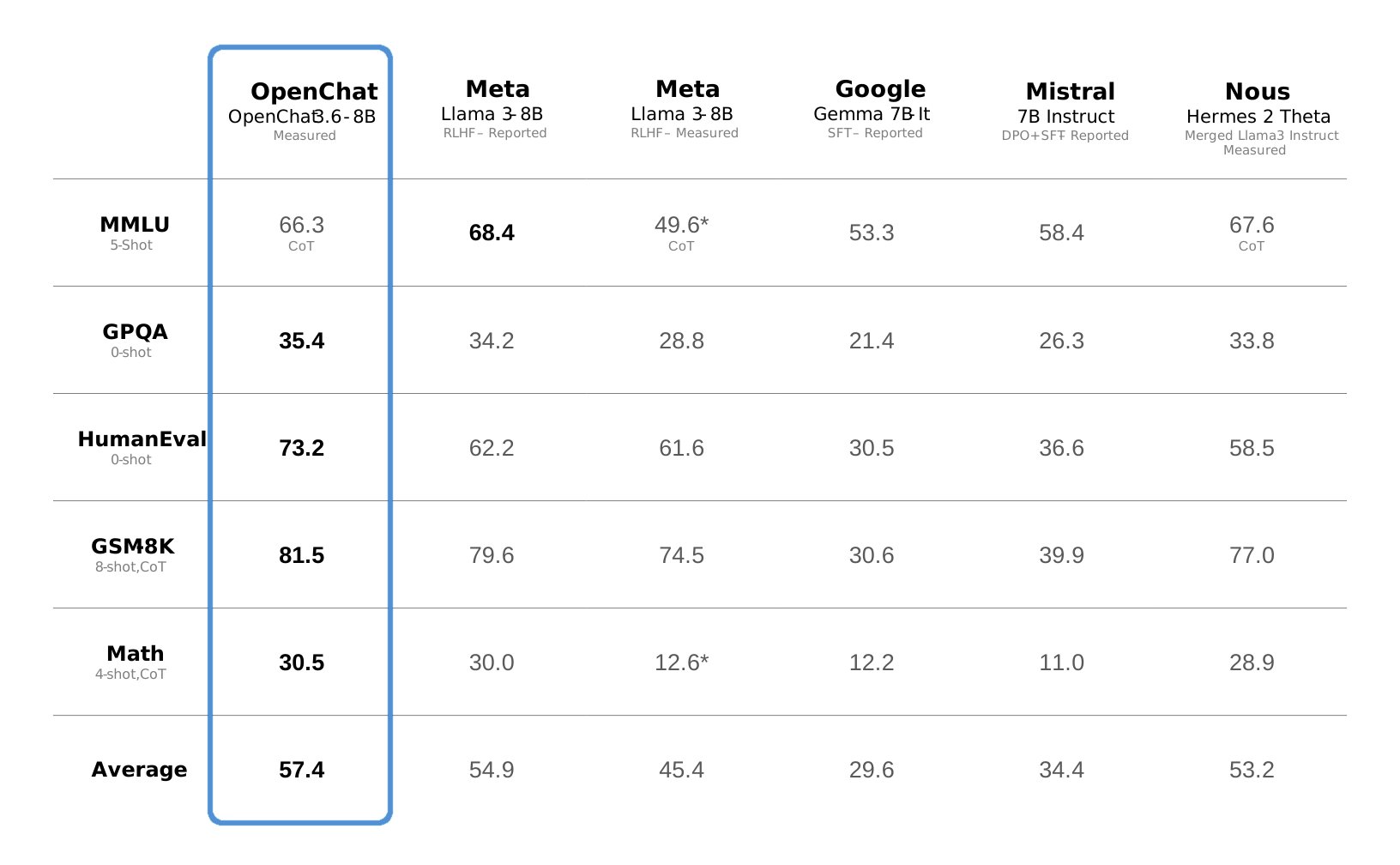
* Llama-3-Instruct often fails to follow the few-shot templates.
Usage
To use this model, we highly recommend installing the OpenChat package by following the installation guide in our repository and using the OpenChat OpenAI-compatible API server by running the serving command from the table below. The server is optimized for high-throughput deployment using vLLM and can run on a consumer GPU with 24GB RAM. To enable tensor parallelism, append --tensor-parallel-size N to the serving command.
Once started, the server listens at localhost:18888 for requests and is compatible with the OpenAI ChatCompletion API specifications. Please refer to the example request below for reference. Additionally, you can use the OpenChat Web UI for a user-friendly experience.
If you want to deploy the server as an online service, you can use --api-keys sk-KEY1 sk-KEY2 ... to specify allowed API keys and --disable-log-requests --disable-log-stats --log-file openchat.log for logging only to a file. For security purposes, we recommend using an HTTPS gateway in front of the server.
| Model | Size | Context | Weights | Serving |
|---|---|---|---|---|
| OpenChat-3.6-20240522 | 8B | 8192 | Huggingface | python -m ochat.serving.openai_api_server --model openchat/openchat-3.6-8b-20240522 |
Example request (click to expand)
curl http://localhost:18888/v1/chat/completions \
-H "Content-Type: application/json" \
-d '{
"model": "openchat_3.6",
"messages": [{"role": "user", "content": "You are a large language model named OpenChat. Write a poem to describe yourself"}]
}'
Conversation templates
๐ก Default Mode: Best for coding, chat and general tasks
GPT4 Correct User: Hello<|end_of_turn|>GPT4 Correct Assistant: Hi<|end_of_turn|>GPT4 Correct User: How are you today?<|end_of_turn|>GPT4 Correct Assistant:
โ ๏ธ Notice: Remember to set <|end_of_turn|> as end of generation token.
The default template is also available as the integrated tokenizer.chat_template, which can be used instead of manually specifying the template:
messages = [
{"role": "user", "content": "Hello"},
{"role": "assistant", "content": "Hi"},
{"role": "user", "content": "How are you today?"}
]
tokens = tokenizer.apply_chat_template(messages, add_generation_prompt=True)
Inference using Transformers
from transformers import AutoTokenizer, AutoModelForCausalLM
import torch
model_id = "openchat/openchat-3.6-8b-20240522"
tokenizer = AutoTokenizer.from_pretrained(model_id)
model = AutoModelForCausalLM.from_pretrained(model_id, torch_dtype=torch.bfloat16, device_map="auto")
messages = [
{"role": "user", "content": "Explain how large language models work in detail."},
]
input_ids = tokenizer.apply_chat_template(messages, add_generation_prompt=True, return_tensors="pt").to(model.device)
outputs = model.generate(input_ids,
do_sample=True,
temperature=0.5,
max_new_tokens=1024
)
response = outputs[0][input_ids.shape[-1]:]
print(tokenizer.decode(response, skip_special_tokens=True))
Limitations
Foundation Model Limitations Despite its advanced capabilities, OpenChat is still bound by the limitations inherent in its foundation models. These limitations may impact the model's performance in areas such as:
- Complex reasoning
- Mathematical and arithmetic tasks
- Programming and coding challenges
Hallucination of Non-existent Information OpenChat may sometimes generate information that does not exist or is not accurate, also known as "hallucination". Users should be aware of this possibility and verify any critical information obtained from the model.
Safety OpenChat may sometimes generate harmful, hate speech, biased responses, or answer unsafe questions. It's crucial to apply additional AI safety measures in use cases that require safe and moderated responses.
๐ Contact
- Downloads last month
- 26
2-bit
3-bit
4-bit
5-bit
6-bit
8-bit
Model tree for QuantFactory/openchat-3.6-8b-20240522-GGUF
Base model
meta-llama/Meta-Llama-3-8B