
Buckets:


| # Building a React application | |
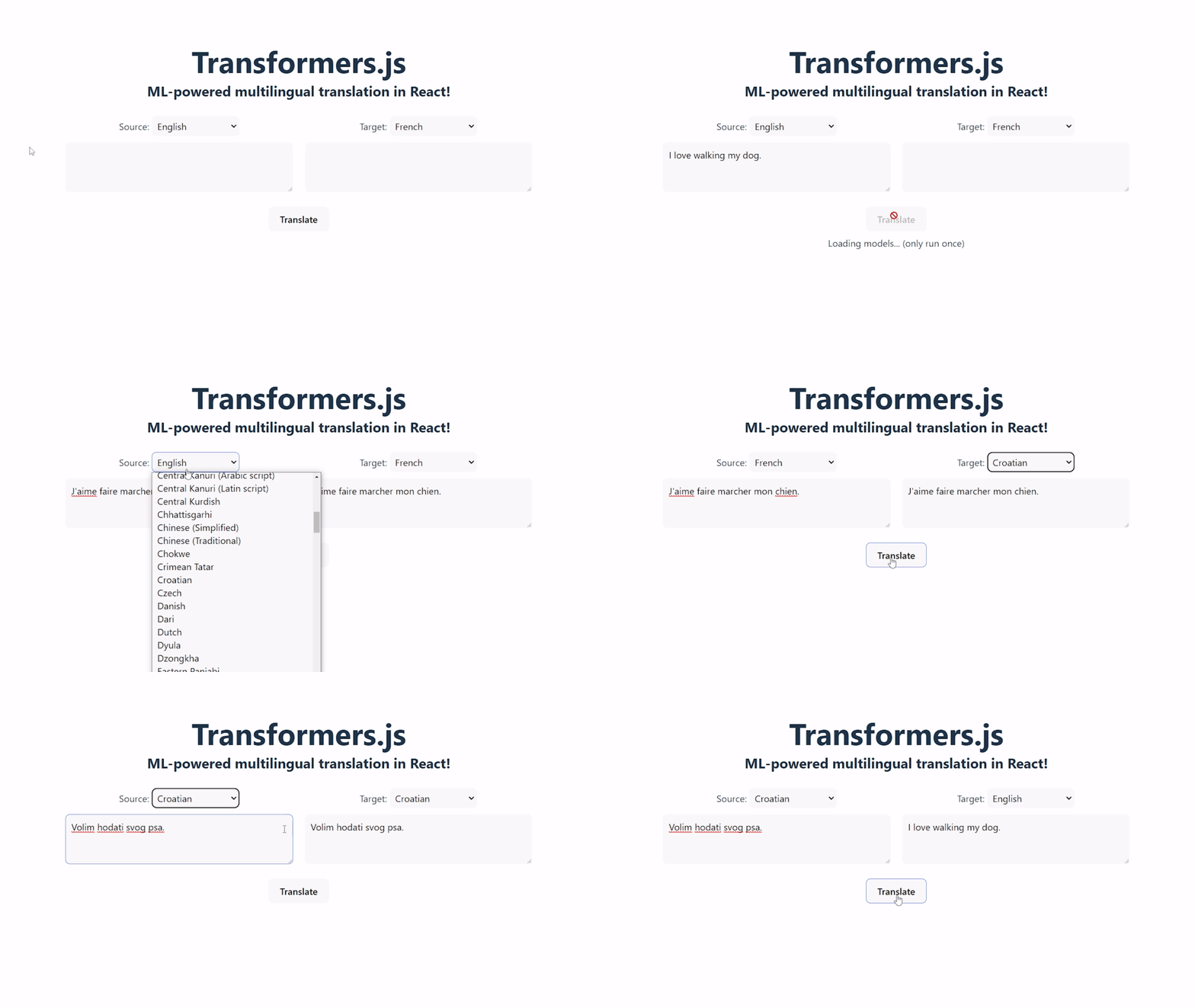
| In this tutorial, we'll be building a simple React application that performs multilingual translation using Transformers.js! The final product will look something like this: | |
|  | |
| Useful links: | |
| - [Demo site](https://huggingface.co/spaces/Xenova/react-translator) | |
| - [Source code](https://github.com/huggingface/transformers.js-examples/tree/main/react-translator) | |
| ## Prerequisites | |
| - [Node.js](https://nodejs.org/en/) version 18+ | |
| - [npm](https://www.npmjs.com/) version 9+ | |
| ## Step 1: Initialize the project | |
| For this tutorial, we will use [Vite](https://vitejs.dev/) to initialize our project. Vite is a build tool that quickly sets up a React application with minimal configuration. Run the following command in your terminal: | |
| ```bash | |
| npm create vite@latest react-translator -- --template react | |
| ``` | |
| If prompted to install `create-vite`, type y and press Enter. | |
| Next, enter the project directory and install the necessary development dependencies: | |
| ```bash | |
| cd react-translator | |
| npm install | |
| ``` | |
| To test that our application is working, we can run the following command: | |
| ```bash | |
| npm run dev | |
| ``` | |
| Visiting the URL shown in the terminal (e.g., [http://localhost:5173/](http://localhost:5173/)) should show the default "React + Vite" landing page. | |
| You can stop the development server by pressing Ctrl + C in the terminal. | |
| ## Step 2: Install and configure Transformers.js | |
| Now we get to the fun part: adding machine learning to our application! First, install Transformers.js from [NPM](https://www.npmjs.com/package/@huggingface/transformers) with the following command: | |
| ```bash | |
| npm install @huggingface/transformers | |
| ``` | |
| For this application, we will use the [Xenova/nllb-200-distilled-600M](https://huggingface.co/Xenova/nllb-200-distilled-600M) model, which can perform multilingual translation among 200 languages. Before we start, there are 2 things we need to take note of: | |
| 1. ML inference can be computationally intensive, so it's better to load and run the models in a separate thread from the main (UI) thread. | |
| 2. Since the model is larger than 1 GB, we don't want to download it until the user clicks the "Translate" button. | |
| We can achieve both of these goals by using a [Web Worker](https://developer.mozilla.org/en-US/docs/Web/API/Web_Workers_API/Using_web_workers) and some [React hooks](https://react.dev/reference/react). | |
| 1. Create a file called `worker.js` in the `src` directory. This script will load and run the translation pipeline. To ensure the model is only loaded once, we will create the `MyTranslationPipeline` class, which uses the [singleton pattern](https://en.wikipedia.org/wiki/Singleton_pattern) to lazily create one pipeline instance when `getInstance` is first called, and reuse it for all subsequent calls: | |
| ```javascript | |
| import { pipeline, TextStreamer } from "@huggingface/transformers"; | |
| class MyTranslationPipeline { | |
| static task = "translation"; | |
| static model = "Xenova/nllb-200-distilled-600M"; | |
| static instance = null; | |
| static async getInstance(progress_callback = null) { | |
| this.instance ??= pipeline(this.task, this.model, { progress_callback }); | |
| return this.instance; | |
| } | |
| } | |
| ``` | |
| 2. Modify `App.jsx` in the `src` directory. This file is automatically created when initializing our React project, and will contain some boilerplate code. Inside the `App` function, let's create the web worker and store a reference to it using the `useRef` hook: | |
| ```jsx | |
| // Remember to import the relevant hooks | |
| import { useEffect, useRef, useState } from 'react' | |
| import './App.css' | |
| function App() { | |
| // Create a reference to the worker object. | |
| const worker = useRef(null); | |
| // We use the `useEffect` hook to set up the worker as soon as the `App` component is mounted. | |
| useEffect(() => { | |
| // Create the worker if it does not yet exist. | |
| worker.current ??= new Worker(new URL('./worker.js', import.meta.url), { | |
| type: 'module' | |
| }); | |
| // Create a callback function for messages from the worker thread. | |
| const onMessageReceived = (e) => { | |
| // TODO: Will fill in later | |
| }; | |
| // Attach the callback function as an event listener. | |
| worker.current.addEventListener('message', onMessageReceived); | |
| // Define a cleanup function for when the component is unmounted. | |
| return () => worker.current.removeEventListener('message', onMessageReceived); | |
| }); | |
| return ( | |
| // TODO: Rest of our app goes here... | |
| ) | |
| } | |
| export default App | |
| ``` | |
| ## Step 3: Design the user interface | |
| We recommend starting the development server again with `npm run dev` | |
| (if not already running) so that you can see your changes in real-time. | |
| First, let's define our components. Create a folder called `components` in the `src` directory, and create the following files: | |
| 1. `LanguageSelector.jsx`: This component will allow the user to select the input and output languages. See the [language list](https://github.com/huggingface/transformers.js-examples/tree/main/react-translator/src/components/LanguageSelector.jsx) used by the example app. | |
| ```jsx | |
| const LANGUAGES = { | |
| "Acehnese (Arabic script)": "ace_Arab", | |
| "Acehnese (Latin script)": "ace_Latn", | |
| "Afrikaans": "afr_Latn", | |
| ... | |
| "Zulu": "zul_Latn", | |
| } | |
| export default function LanguageSelector({ type, onChange, defaultLanguage }) { | |
| return ( | |
| <div className='language-selector'> | |
| <label>{type}: </label> | |
| <select onChange={onChange} defaultValue={defaultLanguage}> | |
| {Object.entries(LANGUAGES).map(([key, value]) => { | |
| return <option key={key} value={value}>{key}</option> | |
| })} | |
| </select> | |
| </div> | |
| ) | |
| } | |
| ``` | |
| 2. `Progress.jsx`: This component will display the progress for downloading each model file. | |
| ```jsx | |
| export default function Progress({ text, percentage }) { | |
| percentage = percentage ?? 0; | |
| return ( | |
| <div className="progress-container"> | |
| <div className="progress-bar" style={{ width: `${percentage}%` }}> | |
| {text} ({`${percentage.toFixed(2)}%`}) | |
| </div> | |
| </div> | |
| ); | |
| } | |
| ``` | |
| We can now use these components in `App.jsx` by adding these imports to the top of the file: | |
| ```jsx | |
| import LanguageSelector from "./components/LanguageSelector"; | |
| import Progress from "./components/Progress"; | |
| ``` | |
| Let's also add some state variables to keep track of a few things in our application, like model loading, languages, input text, and output text. Add the following code to the beginning of the `App` function in `src/App.jsx`: | |
| ```jsx | |
| function App() { | |
| // Model loading | |
| const [ready, setReady] = useState(null); | |
| const [disabled, setDisabled] = useState(false); | |
| const [progressItems, setProgressItems] = useState([]); | |
| // Inputs and outputs | |
| const [input, setInput] = useState("I love walking my dog."); | |
| const [sourceLanguage, setSourceLanguage] = useState("eng_Latn"); | |
| const [targetLanguage, setTargetLanguage] = useState("fra_Latn"); | |
| const [output, setOutput] = useState(""); | |
| // rest of the code... | |
| } | |
| ``` | |
| Next, we can add our custom components to the main `App` component. We will also add two `textarea` elements for input and output text, and a `button` to trigger the translation. Modify the `return` statement to look like this: | |
| ```jsx | |
| return ( | |
| <> | |
| <h1>Transformers.js</h1> | |
| <h2>ML-powered multilingual translation in React!</h2> | |
| <div className="container"> | |
| <div className="language-container"> | |
| <LanguageSelector | |
| type={"Source"} | |
| defaultLanguage={"eng_Latn"} | |
| onChange={(x) => setSourceLanguage(x.target.value)} | |
| /> | |
| <LanguageSelector | |
| type={"Target"} | |
| defaultLanguage={"fra_Latn"} | |
| onChange={(x) => setTargetLanguage(x.target.value)} | |
| /> | |
| </div> | |
| <div className="textbox-container"> | |
| <textarea | |
| value={input} | |
| rows={3} | |
| onChange={(e) => setInput(e.target.value)} | |
| ></textarea> | |
| <textarea value={output} rows={3} readOnly></textarea> | |
| </div> | |
| </div> | |
| <button disabled={disabled} onClick={translate}> | |
| Translate | |
| </button> | |
| <div className="progress-bars-container"> | |
| {ready === false && <label>Loading models... (only run once)</label>} | |
| {progressItems.map((data) => ( | |
| <div key={data.file}> | |
| <Progress text={data.file} percentage={data.progress} /> | |
| </div> | |
| ))} | |
| </div> | |
| </> | |
| ); | |
| ``` | |
| Don't worry about the `translate` function for now. We will define it in the next section. | |
| Finally, we can add some CSS to make our app look a little nicer. Modify the following files in the `src` directory: | |
| 1. `index.css`: | |
| View code | |
| ```css | |
| :root { | |
| font-family: Inter, system-ui, Avenir, Helvetica, Arial, sans-serif; | |
| line-height: 1.5; | |
| font-weight: 400; | |
| color: #213547; | |
| background-color: #ffffff; | |
| font-synthesis: none; | |
| text-rendering: optimizeLegibility; | |
| -webkit-font-smoothing: antialiased; | |
| -moz-osx-font-smoothing: grayscale; | |
| -webkit-text-size-adjust: 100%; | |
| } | |
| body { | |
| margin: 0; | |
| display: flex; | |
| place-items: center; | |
| min-width: 320px; | |
| min-height: 100vh; | |
| } | |
| h1 { | |
| font-size: 3.2em; | |
| line-height: 1; | |
| } | |
| h1, | |
| h2 { | |
| margin: 8px; | |
| } | |
| select { | |
| padding: 0.3em; | |
| cursor: pointer; | |
| } | |
| textarea { | |
| padding: 0.6em; | |
| } | |
| button { | |
| padding: 0.6em 1.2em; | |
| cursor: pointer; | |
| font-weight: 500; | |
| } | |
| button[disabled] { | |
| cursor: not-allowed; | |
| } | |
| select, | |
| textarea, | |
| button { | |
| border-radius: 8px; | |
| border: 1px solid transparent; | |
| font-size: 1em; | |
| font-family: inherit; | |
| background-color: #f9f9f9; | |
| transition: border-color 0.25s; | |
| } | |
| select:hover, | |
| textarea:hover, | |
| button:not([disabled]):hover { | |
| border-color: #646cff; | |
| } | |
| select:focus, | |
| select:focus-visible, | |
| textarea:focus, | |
| textarea:focus-visible, | |
| button:focus, | |
| button:focus-visible { | |
| outline: 4px auto -webkit-focus-ring-color; | |
| } | |
| ``` | |
| 1. `App.css` | |
| View code | |
| ```css | |
| #root { | |
| max-width: 1280px; | |
| margin: 0 auto; | |
| padding: 2rem; | |
| text-align: center; | |
| } | |
| .language-container { | |
| display: flex; | |
| gap: 20px; | |
| } | |
| .textbox-container { | |
| display: flex; | |
| justify-content: center; | |
| gap: 20px; | |
| width: 800px; | |
| } | |
| .textbox-container > textarea, | |
| .language-selector { | |
| width: 50%; | |
| } | |
| .language-selector > select { | |
| width: 150px; | |
| } | |
| .progress-container { | |
| position: relative; | |
| font-size: 14px; | |
| color: white; | |
| background-color: #e9ecef; | |
| border: solid 1px; | |
| border-radius: 8px; | |
| text-align: left; | |
| overflow: hidden; | |
| } | |
| .progress-bar { | |
| padding: 0 4px; | |
| z-index: 0; | |
| top: 0; | |
| width: 1%; | |
| overflow: hidden; | |
| background-color: #007bff; | |
| white-space: nowrap; | |
| } | |
| .progress-text { | |
| z-index: 2; | |
| } | |
| .selector-container { | |
| display: flex; | |
| gap: 20px; | |
| } | |
| .progress-bars-container { | |
| padding: 8px; | |
| height: 140px; | |
| } | |
| .container { | |
| margin: 25px; | |
| display: flex; | |
| flex-direction: column; | |
| gap: 10px; | |
| } | |
| ``` | |
| ## Step 4: Connecting everything together | |
| Now that we have a basic user interface set up, we can finally connect everything together. | |
| First, let's define the `translate` function, which will be called when the user clicks the `Translate` button. This sends a message (containing the input text, source language, and target language) to the worker thread for processing. We will also disable the button so the user doesn't click it multiple times. Add the following code just before the `return` statement in the `App` function: | |
| ```jsx | |
| const translate = () => { | |
| setDisabled(true); | |
| setOutput(""); | |
| worker.current.postMessage({ | |
| text: input, | |
| src_lang: sourceLanguage, | |
| tgt_lang: targetLanguage, | |
| }); | |
| }; | |
| ``` | |
| Now, let's add an event listener in `src/worker.js` to listen for messages from the main thread. We will send back messages (e.g., for model loading progress and text streaming) to the main thread with `self.postMessage`. | |
| ```javascript | |
| // Listen for messages from the main thread | |
| self.addEventListener("message", async (event) => { | |
| // Retrieve the translation pipeline. When called for the first time, | |
| // this will load the pipeline and save it for future use. | |
| const translator = await MyTranslationPipeline.getInstance((x) => { | |
| // We also add a progress callback to the pipeline so that we can | |
| // track model loading. | |
| self.postMessage(x); | |
| }); | |
| // Capture partial output as it streams from the pipeline | |
| const streamer = new TextStreamer(translator.tokenizer, { | |
| skip_prompt: true, | |
| skip_special_tokens: true, | |
| callback_function: function (text) { | |
| self.postMessage({ | |
| status: "update", | |
| output: text, | |
| }); | |
| }, | |
| }); | |
| // Actually perform the translation | |
| const output = await translator(event.data.text, { | |
| tgt_lang: event.data.tgt_lang, | |
| src_lang: event.data.src_lang, | |
| // Allows for partial output to be captured | |
| streamer, | |
| }); | |
| // Send the output back to the main thread | |
| self.postMessage({ | |
| status: "complete", | |
| output, | |
| }); | |
| }); | |
| ``` | |
| Finally, let's fill in our `onMessageReceived` function in `src/App.jsx`, which will update the application state in response to messages from the worker thread. Add the following code inside the `useEffect` hook we defined earlier: | |
| ```jsx | |
| const onMessageReceived = (e) => { | |
| switch (e.data.status) { | |
| case "initiate": | |
| // Model file start load: add a new progress item to the list. | |
| setReady(false); | |
| setProgressItems((prev) => [...prev, e.data]); | |
| break; | |
| case "progress": | |
| // Model file progress: update one of the progress items. | |
| setProgressItems((prev) => | |
| prev.map((item) => { | |
| if (item.file === e.data.file) { | |
| return { ...item, progress: e.data.progress }; | |
| } | |
| return item; | |
| }), | |
| ); | |
| break; | |
| case "done": | |
| // Model file loaded: remove the progress item from the list. | |
| setProgressItems((prev) => | |
| prev.filter((item) => item.file !== e.data.file), | |
| ); | |
| break; | |
| case "ready": | |
| // Pipeline ready: the worker is ready to accept messages. | |
| setReady(true); | |
| break; | |
| case "update": | |
| // Generation update: update the output text. | |
| setOutput((o) => o + e.data.output); | |
| break; | |
| case "complete": | |
| // Generation complete: re-enable the "Translate" button | |
| setDisabled(false); | |
| break; | |
| } | |
| }; | |
| ``` | |
| You can now run the application with `npm run dev` and perform multilingual translation directly in your browser! | |
| ## (Optional) Step 5: Build and deploy | |
| To build your application, run `npm run build`. This will bundle your application and output the static files to the `dist` folder. | |
| For this demo, we will deploy our application as a static [Hugging Face Space](https://huggingface.co/docs/hub/spaces), but you can deploy it anywhere you like! If you haven't already, you can create a free Hugging Face account [here](https://huggingface.co/join). | |
| 1. Visit [https://huggingface.co/new-space](https://huggingface.co/new-space) and fill in the form. Remember to select "Static" as the space type. | |
| 2. Go to "Files" → "Add file" → "Upload files". Drag the `index.html` file and `public/` folder from the `dist` folder into the upload box and click "Upload". After they have uploaded, scroll down to the button and click "Commit changes to main". | |
| **That's it!** Your application should now be live at `https://huggingface.co/spaces/<your-username>/<your-space-name>`! | |
Xet Storage Details
- Size:
- 16 kB
- Xet hash:
- e5e11898fa4309a7bb311b1405562f2ce029d274062171717edffd1ec1943581
·
Xet efficiently stores files, intelligently splitting them into unique chunks and accelerating uploads and downloads. More info.