

Notification Detail Rendering
When a user clicks a note to view, that notification is rendered to the user in a slide-out drawer. The pipeline for rendering this drawer to the user begins in /src/panel/templates/index.jsx. This component renders a child Note component from src/panel/templates/note.jsx with the property detailView set to true.
This detailView prop further causes the Note component to render (among other things) a NoteBody component (/src/panel/templates/body.jsx). The render method for this component is where the majority of rendering logic for a notification takes place.
Rendering Pipeline
The notification object returned from the server contains, among other things, a body array of one or more block objects which contain a type, the text of the notification, and an array of ranges:
const object = {
    ranges: [
        {
            url: 'https://www.example.com/',
            indices: [ 397, 416 ],
        },
        {
            type: 'match',
            indices: [ 598, 616 ],
        },
        {
            type: 'match',
            indices: [ 682, 700 ],
        },
    ],
};
The indices of these ranges indicate locations in the body's text string where special formatting is needed.
After some initial processing, the NoteBody component performs a switch statement on each block object based on its type.
Depending on the item's type, a different block component is rendered - User for a representation of a user (for instance, in a notification of a user liking a particular post), Comment for a comment made on a blog post, Post for a blog post (i.e. on a blog the user is following), ReplyBlock for a reply to a comment(?).
n.b. - these 'blocks' are separate from the concept of 'blocks' in the Gutenberg block editor; a notification might have multiple blocks (for instance, multiple User blocks for multiple likes on a post), or it might have a single Post block, which then further renders Gutenberg blocks as part of the post content.
These notification block components will be your entry point for any modifications you need to do to the way a particular notification is rendered to the user.
For instance, if the user has received a notification about a post on a blog they are following, the component in question will be src/panel/notifications/block-post.jsx.
First, the block is passed to the html() function from /src/panel/indices-to-html/index.js, which processes the block's content information (making use of the ranges mentioned earlier) to split that information into chunks based on how they should be rendered. These chunks are then processed to reintroduce HTML tags back into the plain text content at the points indicated by the values in the ranges property.
The result of this function (a string enhanced with HTML tag information) is then passed to p() in src/panel/templates/functions.jsx, which adds further HTML tag formatting based on line breaks and other special characters (such as backticks for code blocks).
Troubleshooting and Updating Renderings
Calypso rendering logic
Local development of Calypso logic for rendering notifications can take place making use of the Calypso dev server, as any changes made to src/apps/notifications will be reflected in the Calypso local development environment automatically.
However, as notifications can also be viewed in an iframe on non-Calypso sites using the masterbar (see https://github.com/Automattic/wp-calypso/edit/trunk/apps/notifications/README.md), any changes to the notifications sub-application should also be tested on a sandboxed WP.com site. To do this, run the following commands:
# Builds files and places them in `apps/notifications/dist`
cd apps/notifications
yarn build
Then copy the built dist folder to your sandbox environment to test updated rendering behavior.
Automatic sandbox sync
You can also use a syncing utility included as a package.json script in the notifications app to push changes to your sandbox site automatically.
To prepare your sandbox for this purpose, follow the prerequisite setup instructions for adding an SSH alias for your sandbox described in PCYsg-ly5-p2 "Editing Toolkit plugin and your WP.com sandbox" (the process is exactly the same as that used for the FSE plugin).
Then, after making a change in the notification app, make sure you are cd'd into /apps/notifications/ and run the command
yarn sync
This will automatically copy the local version of /apps/notifications/ into ~/public_html/widgets.wp.com/notifications/ on your sandbox.
Server rendering logic
If a block is rendering incorrectly due to formatting information being lost before the data reaches Calypso, you may need to perform further troubleshooting on the server-side logic used to generate the list of a user's notifications.
This server logic can be found in the WPCOM codebase, and its primary entry point is in /wp-content/lib/class.notifications-builder.php:1046 in a call to Notification_Block::add_post_block(). Further information about the server logic associated with notifications can be found in the PCYsg-46P-p2 FG entry.
Block rendering
Gutenberg blocks are parsed within the post content before being passed by the API. However, no native mechanism exists for enqueuing block styles or scripts (since notifications, within Calypso, are not a WordPress-specific context). This makes it very important to ensure that blocks have sensible fallback markup, and can take advantage of the WordPress.com inline styles library; see PCYsg-tvN-p2 for details.
Creating a post notification
To test notification rendering of Gutenberg posts, the easiest way is to follow a WP.com blog (generally one that you control in some fashion). Use the "Follow" button that appears in the bottom right corner of the blog to add it to your Reader subscriptions:

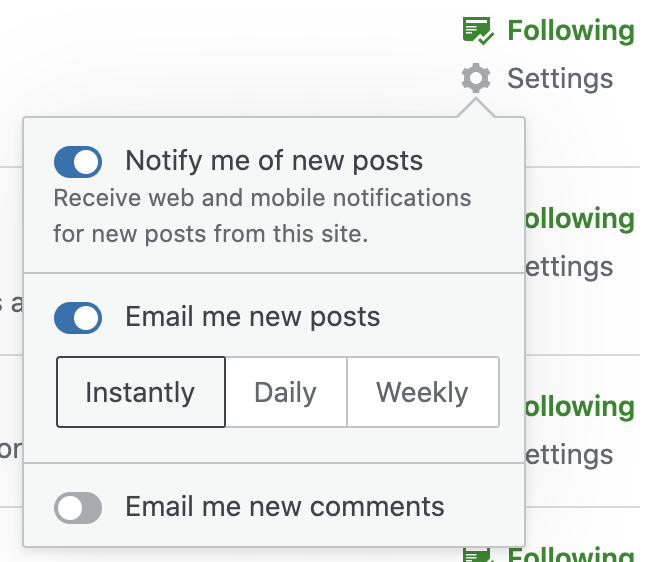
Then navigate to https://wordpress.com/reader/subscriptions and enable "Notify me of new posts" for the blog in question:
 .
.
With this enabled, future posts on that blog will appear as notifications in your masterbar.
Further Reading
See PCYsg-g8e-p2 for further information on the overall architectural structure of the notification system.
See PCYsg-46P-p2 for more information on the server-side construction of notifications prior to their delivery to Calypso.