| # 🤗 Diffusers 介绍 |
|
|
|  |
|
|
| 在这个 Notebook 中,我们将介绍如何训练你的第一个扩散模型来 **生成美丽的蝴蝶的图片 🦋**。在此过程中,你将了解 🤗 Diffuers 库的相关内容,这将为我们之后课程中介绍的更高级的应用打下坚实的基础 |
|
|
| 让我们开始吧! |
|
|
| ## 你将学习到 |
|
|
| 在这个 Notebook 中,你将能够: |
|
|
| - 学习如何使用一个功能强大的自定义扩散模型管线(Pipeline),并了解如何制作一个自己的版本 |
| - 通过以下方式创建你自己的迷你管线: |
| - 复习扩散模型的核心概念 |
| - 从 Hub 中加载数据以进行训练 |
| - 探索如何使用 scheduler 将噪声添加到你的数据中 |
| - 创建并训练一个 UNet 模型 |
| - 将各个模块组合在一起来形成一个工作管线 (working pipelines) |
| - 编辑并运行一段代码,用于初始化一个较长的训练,该代码将处理以下过程: |
| - 使用 Accelerate 库来调用多个 GPU 以加速模型的训练过程 |
| - 记录并查阅实验日志以跟踪关键统计数据 |
| - 将最终的模型上传到 Hugging Face Hub |
|
|
| ❓你在学习过程中遇到的任何问题,都可以发布在 Hugging Face 的 Discord 服务器`#diffusion-models-class`频道中。请首先在这里完成注册: https://huggingface.co/join/discord |
|
|
| ## 预备知识 |
|
|
| 在进入 Notebook 之前,你需要: |
|
|
| * 📖 阅读第一单元的材料 |
| * 🤗 在 Hugging Face Hub 上创建一个账户: https://huggingface.co/join |
|
|
| ## 步骤 1: 设置 |
|
|
| 运行以下代码来安装包括 diffusers 在内的第三方库: |
|
|
|
|
| ```python |
| %pip install -qq -U diffusers datasets transformers accelerate ftfy pyarrow |
| ``` |
|
|
| 然后请前往 https://huggingface.co/settings/tokens 创建具有写权限的访问令牌: |
|
|
|  |
|
|
| 你可以使用命令行来通过此令牌进行登录 (`huggingface-cli login`) ,也可以通过运行以下单元来登录: |
|
|
|
|
| ```python |
| from huggingface_hub import notebook_login |
| |
| notebook_login() |
| ``` |
|
|
| Login successful |
| Your token has been saved to /root/.huggingface/token |
| |
|
|
| 接下来你需要安装 Git LFS 来上传模型检查点: |
|
|
|
|
| ```python |
| %%capture |
| !sudo apt -qq install git-lfs |
| !git config --global credential.helper store |
| ``` |
|
|
| 最后让我们导入将要使用的库,并定义一些简单的支持函数,稍后我们将会在 Notebook 中使用这些函数: |
|
|
|
|
| ```python |
| import numpy as np |
| import torch |
| import torch.nn.functional as F |
| from matplotlib import pyplot as plt |
| from PIL import Image |
| |
| |
| def show_images(x): |
| """Given a batch of images x, make a grid and convert to PIL""" |
| x = x * 0.5 + 0.5 # Map from (-1, 1) back to (0, 1) |
| grid = torchvision.utils.make_grid(x) |
| grid_im = grid.detach().cpu().permute(1, 2, 0).clip(0, 1) * 255 |
| grid_im = Image.fromarray(np.array(grid_im).astype(np.uint8)) |
| return grid_im |
| |
| |
| def make_grid(images, size=64): |
| """Given a list of PIL images, stack them together into a line for easy viewing""" |
| output_im = Image.new("RGB", (size * len(images), size)) |
| for i, im in enumerate(images): |
| output_im.paste(im.resize((size, size)), (i * size, 0)) |
| return output_im |
| |
| |
| # Mac users may need device = 'mps' (untested) |
| device = torch.device("cuda" if torch.cuda.is_available() else "cpu") |
| ``` |
|
|
| 好了,万事俱备,只欠东风! |
|
|
| ## Dreambooth:即将到来的巅峰 |
|
|
| 在过去的几个月中,如果你关注过人工智能相关的社交媒体,你就会听说过 Stable Diffusion 模型。这是一个功能强大的文图生成模型,但它有一个缺点:除非我们足够出名以至于互联网上经常出现我们的照片,它无法知道你或我长什么样 |
|
|
| Dreambooth 方法允许我们自己微调 Stable Diffusion 模型,引入对特定的面部、对象或样式的额外知识。Corridor Crew 制作了一段出色的视频,说明如何用一致的人物形象来讲故事,很好的说明了这种技术的能力: |
|
|
|
|
| ```python |
| from IPython.display import YouTubeVideo |
| |
| YouTubeVideo("W4Mcuh38wyM") |
| ``` |
|
|
|
|
|
|
|
|
|
|
| <iframe |
| width="400" |
| height="300" |
| src="https://www.youtube.com/embed/W4Mcuh38wyM" |
| frameborder="0" |
| allowfullscreen |
| |
| ></iframe> |
|
|
|
|
|
|
|
|
| 这是一个使用了 [这个模型](https://huggingface.co/sd-dreambooth-library/mr-potato-head) 的例子。该模型的训练仅仅使用了 5 张著名的儿童玩具 "Mr Potato Head"的照片。 |
|
|
| 首先让我们来加载这个管道。这些代码会自动从 Hub 下载模型权重等需要的文件。这个 demo 需要下载数 GB 的数据,所以如果你不想等待也可以跳过此单元格,只需欣赏样例输出即可! |
|
|
|
|
| ```python |
| from diffusers import StableDiffusionPipeline |
| |
| # Check out https://huggingface.co/sd-dreambooth-library for loads of models from the community |
| model_id = "sd-dreambooth-library/mr-potato-head" |
| |
| # Load the pipeline |
| pipe = StableDiffusionPipeline.from_pretrained(model_id, torch_dtype=torch.float16).to( |
| device |
| ) |
| ``` |
|
|
|
|
| Fetching 15 files: 0%| | 0/15 [00:00<?, ?it/s] |
| |
|
|
| 管道加载完成后,我们可以使用以下代码生成图像: |
|
|
|
|
| ```python |
| prompt = "an abstract oil painting of sks mr potato head by picasso" |
| image = pipe(prompt, num_inference_steps=50, guidance_scale=7.5).images[0] |
| image |
| ``` |
|
|
|
|
| 0%| | 0/51 [00:00<?, ?it/s] |
| |
|
|
|
|
|
|
|
|
| |
|  |
| |
| |
|
|
|
|
| **练习:** 你可以使用不同的提示 (prompt) 自行进行尝试。在这个 demo 中,`sks`是一个新概念的唯一标识符 (UID) - 那么如果把它留空的话会发生什么事呢?你还可以尝试改变`num_inference_steps`和`guidance_scale`。这两个参数分别代表了采样步骤的数量(试试最多可以设为多低?)和模型的输出与提示的匹配程度。 |
|
|
| 有许多复杂而又神奇的事情发生在这条管线之中!在我们的课程结束之后,你就会清晰的了解这一切是如何运作的。现在,让我们先看看如何从头开始训练扩散模型。 |
|
|
| ## MVP (最简可实行管线) |
| 🤗 Diffusers 的核心 API 被分为三个主要部分: |
| 1. **管线**: 从高层出发设计的多种类函数,旨在以易部署的方式,能够做到快速通过主流预训练好的扩散模型来生成样本。 |
| 2. **模型**: 训练新的扩散模型时用到的主流网络架构,*e.g.* [UNet](https://arxiv.org/abs/1505.04597). |
| 3. **管理器 (or 调度器)**: 在 *推理* 中使用多种不同的技巧来从噪声中生成图像,同时也可以生成在 *训练* 中所需的带噪图像。 |
|
|
| 管线对于终端使用者来说已经非常棒,但你既然已经参加了这门课程,我们就假定你想了解更多其中的机制!在此篇笔记结束之后,我们会来构建属于你自己的、能够生成小蝴蝶图片的管线。下面这里会是最终的结果: |
|
|
|
|
| ```python |
| from diffusers import DDPMPipeline |
| |
| # Load the butterfly pipeline |
| butterfly_pipeline = DDPMPipeline.from_pretrained( |
| "johnowhitaker/ddpm-butterflies-32px" |
| ).to(device) |
| |
| # Create 8 images |
| images = butterfly_pipeline(batch_size=8).images |
| |
| # View the result |
| make_grid(images) |
| ``` |
|
|
|
|
| Fetching 4 files: 0%| | 0/4 [00:00<?, ?it/s] |
| |
|
|
|
|
| 0%| | 0/1000 [00:00<?, ?it/s] |
| |
|
|
|
|
|
|
|
|
| |
|  |
| |
| |
|
|
|
|
| 也许这里看起来还不如 DreamBooth 所展示的样例那样惊艳,但要知道我们在训练这些图画时只用了不到训练稳定扩散模型用到数据的 0.0001%。 |
|
|
| 到目前为止,训练一个扩散模型的流程看起来像是这样: |
|
|
| 1. 从训练集中加载一些图像 |
| 2. 加入各种不同级别的噪声 |
| 3. 将已经被引入了不同级别噪声的数据输入模型中 |
| 4. 评估模型在对这些数据做增强去噪时的表现 |
| 5. 使用这个信息来更新模型权重,然后重复此步骤 |
|
|
| 我们会在接下来几节中逐一实现这些步骤,直至训练循环可以完整的运行,在这之后我们会来探索如何使用训练好的模型来生成样本,还有如何封装模型到管道中,从而可以轻松的分享给别人。下面让我我们先从从数据开始入手吧。 |
|
|
| ## 步骤 2:下载一个训练数据集 |
|
|
| 在这个例子中,我们会用到一个来自 Hugging Face Hub 的图像集。具体来说,[是个 1000 张蝴蝶图像收藏集](https://huggingface.co/datasets/huggan/smithsonian_butterflies_subset). 请注意,这是个非常小的数据集。我们在下面的单元格中中注释掉的几行指向了一些规模更大的数据集。你也可以使用这里被注释掉的示例代码,从一个指定的路径来装载图片,从而使用你自己收藏的图像数据。 |
|
|
|
|
| ```python |
| import torchvision |
| from datasets import load_dataset |
| from torchvision import transforms |
| |
| dataset = load_dataset("huggan/smithsonian_butterflies_subset", split="train") |
| |
| # Or load images from a local folder |
| # dataset = load_dataset("imagefolder", data_dir="path/to/folder") |
| |
| # We'll train on 32-pixel square images, but you can try larger sizes too |
| image_size = 32 |
| # You can lower your batch size if you're running out of GPU memory |
| batch_size = 64 |
| |
| # Define data augmentations |
| preprocess = transforms.Compose( |
| [ |
| transforms.Resize((image_size, image_size)), # Resize |
| transforms.RandomHorizontalFlip(), # Randomly flip (data augmentation) |
| transforms.ToTensor(), # Convert to tensor (0, 1) |
| transforms.Normalize([0.5], [0.5]), # Map to (-1, 1) |
| ] |
| ) |
| |
| |
| def transform(examples): |
| images = [preprocess(image.convert("RGB")) for image in examples["image"]] |
| return {"images": images} |
| |
| |
| dataset.set_transform(transform) |
| |
| # Create a dataloader from the dataset to serve up the transformed images in batches |
| train_dataloader = torch.utils.data.DataLoader( |
| dataset, batch_size=batch_size, shuffle=True |
| ) |
| ``` |
|
|
| 我们可以从中取出一批图像数据来做一下可视化: |
|
|
|
|
| ```python |
| xb = next(iter(train_dataloader))["images"].to(device)[:8] |
| print("X shape:", xb.shape) |
| show_images(xb).resize((8 * 64, 64), resample=Image.NEAREST) |
| ``` |
|
|
| X shape: torch.Size ([8, 3, 32, 32]) |
| |
|
|
| /tmp/ipykernel_4278/3975082613.py:3: DeprecationWarning: NEAREST is deprecated and will be removed in Pillow 10 (2023-07-01). Use Resampling.NEAREST or Dither.NONE instead. |
| show_images (xb).resize ((8 * 64, 64), resample=Image.NEAREST) |
| |
|
|
|
|
|
|
|
|
| |
|  |
| |
| |
|
|
| 在这篇笔记中,我们使用的是一个图像尺寸为 32 像素的小数据集,从而保证训练时长在可接受的范围内。 |
|
|
| ## 步骤 3:定义管理器 |
|
|
| 我们计划取出这些输入图片然后对它们增添噪声,然后把带噪的图像送入模型。在推理阶段,我们将用模型的预测结果来不断迭代的去除这些噪声。在`diffusers`中,这两个步骤都是由 **调度器(scheduler)** 来处理的。 |
|
|
| 噪声管理器决定在不同的迭代周期时分别加入多少噪声。下面是我们如何使用 'DDPM' 训练和采样的默认设置创建调度程序。 (基于此篇论文 ["Denoising Diffusion Probabalistic Models"](https://arxiv.org/abs/2006.11239): |
|
|
|
|
| ```python |
| from diffusers import DDPMScheduler |
| |
| noise_scheduler = DDPMScheduler(num_train_timesteps=1000) |
| ``` |
|
|
| DDPM论文描述了一个为每个”时间步“添加少量噪音的退化过程。假设在某个迭代周期,带噪的图像数据为 $x_{t-1}$, 我们可以通过以下方式获得 $x_t$ (比之前更多一点点噪声):<br><br> |
|
|
| $q (\mathbf {x}_t \vert \mathbf {x}_{t-1}) = \mathcal {N}(\mathbf {x}_t; \sqrt {1 - \beta_t} \mathbf {x}_{t-1}, \beta_t\mathbf {I}) \quad |
| q (\mathbf {x}_{1:T} \vert \mathbf {x}_0) = \prod^T_{t=1} q (\mathbf {x}_t \vert \mathbf {x}_{t-1})$<br><br> |
| |
| |
| 这就是说,我们取 $x_{t-1}$, 给他一个 $\sqrt {1 - \beta_t}$ 的系数,然后加上带有 $\beta_t$ 系数的噪声。 这里 $\beta$ 是根据一些管理器来为每一个 t 设定的,来决定每一个迭代周期中添加多少噪声。 现在,我们不想把这个推演进行 500 次来得到 $x_{500}$,所以我们用另一个公式来根据给出的 $x_0$ 计算得到任意 t 时刻的 $x_t$: <br><br> |
| |
| $\begin {aligned} |
| q (\mathbf {x}_t \vert \mathbf {x}_0) &= \mathcal {N}(\mathbf {x}_t; \sqrt {\bar {\alpha}_t} \mathbf {x}_0, {(1 - \bar {\alpha}_t)} \mathbf {I}) |
| \end {aligned}$ where $\bar {\alpha}_t = \prod_{i=1}^T \alpha_i$ and $\alpha_i = 1-\beta_i$<br><br> |
|
|
| 这些数学过程看起来真是可怕!好在有调度器来为我们完成这些运算。我们可以画出 $\sqrt {\bar {\alpha}_t}$ (标记为`sqrt_alpha_prod`) 和 $\sqrt {(1 - \bar {\alpha}_t)}$ (标记为`sqrt_one_minus_alpha_prod`) 来看一下输入 (x) 与噪声是如何在不同迭代周期中量化和叠加的: |
|
|
|
|
| ```python |
| plt.plot(noise_scheduler.alphas_cumprod.cpu() ** 0.5, label=r"${\sqrt{\bar{\alpha}_t}}$") |
| plt.plot((1 - noise_scheduler.alphas_cumprod.cpu()) ** 0.5, label=r"$\sqrt{(1 - \bar{\alpha}_t)}$") |
| plt.legend(fontsize="x-large"); |
| ``` |
|
|
| **练习:** 你可以探索一下使用不同的 beta_start 时曲线是如何变化的,beta_end 与 beta_schedule 可以通过以下被注释掉的内容来修改: |
| |
| |
| ```python |
| # One with too little noise added: |
| # noise_scheduler = DDPMScheduler(num_train_timesteps=1000, beta_start=0.001, beta_end=0.004) |
| # The 'cosine' schedule, which may be better for small image sizes: |
| # noise_scheduler = DDPMScheduler(num_train_timesteps=1000, beta_schedule='squaredcos_cap_v2') |
| ``` |
| |
| 不论你选择了哪一个调度器,我们现在都可以使用 `noise_scheduler.add_noise` 功能来添加不同程度的噪声,就像这样: |
| |
| |
| ```python |
| timesteps = torch.linspace(0, 999, 8).long().to(device) |
| noise = torch.randn_like(xb) |
| noisy_xb = noise_scheduler.add_noise(xb, noise, timesteps) |
| print("Noisy X shape", noisy_xb.shape) |
| show_images(noisy_xb).resize((8 * 64, 64), resample=Image.NEAREST) |
| ``` |
| |
| Noisy X shape torch.Size ([8, 3, 32, 32]) |
| |
| |
| |
| |
| |
| |
|  |
| |
| |
| |
| |
| 你可以在这里反复探索使用不同噪声调度器和预设参数带来的效果。 [这个视频](https://www.youtube.com/watch?v=fbLgFrlTnGU) 很好的解释了一些上述数学运算的细节,同时也是对此类概念的一个很好引入介绍。 |
| |
| ## 步骤 4:定义模型 |
| |
| 现在我们来到了本章节的核心部分:模型。 |
| |
| 大多数扩散模型使用的模型结构都是一些 [U-net] 的变种 (https://arxiv.org/abs/1505.04597) 也是我们在这里会用到的结构。 |
| |
|  |
| |
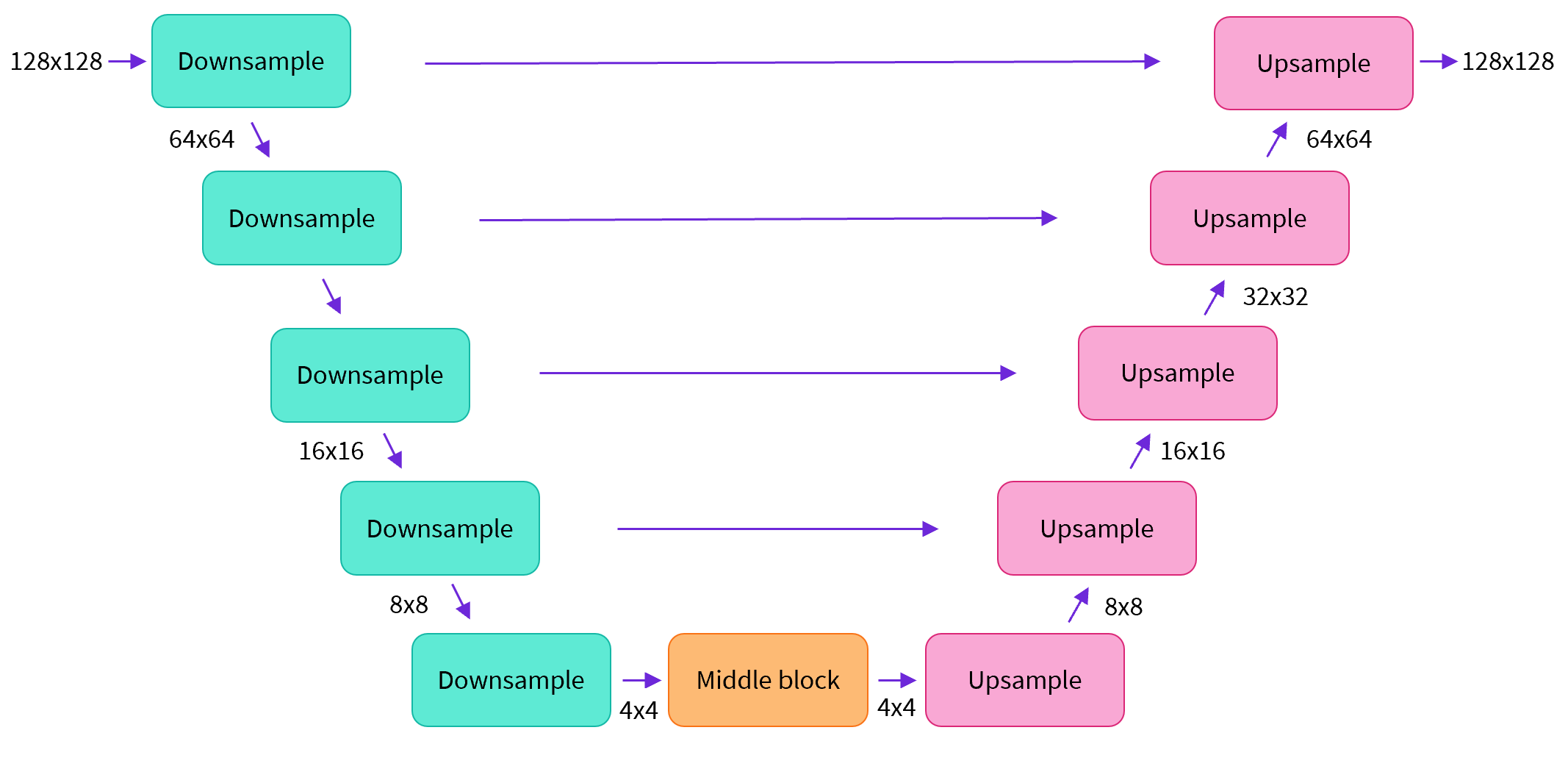
| 简单来说,一个U-net模型大致会有以下三个特征: |
| - 输入模型中的图片会经过几个由 ResNetLayer 构成的层,其中每层都使图片的尺寸减半。 |
| - 在这之后,同样数量的上采样层会将图片的尺寸恢复到原始规模。 |
| - 残差连接模块会将特征图分辨率相同的上采样层和下采样层连接起来。 |
| |
| U-net模型一个关键特征是输出图片的尺寸与输入图片相同,而这正是我们在扩散模型中所需要的。 |
| |
| Diffusers 为我们提供了一个易用的`UNet2DModel`类,用来在 PyTorch 中创建我们所需要的结构。 |
| |
| 我们来使用 U-net 为我们生成目标大小的图片吧。 |
| 注意这里 `down_block_types` 对应下采样模块 (上图中绿色部分), 而 `up_block_types` 对应上采样模块 (上图中红色部分): |
| |
| |
| ```python |
| from diffusers import UNet2DModel |
| |
| # Create a model |
| model = UNet2DModel( |
| sample_size=image_size, # the target image resolution |
| in_channels=3, # the number of input channels, 3 for RGB images |
| out_channels=3, # the number of output channels |
| layers_per_block=2, # how many ResNet layers to use per UNet block |
| block_out_channels=(64, 128, 128, 256), # More channels -> more parameters |
| down_block_types=( |
| "DownBlock2D", # a regular ResNet downsampling block |
| "DownBlock2D", |
| "AttnDownBlock2D", # a ResNet downsampling block with spatial self-attention |
| "AttnDownBlock2D", |
| ), |
| up_block_types=( |
| "AttnUpBlock2D", |
| "AttnUpBlock2D", # a ResNet upsampling block with spatial self-attention |
| "UpBlock2D", |
| "UpBlock2D", # a regular ResNet upsampling block |
| ), |
| ) |
| model.to(device); |
| ``` |
| |
| 当我们在处理更高分辨率的图像时,你可能会想尝试使用更多的下、上采样模块,并只在分辨率最低的(最底)层处保留注意力模块,从而降低内存负担。我们会在这之后讨论如何通过实验来找到最适合数据场景的配置方法。 |
|
|
| 我们可以通过输入一批数据和随机的迭代周期数来看看输出是否与输入尺寸相同: |
|
|
|
|
| ```python |
| with torch.no_grad(): |
| model_prediction = model(noisy_xb, timesteps).sample |
| model_prediction.shape |
| ``` |
|
|
|
|
|
|
|
|
| torch.Size ([8, 3, 32, 32]) |
| |
|
|
|
|
| 接下来让我们来看看如何训练这个模型。 |
|
|
| ## 步骤 5:创建训练循环 |
|
|
| 做完了准备工作以后,我们终于可以开始训练了!下面是PyTorch中的一个典型的迭代优化循环过程的步骤,我们在其中逐批(batch)的输入数据,并使用优化器一步步更新模型的参数 - 在这个样例中我们使用学习率为 0.0004 的 AdamW 优化器。 |
|
|
| 对于每一批的数据,我们会: |
| - 随机取样几个迭代周期 |
| - 对数据进行相应的噪声处理 |
| - 把带噪数据输入模型 |
| - 使用 MSE 作为损失函数来比较目标结果与模型预测结果,在这个样例中,即是比较真实噪声和模型预测的噪声之间的差距。 |
| - 通过`loss.backward ()`与`optimizer.step ()`来更新模型参数 |
|
|
| 在这个过程中我们需要记录下每一步中的损失函数的值,用来后续绘制损失的曲线图。 |
|
|
| NB: 这段代码大概需要十分钟左右来运行 - 如果你想节省时间,你也可以跳过以下两块操作直接使用预训练好的模型。或者,您可以探索如何通过上面的模型定义来减少每一层中的通道数量,从而加快训练速度。 |
|
|
| 官方的扩散器训练示例 [official diffusers training example](https://colab.research.google.com/github/huggingface/notebooks/blob/main/diffusers/training_example.ipynb) 以更高的分辨率在这个数据集上训练一个更大的模型,方便大家了解一个不那么小的训练过程是什么样子: |
|
|
|
|
| ```python |
| # Set the noise scheduler |
| noise_scheduler = DDPMScheduler( |
| num_train_timesteps=1000, beta_schedule="squaredcos_cap_v2" |
| ) |
| |
| # Training loop |
| optimizer = torch.optim.AdamW(model.parameters(), lr=4e-4) |
| |
| losses = [] |
| |
| for epoch in range(30): |
| for step, batch in enumerate(train_dataloader): |
| clean_images = batch["images"].to(device) |
| # Sample noise to add to the images |
| noise = torch.randn(clean_images.shape).to(clean_images.device) |
| bs = clean_images.shape[0] |
| |
| # Sample a random timestep for each image |
| timesteps = torch.randint( |
| 0, noise_scheduler.num_train_timesteps, (bs,), device=clean_images.device |
| ).long() |
| |
| # Add noise to the clean images according to the noise magnitude at each timestep |
| noisy_images = noise_scheduler.add_noise(clean_images, noise, timesteps) |
| |
| # Get the model prediction |
| noise_pred = model(noisy_images, timesteps, return_dict=False)[0] |
| |
| # Calculate the loss |
| loss = F.mse_loss(noise_pred, noise) |
| loss.backward(loss) |
| losses.append(loss.item()) |
| |
| # Update the model parameters with the optimizer |
| optimizer.step() |
| optimizer.zero_grad() |
| |
| if (epoch + 1) % 5 == 0: |
| loss_last_epoch = sum(losses[-len(train_dataloader) :]) / len(train_dataloader) |
| print(f"Epoch:{epoch+1}, loss: {loss_last_epoch}") |
| ``` |
|
|
| Epoch:5, loss: 0.16273280512541533 |
| Epoch:10, loss: 0.11161588924005628 |
| Epoch:15, loss: 0.10206522420048714 |
| Epoch:20, loss: 0.08302505919709802 |
| Epoch:25, loss: 0.07805309211835265 |
| Epoch:30, loss: 0.07474562455900013 |
| |
|
|
| 上面就是绘制出来的损失函数的曲线,我们能看到模型在一开始快速的收敛,接下来以一个较慢的速度持续优化(我们用右边 log 坐标轴的视图可以看的更清楚): |
|
|
|
|
| ```python |
| fig, axs = plt.subplots(1, 2, figsize=(12, 4)) |
| axs[0].plot(losses) |
| axs[1].plot(np.log(losses)) |
| plt.show() |
| ``` |
|
|
|
|
|
|
|
|
| [<matplotlib.lines.Line2D at 0x7f40fc40b7c0>] |
| |
|
|
|
|
|
|
| |
|  |
| |
| |
|
|
| 作为运行上述训练代码的替代方案,你可以像这样使用管道中的模型: |
|
|
|
|
| ```python |
| # Uncomment to instead load the model I trained earlier: |
| # model = butterfly_pipeline.unet |
| ``` |
|
|
| ## 步骤 6:生成图像 |
|
|
| 接下来的问题是,我们怎么通过这个模型生成图像呢? |
|
|
| ### 方法 1:建立一个管道: |
|
|
|
|
| ```python |
| from diffusers import DDPMPipeline |
| |
| image_pipe = DDPMPipeline(unet=model, scheduler=noise_scheduler) |
| ``` |
|
|
|
|
| ```python |
| pipeline_output = image_pipe() |
| pipeline_output.images[0] |
| ``` |
|
|
|
|
| 0%| | 0/1000 [00:00<?, ?it/s] |
| |
|
|
|
|
|
|
|
|
| |
|  |
| |
| |
|
|
|
|
| 我们可以像这样将管线保存到本地文件夹: |
|
|
|
|
| ```python |
| image_pipe.save_pretrained("my_pipeline") |
| ``` |
|
|
| 检查文件夹的内容: |
|
|
|
|
| ```python |
| !ls my_pipeline/ |
| ``` |
|
|
| model_index.json scheduler unet |
| |
|
|
| 这里`scheduler`与`unet`子文件夹中包含了生成图像所需的全部组件。比如,在`unet`文件中能看到模型参数 (`diffusion_pytorch_model.bin`) 与描述模型结构的配置文件。 |
|
|
|
|
| ```python |
| !ls my_pipeline/unet/ |
| ``` |
|
|
| config.json diffusion_pytorch_model.bin |
| |
|
|
| 这些文件包含了重新创建管线所需的所有内容。您可以手动将它们上传到 Hub 以与其他人共享管线,或者在下一节中通过 API 检查代码来完成此操作。 |
|
|
| ### 方法 2:写一个取样循环 |
| 如果你观察了管道中的 forward 方法,你可以看到在运行`image_pipe ()`时发生了什么: |
|
|
|
|
| ```python |
| # ??image_pipe.forward |
| ``` |
|
|
| 我们从完全随机的噪声图像开始,从最大噪声往最小噪声方向运行调度器,根据模型的预测每一步去除少量噪声: |
|
|
| ```python |
| # Random starting point (8 random images): |
| sample = torch.randn(8, 3, 32, 32).to(device) |
| |
| for i, t in enumerate(noise_scheduler.timesteps): |
| |
| # Get model pred |
| with torch.no_grad(): |
| residual = model(sample, t).sample |
| |
| # Update sample with step |
| sample = noise_scheduler.step(residual, t, sample).prev_sample |
| |
| show_images(sample) |
| |
| ``` |
|
|
|
|
|
|
|
|
| |
|  |
| |
| |
|
|
|
|
| `noise_scheduler.step ()` 执行更新”样本“所需的数学运算。事实上有很多种不同的采样方法 - 在下一单元中,我们将看到如何通过使用不同的采样器,来加速现有模型中的图像生成过程,并更多地讨论从扩散模型中采样背后的理论。 |
|
|
| ## 步骤 7:把你的模型 Push 到 Hub |
|
|
| 在上面的例子中,我们将管道保存到本地文件夹中。为了将模型推送到 Hub,我们需要将文件推送到模型存储库中。我们根据你的选择(模型 ID)来决定仓库的名字(您可以随意替换 model_name;它只需要包含您的用户名,而这就是函数get_full_repo_name()所做的): |
|
|
|
|
| ```python |
| from huggingface_hub import get_full_repo_name |
| |
| model_name = "sd-class-butterflies-32" |
| hub_model_id = get_full_repo_name(model_name) |
| hub_model_id |
| ``` |
|
|
|
|
|
|
|
|
| 'lewtun/sd-class-butterflies-32' |
| |
|
|
|
|
| 接下来,在 🤗 Hub 上创建模型仓库并 push 它吧: |
|
|
|
|
| ```python |
| from huggingface_hub import HfApi, create_repo |
| |
| create_repo(hub_model_id) |
| api = HfApi() |
| api.upload_folder( |
| folder_path="my_pipeline/scheduler", path_in_repo="", repo_id=hub_model_id |
| ) |
| api.upload_folder(folder_path="my_pipeline/unet", path_in_repo="", repo_id=hub_model_id) |
| api.upload_file( |
| path_or_fileobj="my_pipeline/model_index.json", |
| path_in_repo="model_index.json", |
| repo_id=hub_model_id, |
| ) |
| ``` |
|
|
|
|
|
|
|
|
| 'https://huggingface.co/lewtun/sd-class-butterflies-32/blob/main/model_index.json' |
| |
|
|
|
|
| 最后一件事是创建一个超棒的模型卡,如此,我们的蝴蝶生成器就可以轻松的在 Hub 上被找到(请在描述中随意发挥!): |
|
|
|
|
| ```python |
| from huggingface_hub import ModelCard |
| |
| content = f""" |
| --- |
| license: mit |
| tags: |
| - pytorch |
| - diffusers |
| - unconditional-image-generation |
| - diffusion-models-class |
| --- |
| |
| # Model Card for Unit 1 of the [Diffusion Models Class 🧨](https://github.com/huggingface/diffusion-models-class) |
| |
| This model is a diffusion model for unconditional image generation of cute 🦋. |
| |
| ## Usage |
| |
| ```python |
| from diffusers import DDPMPipeline |
|
|
| pipeline = DDPMPipeline.from_pretrained('{hub_model_id}') |
| image = pipeline().images[0] |
| image |
| ``` |
| """ |
| |
| card = ModelCard(content) |
| card.push_to_hub(hub_model_id) |
| ``` |
| |
| 现在模型已经在 Hub 上了,你可以这样从任何地方使用 `DDPMPipeline` 的 `from_pretrained ()` 方法来下载它: |
|
|
|
|
| ```python |
| from diffusers import DDPMPipeline |
| |
| image_pipe = DDPMPipeline.from_pretrained(hub_model_id) |
| pipeline_output = image_pipe() |
| pipeline_output.images[0] |
| ``` |
|
|
|
|
| Fetching 4 files: 0%| | 0/4 [00:00<?, ?it/s] |
| |
|
|
|
|
| 0%| | 0/1000 [00:00<?, ?it/s] |
| |
|
|
|
|
|
|
|
|
| |
|  |
| |
| |
|
|
|
|
| 太棒了,我们成功了! |
|
|
| # 使用 🤗 Accelerate 来扩大规模 |
|
|
| 这个笔记本是为了学习而制作的,因此我尽量保持代码的简洁。正因如此,我们省略了一些能让你在更多数据上训练更大模型的内容,比如多gpu支持、进度记录和示例图像、支持更大批量的梯度检查点、自动上传模型等等。好在这些特性在示例训练代码中都有。 [here](https://github.com/huggingface/diffusers/raw/main/examples/unconditional_image_generation/train_unconditional.py). |
|
|
| 你可以这样下载该文件: |
|
|
|
|
| ```python |
| !wget https://github.com/huggingface/diffusers/raw/main/examples/unconditional_image_generation/train_unconditional.py |
| ``` |
|
|
| 打开文件,你就可以看到模型是怎么定义的,以及有哪些可选的配置参数。我使用如下命令运行了该代码: |
|
|
|
|
| ```python |
| # Let's give our new model a name for the Hub |
| model_name = "sd-class-butterflies-64" |
| hub_model_id = get_full_repo_name(model_name) |
| hub_model_id |
| ``` |
|
|
|
|
|
|
|
|
| 'lewtun/sd-class-butterflies-64' |
| |
|
|
|
|
|
|
| ```python |
| !accelerate launch train_unconditional.py \ |
| --dataset_name="huggan/smithsonian_butterflies_subset" \ |
| --resolution=64 \ |
| --output_dir={model_name} \ |
| --train_batch_size=32 \ |
| --num_epochs=50 \ |
| --gradient_accumulation_steps=1 \ |
| --learning_rate=1e-4 \ |
| --lr_warmup_steps=500 \ |
| --mixed_precision="no" |
| ``` |
|
|
| 如之前一样,把模型 push 到 hub,并且创建一个超酷的模型卡(请按你的想法随意填写!): |
|
|
|
|
| ```python |
| create_repo(hub_model_id) |
| api = HfApi() |
| api.upload_folder( |
| folder_path=f"{model_name}/scheduler", path_in_repo="", repo_id=hub_model_id |
| ) |
| api.upload_folder( |
| folder_path=f"{model_name}/unet", path_in_repo="", repo_id=hub_model_id |
| ) |
| api.upload_file( |
| path_or_fileobj=f"{model_name}/model_index.json", |
| path_in_repo="model_index.json", |
| repo_id=hub_model_id, |
| ) |
| |
| content = f""" |
| --- |
| license: mit |
| tags: |
| - pytorch |
| - diffusers |
| - unconditional-image-generation |
| - diffusion-models-class |
| --- |
| |
| # Model Card for Unit 1 of the [Diffusion Models Class 🧨](https://github.com/huggingface/diffusion-models-class) |
| |
| This model is a diffusion model for unconditional image generation of cute 🦋. |
| |
| ## Usage |
| |
| ```python |
| from diffusers import DDPMPipeline |
|
|
| pipeline = DDPMPipeline.from_pretrained('{hub_model_id}') |
| image = pipeline().images[0] |
| image |
| ``` |
| """ |
| |
| card = ModelCard(content) |
| card.push_to_hub(hub_model_id) |
| ``` |
| |
| |
| |
| |
| 'https://huggingface.co/lewtun/sd-class-butterflies-64/blob/main/README.md' |
| |
| |
| |
| 大概 45 分钟之后,我们将得到这样的结果: |
| |
| |
| ```python |
| pipeline = DDPMPipeline.from_pretrained(hub_model_id).to(device) |
| images = pipeline(batch_size=8).images |
| make_grid(images) |
| ``` |
| |
| |
| 0%| | 0/1000 [00:00<?, ?it/s] |
| |
| |
| |
| |
| |
| |
|  |
| |
| |
| |
| |
| **练习:** 看看你是否能在尽可能短的时间内找到优秀好用的训练/模型设置,并与社区分享你的发现。请尝试阅读一下这些脚本,看看你能不能读懂它们。如果遇到任何难以理解的地方,你可以通过向大家提问来寻求解答。 |
| |
| # 更高阶的探索之路 |
| |
| 希望这些能够让你初步了解如何使用 🤗 Diffusers library !这里有一些你接下来可以尝试的东西: |
| |
| - 尝试在新的数据集上训练一个无条件扩散模型 - 如果你能直接自己完成那就太好了 [create one yourself](https://huggingface.co/docs/datasets/image_dataset). 你可以在 Hub 这里找到一些能完成这个任务的超棒图像数据集 [HugGan organization](https://huggingface.co/huggan). 如果你不想等待模型训练太久的话,一定记得对图片做下采样! |
| - 试试用 DreamBooth 来创建你自己定制的扩散模型管线,看看 [这个 Space](https://huggingface.co/spaces/multimodalart/dreambooth-training) 或者 [这个 notebook](https://colab.research.google.com/github/huggingface/notebooks/blob/main/diffusers/sd_dreambooth_training.ipynb) |
| - 修改训练脚本来探索不同的 UNet 超参数(例如层数、深度或者通道数),不同的噪声管理器等等。 |
| - 来瞧瞧 [Diffusion Models from Scratch](https://github.com/huggingface/diffusion-models-class/blob/main/unit1/02_diffusion_models_from_scratch.ipynb) 在本单元的核心思想之上的一些不同看法。 |
| |
| 祝好,敬请关注第 2 单元! |
| |
| |
| ```python |
|
|
| ``` |
| |