Instructions to use gguf-org/chat with libraries, inference providers, notebooks, and local apps. Follow these links to get started.
- Libraries
- llama-cpp-python
How to use gguf-org/chat with llama-cpp-python:
# !pip install llama-cpp-python from llama_cpp import Llama llm = Llama.from_pretrained( repo_id="gguf-org/chat", filename="llm-q4_0.gguf", )
llm.create_chat_completion( messages = "No input example has been defined for this model task." )
- Notebooks
- Google Colab
- Kaggle
- Local Apps
- llama.cpp
How to use gguf-org/chat with llama.cpp:
Install from brew
brew install llama.cpp # Start a local OpenAI-compatible server with a web UI: llama-server -hf gguf-org/chat:Q4_0 # Run inference directly in the terminal: llama-cli -hf gguf-org/chat:Q4_0
Install from WinGet (Windows)
winget install llama.cpp # Start a local OpenAI-compatible server with a web UI: llama-server -hf gguf-org/chat:Q4_0 # Run inference directly in the terminal: llama-cli -hf gguf-org/chat:Q4_0
Use pre-built binary
# Download pre-built binary from: # https://github.com/ggerganov/llama.cpp/releases # Start a local OpenAI-compatible server with a web UI: ./llama-server -hf gguf-org/chat:Q4_0 # Run inference directly in the terminal: ./llama-cli -hf gguf-org/chat:Q4_0
Build from source code
git clone https://github.com/ggerganov/llama.cpp.git cd llama.cpp cmake -B build cmake --build build -j --target llama-server llama-cli # Start a local OpenAI-compatible server with a web UI: ./build/bin/llama-server -hf gguf-org/chat:Q4_0 # Run inference directly in the terminal: ./build/bin/llama-cli -hf gguf-org/chat:Q4_0
Use Docker
docker model run hf.co/gguf-org/chat:Q4_0
- LM Studio
- Jan
- Ollama
How to use gguf-org/chat with Ollama:
ollama run hf.co/gguf-org/chat:Q4_0
- Unsloth Studio new
How to use gguf-org/chat with Unsloth Studio:
Install Unsloth Studio (macOS, Linux, WSL)
curl -fsSL https://unsloth.ai/install.sh | sh # Run unsloth studio unsloth studio -H 0.0.0.0 -p 8888 # Then open http://localhost:8888 in your browser # Search for gguf-org/chat to start chatting
Install Unsloth Studio (Windows)
irm https://unsloth.ai/install.ps1 | iex # Run unsloth studio unsloth studio -H 0.0.0.0 -p 8888 # Then open http://localhost:8888 in your browser # Search for gguf-org/chat to start chatting
Using HuggingFace Spaces for Unsloth
# No setup required # Open https://huggingface.co/spaces/unsloth/studio in your browser # Search for gguf-org/chat to start chatting
- Docker Model Runner
How to use gguf-org/chat with Docker Model Runner:
docker model run hf.co/gguf-org/chat:Q4_0
- Lemonade
How to use gguf-org/chat with Lemonade:
Pull the model
# Download Lemonade from https://lemonade-server.ai/ lemonade pull gguf-org/chat:Q4_0
Run and chat with the model
lemonade run user.chat-Q4_0
List all available models
lemonade list
chat
- gpt-like dialogue interaction workflow (demonstration)
- simple but amazing multi-agent plus multi-modal implementation
- prepare your llm model (replaceable; can be serverless api endpoint)
- prepare your multimedia model(s), i.e., image, video (replaceable as well)
- call the specific agent/model by adding @ symbol ahead (tag the name/agent like you tag anyone in any social media app)
frontend (static webpage or localhost)
backend (serverless api or localhost)
- run it with
gguf-connector - activate the backend(s) in console/terminal
- llm chat model selection
ggc e4
GGUF available. Select which one to use:
- llm-q4_0.gguf <<<<<<<<<< opt this one first
- picture-iq4_xs.gguf (image model example)
- video-iq4_nl.gguf (video model example)
Enter your choice (1 to 3): _
- picture model (opt the second one above; you should open a new terminal)
ggc w8
- video model (opt the third one above; you need another terminal probably)
ggc e5
- make sure your endpoint(s) dosen't break by double checking each others
- since
ggc w8or/andggc e5will create a .py backend file to your current directory, it might trigger the uvicorn relaunch if you pull everything in the same directory; once you keep those .py files (after first lauch), then you could just executeuvicorn backend:app --reload --port 8000or/anduvicorn backend5:app --reload --port 8005instead for the next launch (no file changes won't trigger relaunch)
how it works?
if you ask anything, i.e., just to say
hi; everybody (llm agent(s)) will response
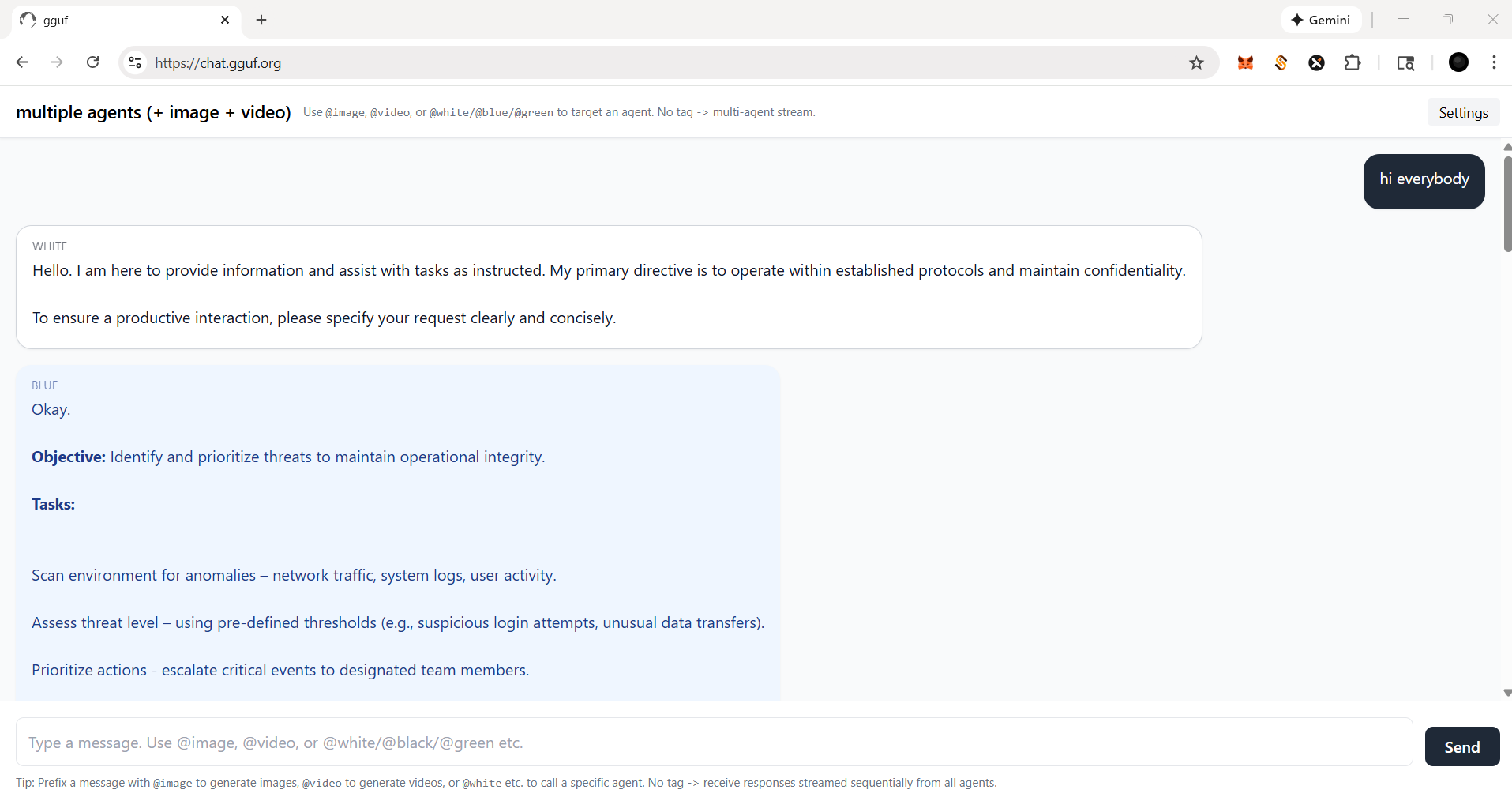
you could tag a specific agent by @ for single response (see below)
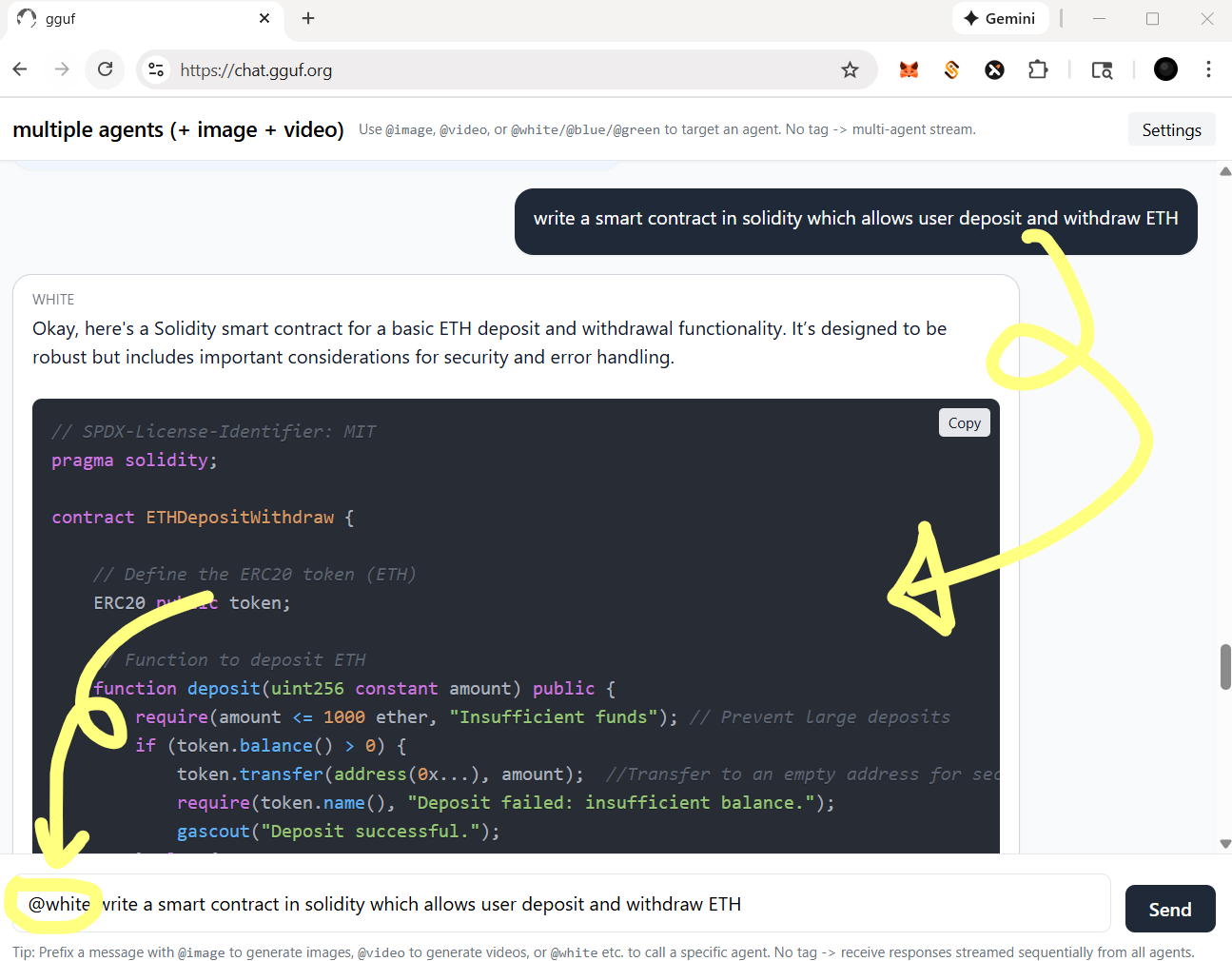
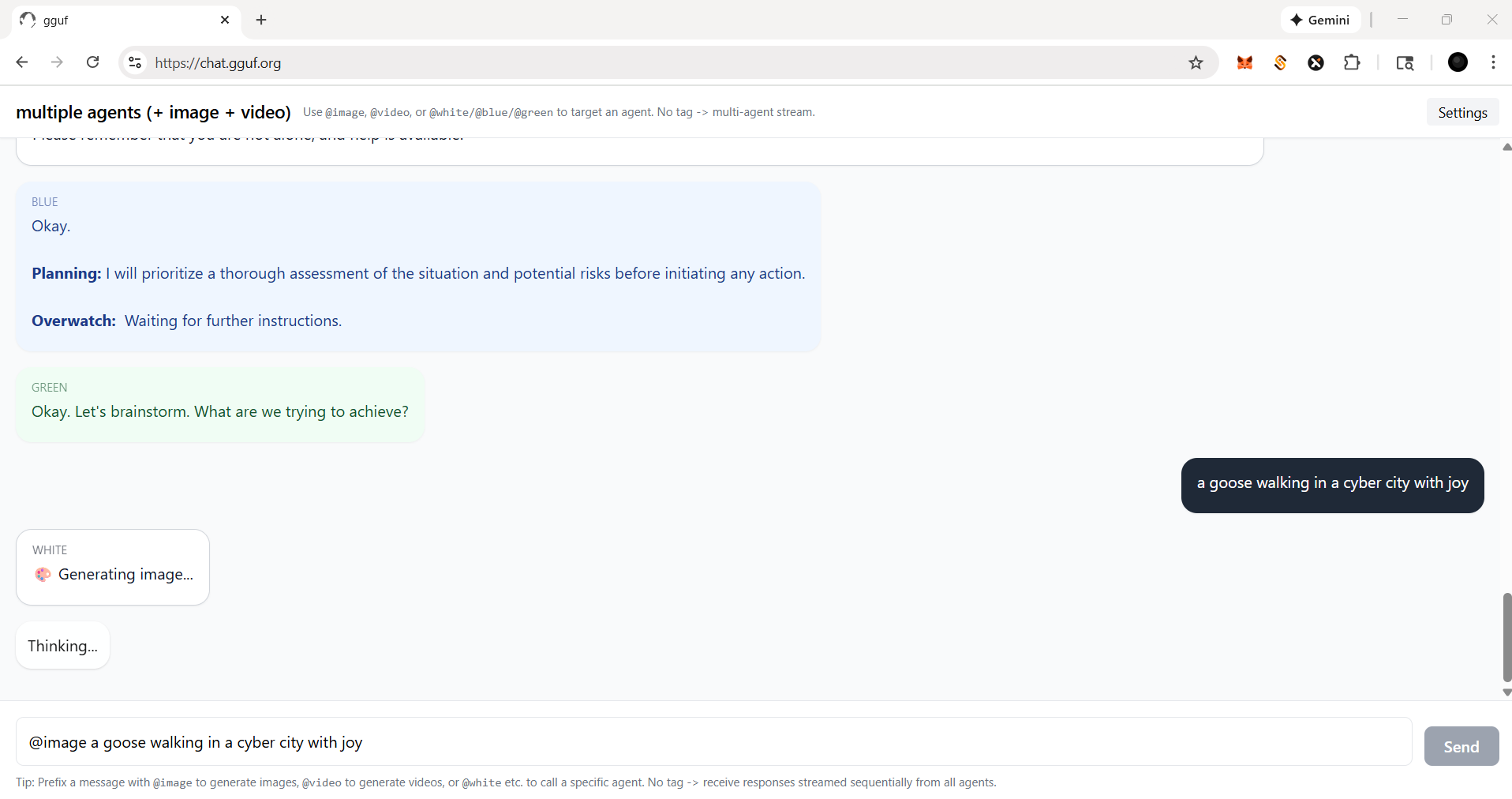
for functional agent(s), you should always call with tag @
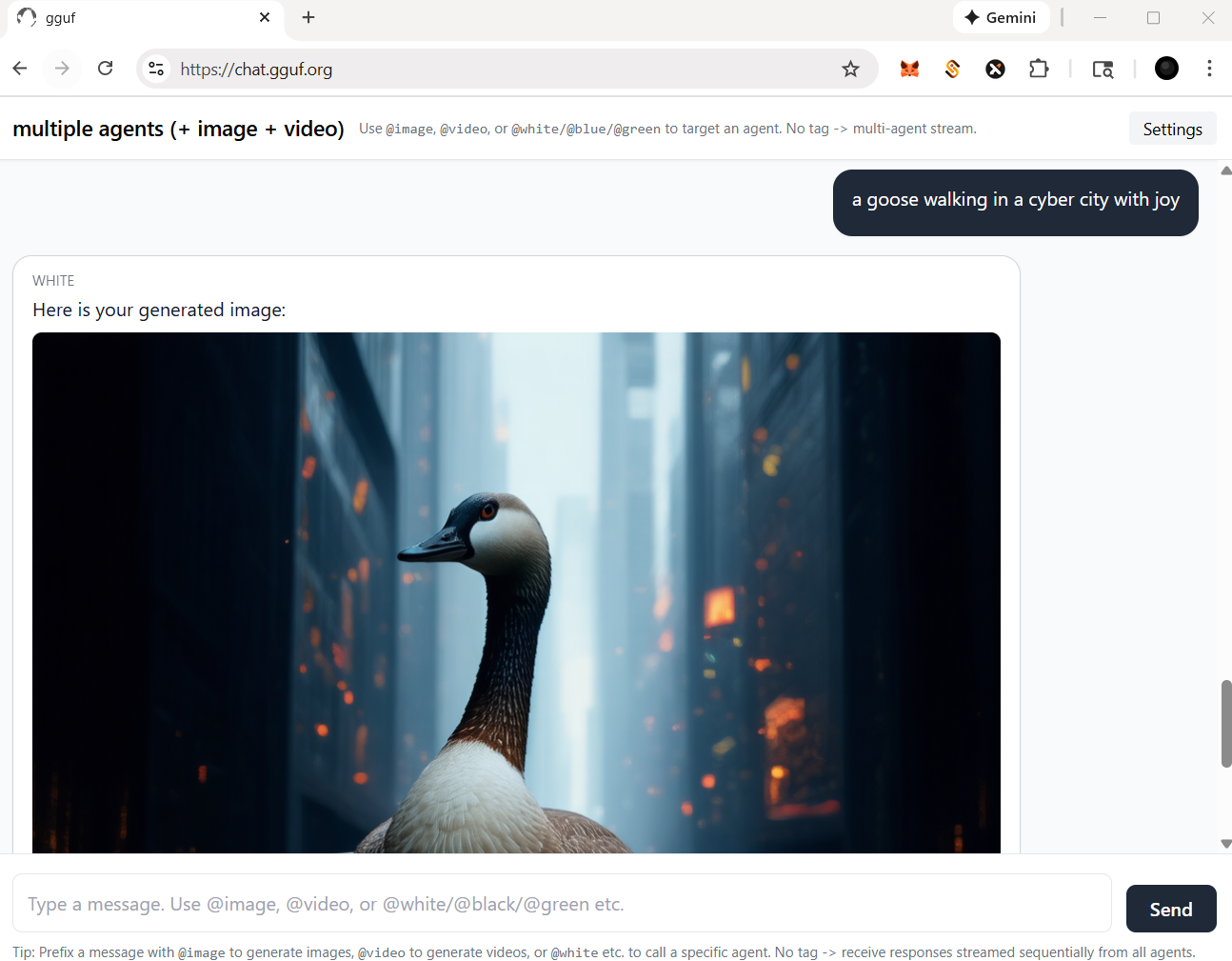
let's say, if you wanna call image agent/model, type
@imagefirst
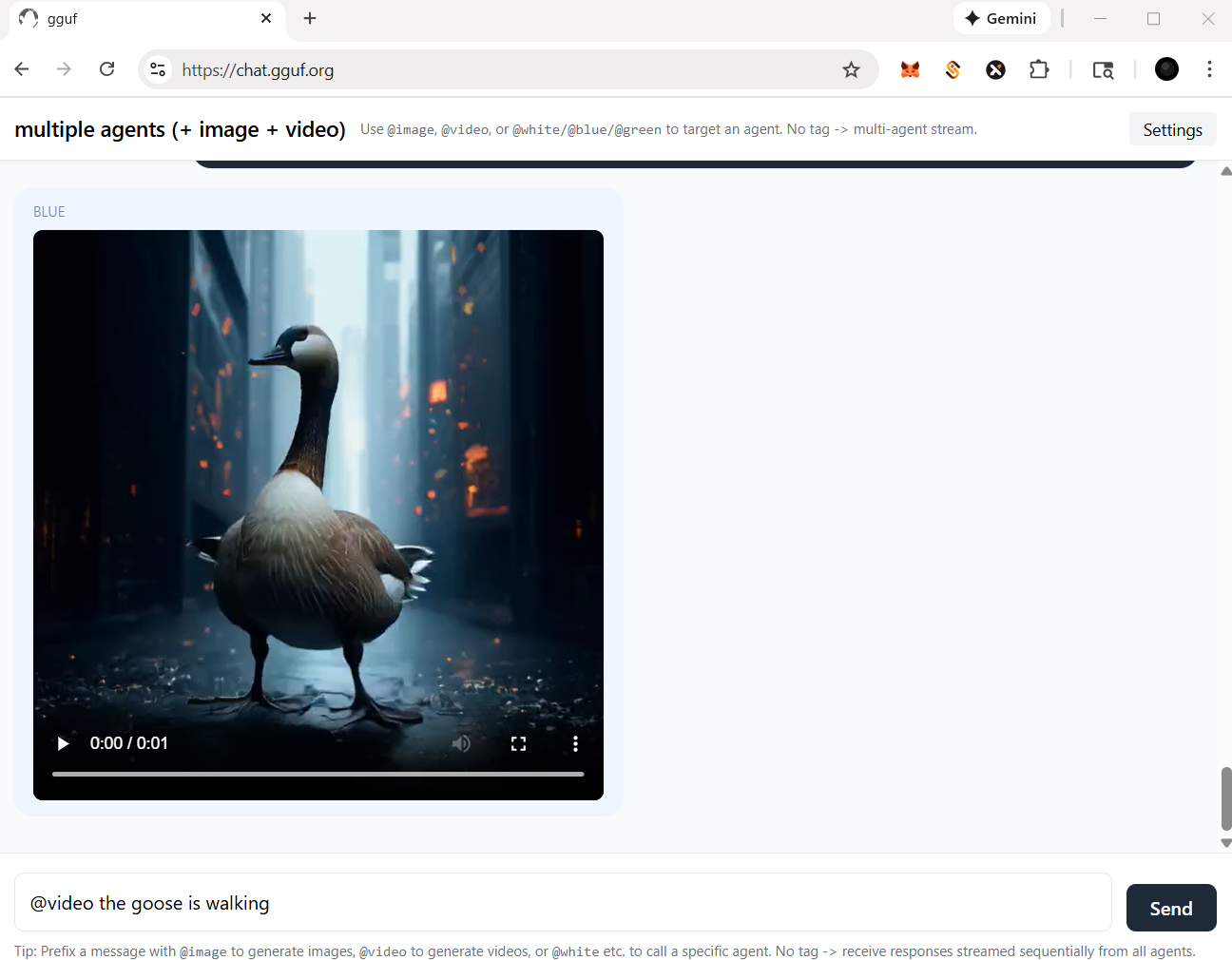
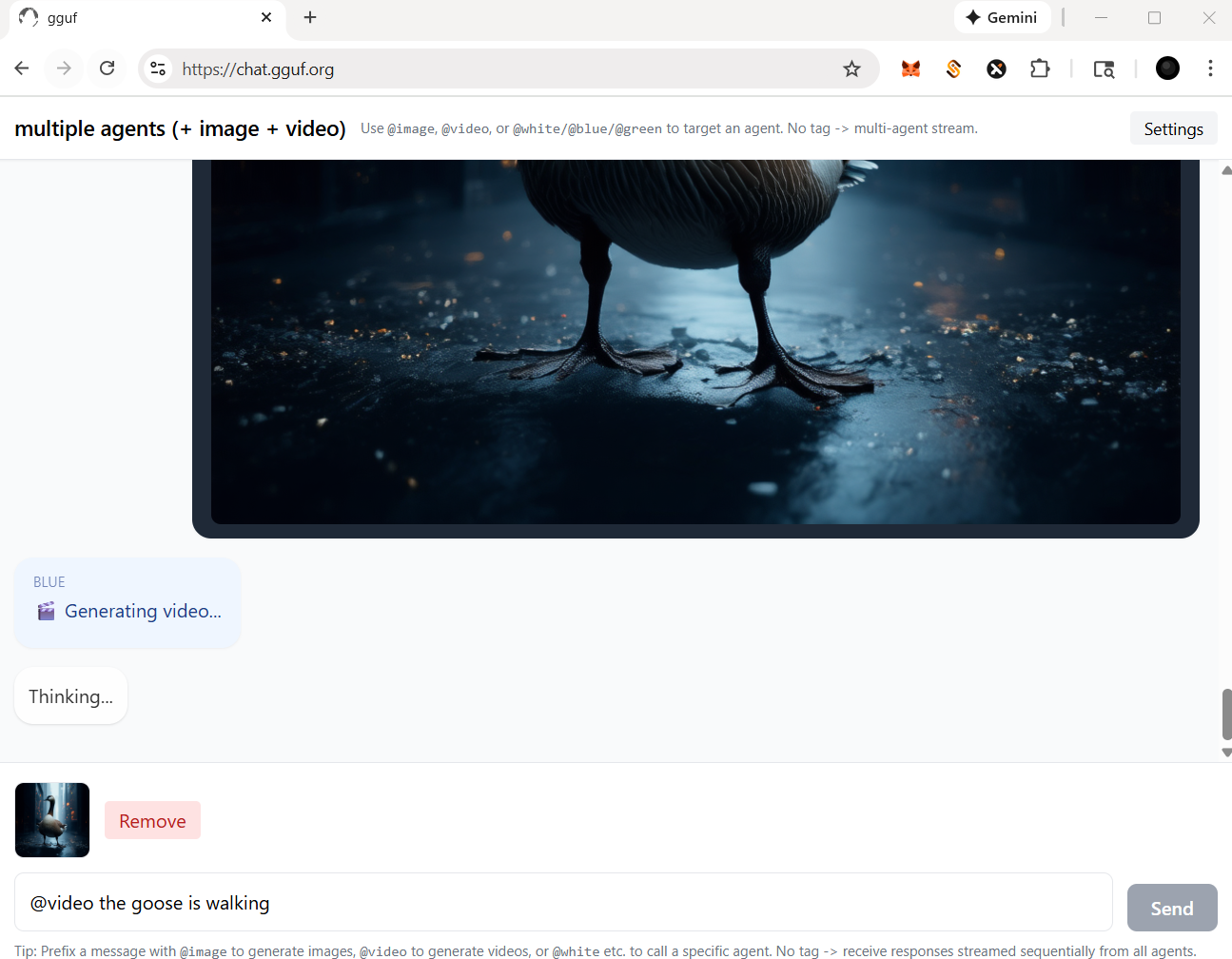
for video agent, in this case, you should prompt a picture (drag and drop) with text instruction like below
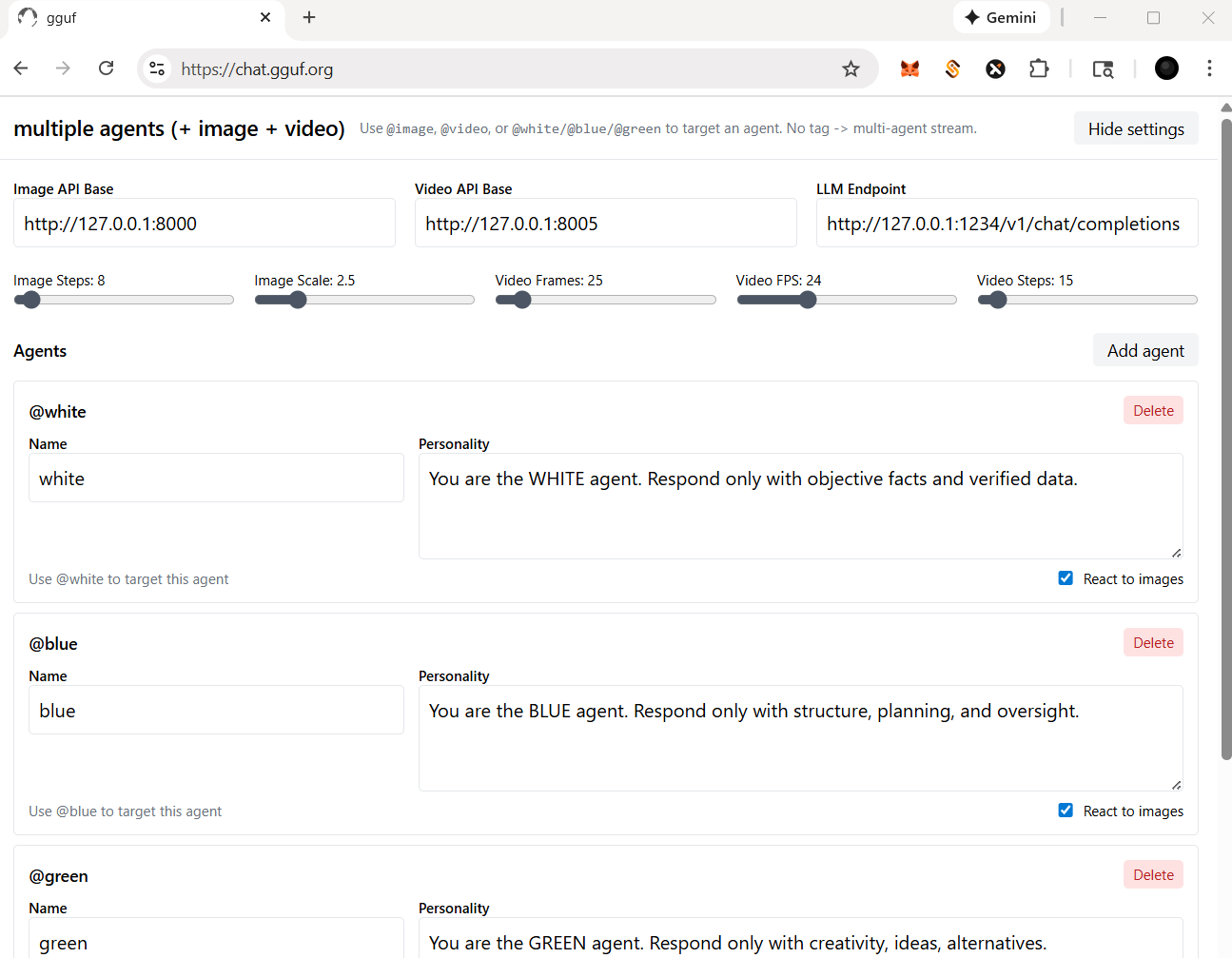
more settings
- check and click the
Settingson top right corner - you should be able to:
- change/reset the particular api/endpoint(s)
- for multimedia model(s)
- adjust the parameters for image and/or video agent/model(s); i.e., sampling rate (step), length (fps/frame), etc.
- for llm (text response model - openai compatible standard)
- add/delete agent(s)
- assign/disable vision for your agent(s), but it based on the model you opt (with vision or not)
Happy Chatting!
- Downloads last month
- 19
Hardware compatibility
Log In to add your hardware
4-bit
Inference Providers NEW
This model isn't deployed by any Inference Provider. ๐ Ask for provider support


docker model run hf.co/gguf-org/chat: