

A newer version of the Gradio SDK is available: 6.20.0
title: veun
app_file: app.py
sdk: gradio
sdk_version: 5.41.0
🎥 AI Video Chat Assistant with RAG Knowledge System
An intelligent, multi-modal chatbot that can analyze video content, answer your questions, and remember past interactions using a sophisticated Retrieval-Augmented Generation (RAG) system.
✨ Features
- Intelligent Video Analysis: Upload a video, and the assistant will use the Gemini 1.5 Flash model to understand its content.
- Multi-Modal Chat: Ask questions about the uploaded video, and receive detailed, context-aware answers.
- Persistent Memory:
- Short-Term Memory: Uses ChromaDB to remember the conversation history within a single session.
- Long-Term Knowledge: Uses a FAISS Vector Store to create a persistent, searchable knowledge base from all interactions (video analyses, Q&A), enabling cross-session insights.
- RAG-Powered Context: Follow-up questions are enhanced with relevant context retrieved from both the current conversation and the long-term knowledge base.
- Interactive UI: A user-friendly interface built with Gradio, featuring distinct sections for video interaction and knowledge base management.
- Robust Backend: Powered by FastAPI, providing a scalable and efficient API.
- Debugging & Management: The UI includes tools to directly query the knowledge base, add test data, and view system statistics.
🏗️ Architecture
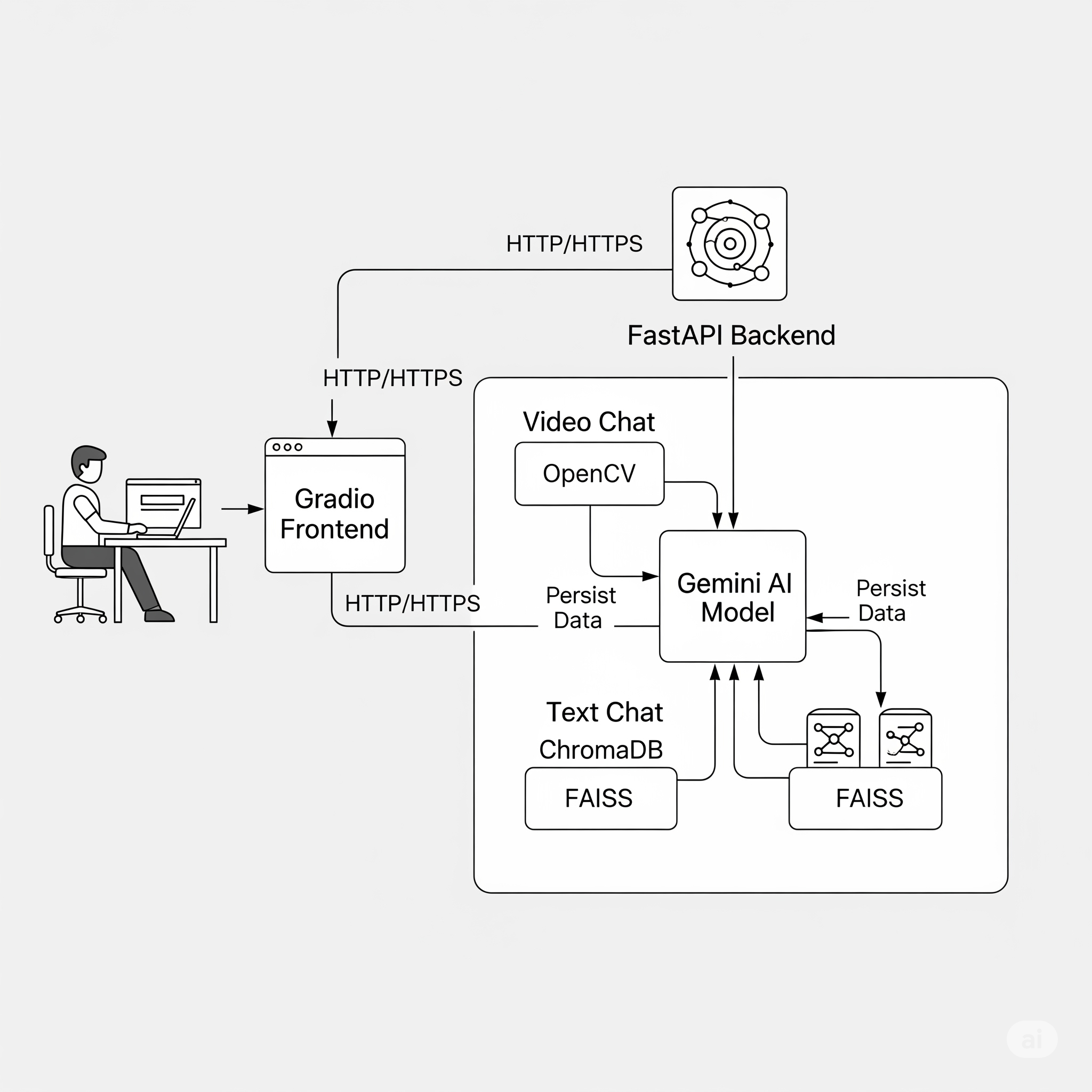
The application operates on a decoupled frontend-backend model. The Gradio UI serves as a pure client, making HTTP requests to the FastAPI backend, which houses all the AI logic, data processing, and state management.
The core of the architecture is its Dual-Memory System:
- ChromaDB for Conversational Context: Provides fast, session-specific memory. It answers the question, "What have we been talking about right now?".
- FAISS for Enduring Knowledge: Creates a permanent, long-term knowledge base from key insights. It answers the question, "What has the assistant learned from all past interactions?".
System Flow Diagram
This diagram illustrates how a user request flows through the system, interacting with the dual-memory stores and the Gemini AI model.
⚙️ Setup and Installation
Follow these steps to get the application running on your local machine.
1. Prerequisites
- Python 3.8 or higher
- Git
2. Clone the Repository
git clone [https://github.com/your-username/ai-video-chat-assistant.git](https://github.com/your-username/ai-video-chat-assistant.git)
cd ai-video-chat-assistant
3. Create a Virtual Environment
It's highly recommended to use a virtual environment.
# For Windows
python -m venv venv
venv\Scripts\activate

# For macOS/Linux
python3 -m venv venv
source venv/bin/activate
4. Install Dependencies
Install all the required packages from the requirements.txt file.
pip install -r requirements.txt
5. Set Up Environment Variables
Create a file named .env in the root directory of the project. This file will hold your Gemini API key.
# .env
GEMINI_API_KEY="YOUR_GEMINI_API_KEY_HERE"
🚀 Running the Application
Once the setup is complete, you can start the application with a single command:
python app/main.py
You will see output indicating that the FastAPI backend and Gradio frontend are running:
🚀 Starting AI Video Chat Assistant...
📊 FastAPI Backend: [http://127.0.0.1:8000](http://127.0.0.1:8000)
🎨 Gradio Frontend: [http://127.0.0.1:7860](http://127.0.0.1:7860)
🧠 RAG System: with RAG Integration
======================================================================
- Open your web browser and navigate to
http://127.0.0.1:7860to use the application.
📖 How to Use
- Upload a Video: Click the "🎬 Click to Upload Video" button and select a video file.
- Ask a Question: Once the video is uploaded, the text box will become active. Type a question about the video (e.g., "What is happening in this video?") and press Enter or click "Send 🚀".
- Chat: The AI will respond. You can ask follow-up questions. The system will remember the context of the current conversation.
- Explore the Knowledge Base:
- Click the "🧠 Knowledge Base" tab.
- Search: Type a query into the search box to find relevant information from all past interactions.
- Debug: Use the "🎯 Add Test Data" button to populate the RAG store for testing and "📊 Show Stats" to see its current state.
- Start a New Conversation: Click the "🔄 New Conversation" button to clear the current state and start fresh with a new session ID.
📡 API Endpoints
The FastAPI backend exposes several endpoints. You can test them at http://127.0.0.1:8000/docs.
| Method | Endpoint | Description |
|---|---|---|
POST |
/chat/video |
Main endpoint to chat with a video. Requires a video file and a prompt. |
POST |
/chat/text |
Handles text-only follow-up questions. |
POST |
/rag/query |
Directly queries the FAISS RAG knowledge base. |
GET |
/rag/stats |
Retrieves comprehensive statistics about the RAG system. |
POST |
/rag/debug |
Adds pre-defined test data to the RAG vector store. |
POST |
/rag/reinitialize |
Forces a re-initialization of the RAG vector store. |
GET |
/health |
A simple health check endpoint to verify system status. |
🧪 Debugging and Testing
The project includes standalone scripts for testing the RAG system independently.
scripts/debug_rag.py: A comprehensive test suite that checks imports, adds data, runs test queries, and offers an interactive query mode. Run it withpython scripts/debug_rag.py.scripts/query_rag.py: A simple script to perform a similarity search on the RAG vector store. Modify thequeryvariable inside the script and run withpython scripts/query_rag.py.