

| # Deploy to Huggingface Space | |
| **⚠️ This method is no longer recommended. Please use the [self-hosting instructions](./self-hosting.md) instead.** | |
| This repository can be deployed to a [Huggingface Space](https://huggingface.co/spaces). This is a free service that allows you to run a simple server in the cloud. You can use it to safely share your OpenAI API key with a friend. | |
| ### 1. Get an API key | |
| - Go to [OpenAI](https://openai.com/) and sign up for an account. You can use a free trial key for this as long as you provide SMS verification. | |
| - Claude is not publicly available yet, but if you have access to it via the [Anthropic](https://www.anthropic.com/) closed beta, you can also use that key with the proxy. | |
| ### 2. Create an empty Huggingface Space | |
| - Go to [Huggingface](https://huggingface.co/) and sign up for an account. | |
| - Once logged in, [create a new Space](https://huggingface.co/new-space). | |
| - Provide a name for your Space and select "Docker" as the SDK. Select "Blank" for the template. | |
| - Click "Create Space" and wait for the Space to be created. | |
|  | |
| ### 3. Create an empty Dockerfile | |
| - Once your Space is created, you'll see an option to "Create the Dockerfile in your browser". Click that link. | |
|  | |
| - Paste the following into the text editor and click "Save". | |
| ```dockerfile | |
| FROM node:18-bullseye-slim | |
| RUN apt-get update && \ | |
| apt-get install -y git | |
| RUN git clone https://gitgud.io/khanon/oai-reverse-proxy.git /app | |
| WORKDIR /app | |
| RUN chown -R 1000:1000 /app | |
| USER 1000 | |
| RUN npm install | |
| COPY Dockerfile greeting.md* .env* ./ | |
| RUN npm run build | |
| EXPOSE 7860 | |
| ENV NODE_ENV=production | |
| ENV NODE_OPTIONS="--max-old-space-size=12882" | |
| CMD [ "npm", "start" ] | |
| ``` | |
| - Click "Commit new file to `main`" to save the Dockerfile. | |
|  | |
| ### 4. Set your API key as a secret | |
| - Click the Settings button in the top right corner of your repository. | |
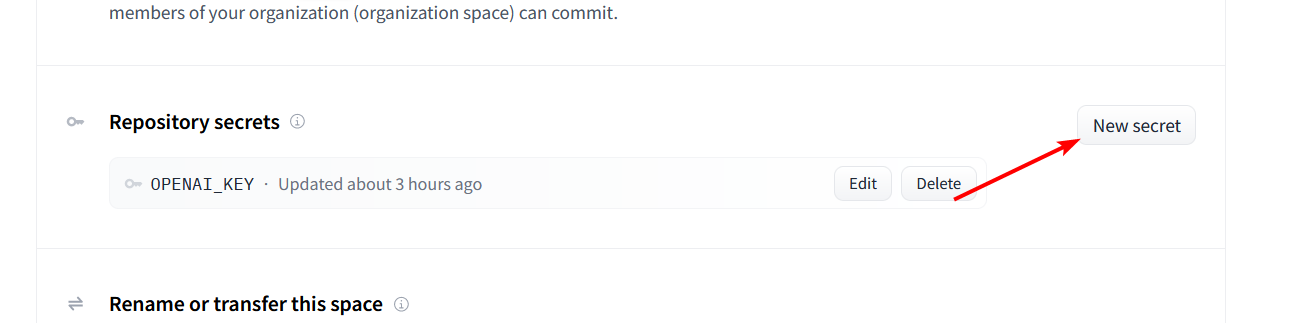
| - Scroll down to the `Repository Secrets` section and click `New Secret`. | |
|  | |
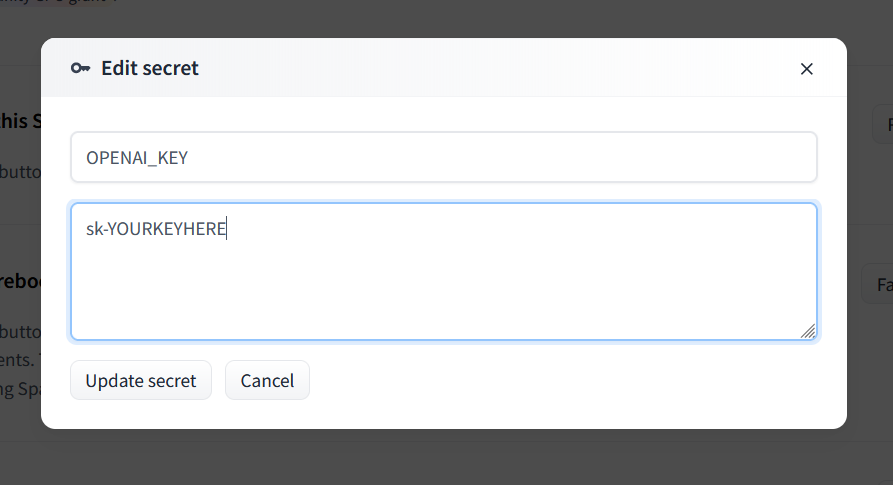
| - Enter `OPENAI_KEY` as the name and your OpenAI API key as the value. | |
| - For Claude, set `ANTHROPIC_KEY` instead. | |
| - You can use both types of keys at the same time if you want. | |
|  | |
| ### 5. Deploy the server | |
| - Your server should automatically deploy when you add the secret, but if not you can select `Factory Reboot` from that same Settings menu. | |
| ### 6. Share the link | |
| - The Service Info section below should show the URL for your server. You can share this with anyone to safely give them access to your API key. | |
| - Your friend doesn't need any API key of their own, they just need your link. | |
| # Optional | |
| ## Updating the server | |
| To update your server, go to the Settings menu and select `Factory Reboot`. This will pull the latest version of the code from GitHub and restart the server. | |
| Note that if you just perform a regular Restart, the server will be restarted with the same code that was running before. | |
| ## Adding a greeting message | |
| You can create a Markdown file called `greeting.md` to display a message on the Server Info page. This is a good place to put instructions for how to use the server. | |
| ## Customizing the server | |
| The server will be started with some default configuration, but you can override it by adding a `.env` file to your Space. You can use Huggingface's web editor to create a new `.env` file alongside your Dockerfile. Huggingface will restart your server automatically when you save the file. | |
| Here are some example settings: | |
| ```shell | |
| # Requests per minute per IP address | |
| MODEL_RATE_LIMIT=4 | |
| # Max tokens to request from OpenAI | |
| MAX_OUTPUT_TOKENS_OPENAI=256 | |
| # Max tokens to request from Anthropic (Claude) | |
| MAX_OUTPUT_TOKENS_ANTHROPIC=512 | |
| # Block prompts containing disallowed characters | |
| REJECT_DISALLOWED=false | |
| REJECT_MESSAGE="This content violates /aicg/'s acceptable use policy." | |
| ``` | |
| See `.env.example` for a full list of available settings, or check `config.ts` for details on what each setting does. | |
| ## Restricting access to the server | |
| If you want to restrict access to the server, you can set a `PROXY_KEY` secret. This key will need to be passed in the Authentication header of every request to the server, just like an OpenAI API key. Set the `GATEKEEPER` mode to `proxy_key`, and then set the `PROXY_KEY` variable to whatever password you want. | |
| Add this using the same method as the OPENAI_KEY secret above. Don't add this to your `.env` file because that file is public and anyone can see it. | |
| Example: | |
| ``` | |
| GATEKEEPER=proxy_key | |
| PROXY_KEY=your_secret_password | |
| ``` | |