| | --- |
| | title: Test1 |
| | emoji: 🟧 |
| | colorFrom: yellow |
| | colorTo: purple |
| | sdk: docker |
| | tags: |
| | - label-studio |
| | fullwidth: true |
| | license: apache-2.0 |
| | app_port: 8080 |
| | short_description: test1 |
| | --- |
| | <img src="https://user-images.githubusercontent.com/12534576/192582340-4c9e4401-1fe6-4dbb-95bb-fdbba5493f61.png"/> |
| |
|
| | [Website](https://hubs.ly/Q01CNgsd0) • [Docs](https://hubs.ly/Q01CN9Yq0) • [12K+ GitHub ⭐️!](https://hubs.ly/Q01CNbPQ0) • [Slack Community](https://hubs.ly/Q01CNb9H0) |
| |
|
| | ## What is Label Studio? |
| |
|
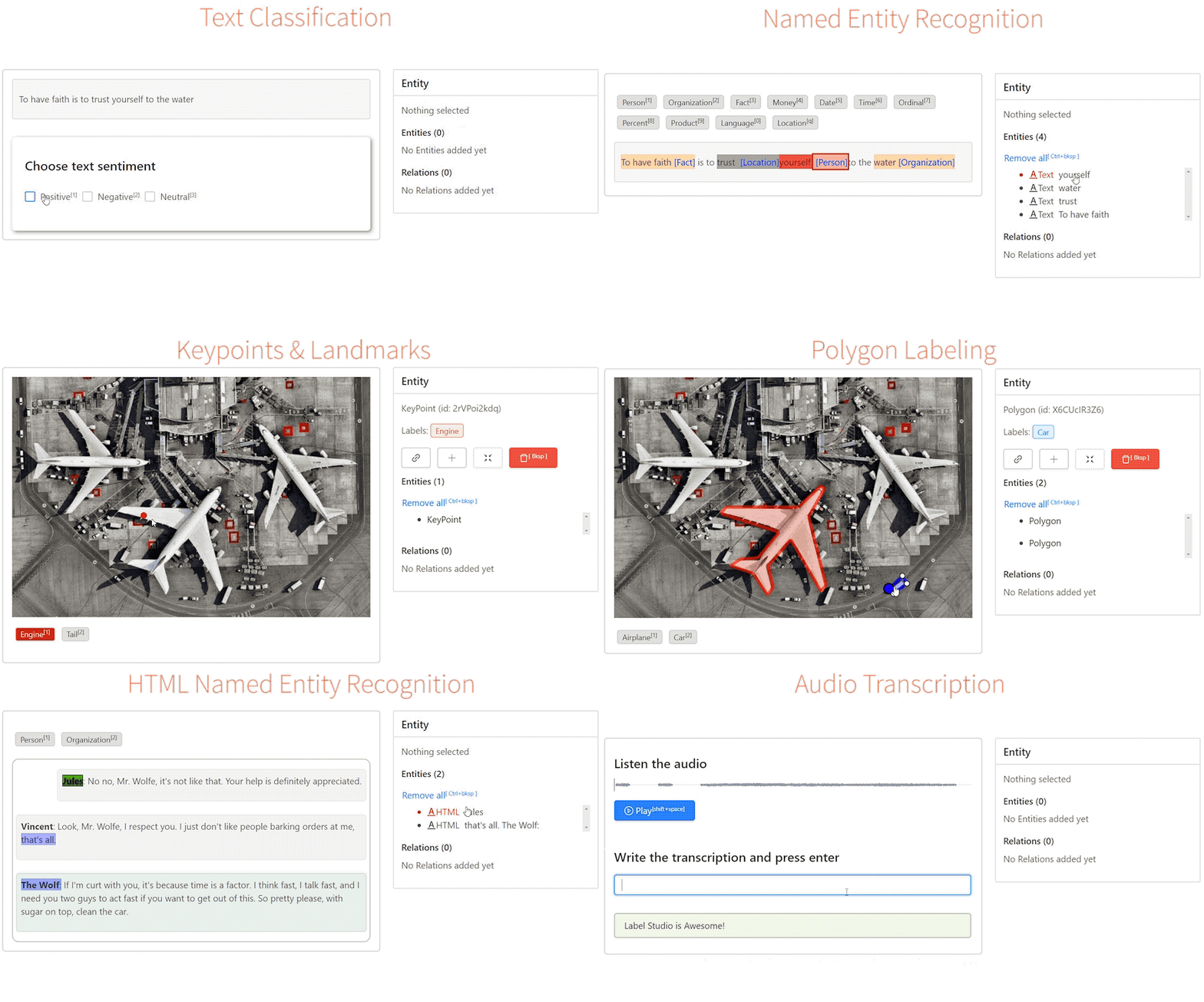
| | Label Studio is an open source data labeling platform. It lets you label audio, |
| | text, images, videos, and time series data with a simple, straightforward, and |
| | highly-configurable user interface. Label Studio can prepare new data or |
| | improve existing training data to get more accurate ML models. |
| |
|
| |
|
| | ## Label Studio in Hugging Face Spaces |
| |
|
| | The Label Studio community is thrilled to offer Label Studio as a Hugging Face |
| | Spaces application. You can try the data-annotation interface, connect popular |
| | machine learning models, and share the application with collaborators. You can |
| | start immediately by creating an account or replicate the space and work in |
| | your own environment. |
| |
|
| | ## Creating a Use Account and Logging In |
| |
|
| | Begin by creating a new account in the Label Studio space, then log in with your |
| | credentials. |
| |
|
| | **By default, these spaces permit anyone to create a new login |
| | account, allowing them to view and modify project configuration, data sets, and |
| | annotations. Without any modifications, treat this space like a demo environment.** |
| |
|
| | ## Creating a Labeling Project |
| |
|
| | After logging in, Label Studio will present you with a project view. Here you |
| | can create a new project with prompts to upload data and set up a custom |
| | configuration interface. |
| |
|
| | **Note that in the default configuration, storage is local and temporary. Any |
| | projects, annotations, and configurations will be lost if the space is restarted.** |
| |
|
| | ## Next Steps and Additional Resources |
| |
|
| | To help with getting started, the Label Studio community curated a list of |
| | resources including tutorials and documentation. |
| |
|
| | - 🚀 [Zero to One with Label Studio Tutorial](https://labelstud.io/blog/introduction-to-label-studio-in-hugging-face-spaces/) |
| | - 📈 [Try Label Studio Enterprise](https://hubs.ly/Q01CMLll0) |
| | - 🤗 [Tutorial: Using Label Studio with Hugging Face Datasets Hub](https://danielvanstrien.xyz/huggingface/huggingface-datasets/annotation/full%20stack%20deep%20learning%20notes/2022/09/07/label-studio-annotations-hub.html) |
| | - 💡 [Label Studio Docs](https://hubs.ly/Q01CN9Yq0) |
| |
|
| | |
| |  |
| |
|
| | ### Making your Label Studio Hugging Face Space production-ready |
| |
|
| | By default this space allows for the unrestricted creation of new accounts |
| | will full access to all projects and data. This is great for trying out |
| | Label Studio and collaborating on projects, but you may want to restrict |
| | access to your space to only authorized users. Add the following environment |
| | variable to your spaces Dockerfile to disable public account creation for |
| | this space. |
| |
|
| | ENV LABEL_STUDIO_DISABLE_SIGNUP_WITHOUT_LINK=true |
| | |
| | Set secrets in your space to create an inital user, and log in with your |
| | provided username and password. Do not set these in your Dockerfile, as they |
| | globally visible on a public space. |
| |
|
| | LABEL_STUDIO_USERNAME |
| | LABEL_STUDIO_PASSWORD |
| | |
| | You will need to provide new users with an invitation link to join the space, |
| | which can be found in the Organizations interface of Label Studio. |
| |
|
| | By default this space stores all project configuration and data annotations |
| | in local storage with Sqlite. If the space is reset, all configuration and |
| | annotation data in the space will be lost. You can enable configuration |
| | persistence in one of two ways: |
| |
|
| | 1. Enabling Persistent Storage in your Space settings and configuring Label |
| | Studio to write its database and task storage there. |
| |
|
| | 2. Connecting an external Postgres database and cloud storage to your space, |
| | guaranteeing that all project and annotation settings are preserved. |
| |
|
| | ### Enabling Hugging Face Persistent Storage |
| |
|
| | In the Hugging Face Label Studio Space settings, select the appropriate |
| | Persistent Storage tier. Note that Persistent Storage is a paid add-on. |
| | By default, persistent storage is mounted to /data. In your Space settings, |
| | set the following variables: |
| |
|
| | LABEL_STUDIO_BASE_DATA_DIR=/data |
| | ENV STORAGE_PERSISTENCE=1 |
| | |
| | Your space will restart. NOTE: if you have existing settings and data, |
| | they will be lost in this first restart. Data and setting will only be |
| | preserved on subsequent restarts of the space. |
| |
|
| | ### Enabling Postgres Database and Cloud Storage |
| |
|
| | Set the following secret variables to match your own hosted instance of |
| | Postgres. We strongly recommend setting these as secrets to prevent leaking |
| | information about your database service to the public in your spaces |
| | definition. |
| |
|
| | DJANGO_DB=default |
| | POSTGRE_NAME=<postgres_name> |
| | POSTGRE_PORT=<db_port> |
| | POSTGRE_USER=<postgres_user> |
| | POSTGRE_PASSWORD=<password> |
| | POSTGRE_PORT=<db_port> |
| | POSTGRE_HOST=<db_host> |
| | |
| | Add the following environment variable to remove the warning about ephemeral |
| | storage. |
| |
|
| | ENV STORAGE_PERSISTENCE=1 |
| | |
| | Note that you will need to connect cloud storage to host data items that you |
| | want to annotate, as local storage will not be preserved across a space reset. |
| |
|
| | By default the only data storage enabled for this space is local. In the case |
| | of a space reset, all data will be lost. To enable permanent storage, you |
| | must enable a cloud storage connector. We also strongly recommend enabling |
| | configuration persistence to preserve project data, annotations, and user |
| | settings. Choose the appropriate cloud connector and configure the secrets |
| | for it. |
| |
|
| | #### Amazon S3 |
| | STORAGE_TYPE=s3 |
| | STORAGE_AWS_ACCESS_KEY_ID="<YOUR_ACCESS_KEY_ID>" |
| | STORAGE_AWS_SECRET_ACCESS_KEY="<YOUR_SECRET_ACCESS_KEY>" |
| | STORAGE_AWS_BUCKET_NAME="<YOUR_BUCKET_NAME>" |
| | STORAGE_AWS_REGION_NAME="<YOUR_BUCKET_REGION>" |
| | STORAGE_AWS_FOLDER="" |
| | |
| | #### Google Cloud Storage |
| |
|
| | STORAGE_TYPE=gcs |
| | STORAGE_GCS_BUCKET_NAME="<YOUR_BUCKET_NAME>" |
| | STORAGE_GCS_PROJECT_ID="<YOUR_PROJECT_ID>" |
| | STORAGE_GCS_FOLDER="" |
| | GOOGLE_APPLICATION_CREDENTIALS="/opt/heartex/secrets/key.json" |
| | |
| | Azure Blob Storage |
| | ================== |
| |
|
| | STORAGE_TYPE=azure |
| | STORAGE_AZURE_ACCOUNT_NAME="<YOUR_STORAGE_ACCOUNT>" |
| | STORAGE_AZURE_ACCOUNT_KEY="<YOUR_STORAGE_KEY>" |
| | STORAGE_AZURE_CONTAINER_NAME="<YOUR_CONTAINER_NAME>" |
| | STORAGE_AZURE_FOLDER="" |
| | |
| |
|
| | ## Questions? Concerns? Want to get involved? |
| |
|
| | Email the community team at [community@labelstud.io](mailto:community@labelstud.io) |
| |
|

