| | --- |
| | description: Learn how to install the Ultralytics package in developer mode and build/serve locally using MkDocs. Deploy your project to your host easily. |
| | keywords: install Ultralytics package, deploy documentation, building locally, deploy site, GitHub Pages, GitLab Pages, Amazon S3, MkDocs documentation |
| | --- |
| | |
| | # Ultralytics Docs |
| |
|
| | Ultralytics Docs are deployed to [https://docs.ultralytics.com](https://docs.ultralytics.com). |
| |
|
| | ### Install Ultralytics package |
| |
|
| | To install the ultralytics package in developer mode, you will need to have Git and Python 3 installed on your system. |
| | Then, follow these steps: |
| |
|
| | 1. Clone the ultralytics repository to your local machine using Git: |
| |
|
| | ```bash |
| | git clone https://github.com/ultralytics/ultralytics.git |
| | ``` |
| |
|
| | 2. Navigate to the root directory of the repository: |
| |
|
| | ```bash |
| | cd ultralytics |
| | ``` |
| |
|
| | 3. Install the package in developer mode using pip: |
| |
|
| | ```bash |
| | pip install -e '.[dev]' |
| | ``` |
| |
|
| | This will install the ultralytics package and its dependencies in developer mode, allowing you to make changes to the |
| | package code and have them reflected immediately in your Python environment. |
| |
|
| | Note that you may need to use the pip3 command instead of pip if you have multiple versions of Python installed on your |
| | system. |
| |
|
| | ### Building and Serving Locally |
| |
|
| | The `mkdocs serve` command is used to build and serve a local version of the MkDocs documentation site. It is typically |
| | used during the development and testing phase of a documentation project. |
| |
|
| | ```bash |
| | mkdocs serve |
| | ``` |
| |
|
| | Here is a breakdown of what this command does: |
| |
|
| | - `mkdocs`: This is the command-line interface (CLI) for the MkDocs static site generator. It is used to build and serve |
| | MkDocs sites. |
| | - `serve`: This is a subcommand of the `mkdocs` CLI that tells it to build and serve the documentation site locally. |
| | - `-a`: This flag specifies the hostname and port number to bind the server to. The default value is `localhost:8000`. |
| | - `-t`: This flag specifies the theme to use for the documentation site. The default value is `mkdocs`. |
| | - `-s`: This flag tells the `serve` command to serve the site in silent mode, which means it will not display any log |
| | messages or progress updates. |
| | When you run the `mkdocs serve` command, it will build the documentation site using the files in the `docs/` directory |
| | and serve it at the specified hostname and port number. You can then view the site by going to the URL in your web |
| | browser. |
| |
|
| | While the site is being served, you can make changes to the documentation files and see them reflected in the live site |
| | immediately. This is useful for testing and debugging your documentation before deploying it to a live server. |
| |
|
| | To stop the serve command and terminate the local server, you can use the `CTRL+C` keyboard shortcut. |
| |
|
| | ### Deploying Your Documentation Site |
| |
|
| | To deploy your MkDocs documentation site, you will need to choose a hosting provider and a deployment method. Some |
| | popular options include GitHub Pages, GitLab Pages, and Amazon S3. |
| |
|
| | Before you can deploy your site, you will need to configure your `mkdocs.yml` file to specify the remote host and any |
| | other necessary deployment settings. |
| |
|
| | Once you have configured your `mkdocs.yml` file, you can use the `mkdocs deploy` command to build and deploy your site. |
| | This command will build the documentation site using the files in the `docs/` directory and the specified configuration |
| | file and theme, and then deploy the site to the specified remote host. |
| |
|
| | For example, to deploy your site to GitHub Pages using the gh-deploy plugin, you can use the following command: |
| |
|
| | ```bash |
| | mkdocs gh-deploy |
| | ``` |
| |
|
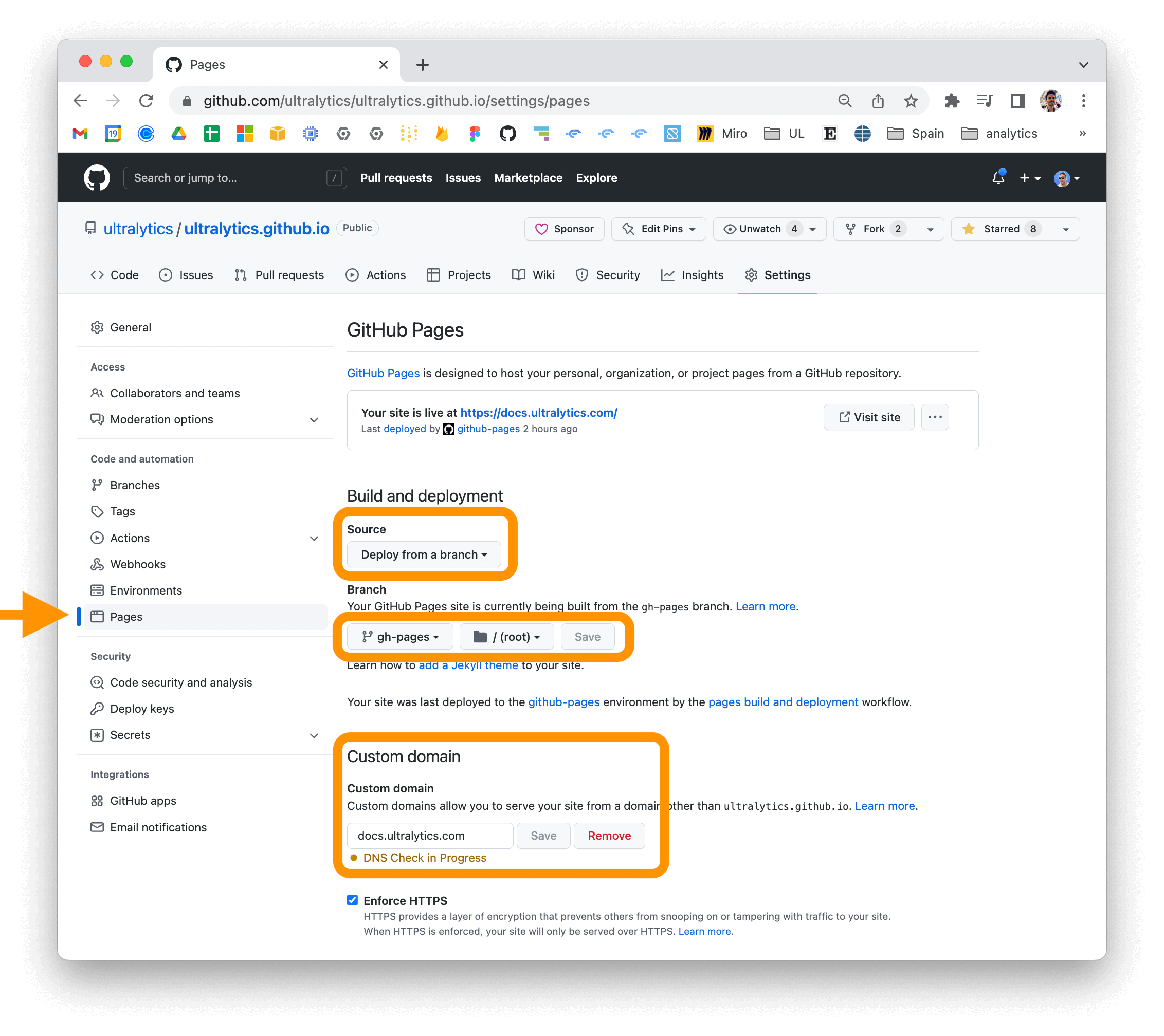
| | If you are using GitHub Pages, you can set a custom domain for your documentation site by going to the "Settings" page |
| | for your repository and updating the "Custom domain" field in the "GitHub Pages" section. |
| |
|
| |  |
| |
|
| | For more information on deploying your MkDocs documentation site, see |
| | the [MkDocs documentation](https://www.mkdocs.org/user-guide/deploying-your-docs/). |