

| <!--Copyright 2023 The HuggingFace Team. All rights reserved. | |
| Licensed under the Apache License, Version 2.0 (the "License"); you may not use this file except in compliance with | |
| the License. You may obtain a copy of the License at | |
| http://www.apache.org/licenses/LICENSE-2.0 | |
| Unless required by applicable law or agreed to in writing, software distributed under the License is distributed on | |
| an "AS IS" BASIS, WITHOUT WARRANTIES OR CONDITIONS OF ANY KIND, either express or implied. See the License for the | |
| specific language governing permissions and limitations under the License. | |
| ⚠️ Note that this file is in Markdown but contain specific syntax for our doc-builder (similar to MDX) that may not be | |
| rendered properly in your Markdown viewer. | |
| --> | |
| # Custom Tools and Prompts | |
| <Tip> | |
| トランスフォーマーのコンテキストでツールとエージェントが何であるかを知らない場合、 | |
| まず[Transformers Agents](transformers_agents)ページをお読みいただくことをお勧めします。 | |
| </Tip> | |
| <Tip warning={true}> | |
| Transformers Agentsは実験的なAPIであり、いつでも変更される可能性があります。 | |
| エージェントによって返される結果は、APIや基礎となるモデルが変更される可能性があるため、変化することがあります。 | |
| </Tip> | |
| カスタムツールとプロンプトを作成し、使用することは、エージェントを強化し、新しいタスクを実行させるために非常に重要です。 | |
| このガイドでは、以下の内容を説明します: | |
| - プロンプトのカスタマイズ方法 | |
| - カスタムツールの使用方法 | |
| - カスタムツールの作成方法 | |
| ## Customizing the prompt | |
| [Transformers Agents](transformers_agents)で説明されているように、エージェントは[`~Agent.run`]および[`~Agent.chat`]モードで実行できます。 | |
| `run`モードと`chat`モードの両方は同じロジックに基づいています。 | |
| エージェントを駆動する言語モデルは、長いプロンプトに基づいて条件付けられ、 | |
| 次のトークンを生成して停止トークンに達するまでプロンプトを完了します。 | |
| 両者の唯一の違いは、`chat`モードの間にプロンプトが前のユーザーの入力とモデルの生成と共に拡張されることです。 | |
| これにより、エージェントは過去の対話にアクセスでき、エージェントにあたかもメモリがあるかのように見えます。 | |
| ### Structure of the prompt | |
| プロンプトがどのように構築され、どのように最適化できるかを理解するために、プロンプトは大まかに4つの部分に分かれています。 | |
| 1. イントロダクション:エージェントの振る舞い、ツールの概念の説明。 | |
| 2. すべてのツールの説明。これはユーザーによって定義/選択されたツールでランタイム時に動的に置換される`<<all_tools>>`トークンによって定義されます。 | |
| 3. タスクとその解決策の一連の例。 | |
| 4. 現在の例と解決策の要求。 | |
| 各部分をよりよく理解するために、`run`プロンプトがどのように見えるかの簡略版を見てみましょう: | |
| ````text | |
| タスクを実行するために、Pythonのシンプルなコマンドのシリーズを考えてくることがあるでしょう。 | |
| [...] | |
| 意味がある場合は、中間結果を表示することができます。 | |
| ツール: | |
| - document_qa:これはドキュメント(pdf)に関する質問に答えるツールです。情報を含むドキュメントである `document` と、ドキュメントに関する質問である `question` を受け取り、質問に対する回答を含むテキストを返します。 | |
| - image_captioner:これは画像の説明を生成するツールです。キャプションにする画像である `image` と、説明を含む英語のテキストを返すテキストを受け取ります。 | |
| [...] | |
| タスク: "変数 `question` に関する質問に答えるための画像について回答してください。質問はフランス語です。" | |
| 次のツールを使用します:質問を英語に翻訳するための `translator`、そして入力画像に関する質問に答えるための `image_qa`。 | |
| 回答: | |
| ```py | |
| translated_question = translator(question=question, src_lang="French", tgt_lang="English") | |
| print(f"The translated question is {translated_question}.") | |
| answer = image_qa(image=image, question=translated_question) | |
| print(f"The answer is {answer}") | |
| ``` | |
| タスク:「`document`内で最年長の人物を特定し、その結果をバナーとして表示する。」 | |
| 以下のツールを使用します:`document_qa`を使用してドキュメント内で最年長の人物を見つけ、その回答に従って`image_generator`を使用して画像を生成します。 | |
| 回答: | |
| ```py | |
| answer = document_qa(document, question="What is the oldest person?") | |
| print(f"The answer is {answer}.") | |
| image = image_generator("A banner showing " + answer) | |
| ``` | |
| [...] | |
| タスク: "川と湖の絵を描いてください" | |
| 以下のものを使用します | |
| ```` | |
| 導入部分("Tools:"の前のテキスト)は、モデルの振る舞いと実行すべきタスクを正確に説明しています。 | |
| この部分はおそらくエージェントが常に同じ方法で振る舞う必要があるため、カスタマイズする必要はありません。 | |
| 2番目の部分("Tools"の下の箇条書き)は、`run`または`chat`を呼び出すたびに動的に追加されます。 | |
| `agent.toolbox`内のツールの数と同じ数の箇条書きがあり、それぞれの箇条書きにはツールの名前と説明が含まれています。 | |
| ```text | |
| - <tool.name>: <tool.description> | |
| ``` | |
| もうすぐ確認しましょう。 `document_qa` ツールを読み込んで名前と説明を出力します。 | |
| ```py | |
| from transformers import load_tool | |
| document_qa = load_tool("document-question-answering") | |
| print(f"- {document_qa.name}: {document_qa.description}") | |
| ``` | |
| which gives: | |
| ```text | |
| - document_qa: This is a tool that answers a question about a document (pdf). It takes an input named `document` which should be the document containing the information, as well as a `question` that is the question about the document. It returns a text that contains the answer to the question. | |
| ``` | |
| ツール説明: | |
| このツールは、2つのパートから成り立っています。最初のパートでは、ツールが何を行うかを説明し、2番目のパートでは入力引数と戻り値がどのように期待されるかを述べています。 | |
| 良いツール名とツールの説明は、エージェントが正しく使用するために非常に重要です。エージェントがツールについて持っている唯一の情報は、その名前と説明です。したがって、ツール名と説明の両方が正確に記述され、ツールボックス内の既存のツールのスタイルに合致することを確認する必要があります。特に、説明にはコードスタイルで名前で期待されるすべての引数が言及され、期待される型とそれらが何であるかの説明も含めるべきです。 | |
| <Tip> | |
| キュレートされたTransformersツールの命名と説明を確認して、ツールがどのような名前と説明を持つべきかを理解するのに役立ちます。 | |
| すべてのツールは[`Agent.toolbox`]プロパティで確認できます。 | |
| </Tip> | |
| カスタマイズされた例: | |
| ツールの使い方をエージェントに正確に示す一連の例が含まれています。これらの例は、エージェントが実際に正確で実行可能なコードを生成する可能性を最大化するように書かれているため、非常に重要です。大規模な言語モデルは、プロンプト内のパターンを認識し、新しいデータを使用してそのパターンを繰り返すことに非常に優れています。したがって、実践で正しい実行可能なコードを生成するエージェントの可能性を最大化するように、これらの例は書かれている必要があります。 | |
| 以下は、一つの例です: | |
| ````text | |
| Task: "Identify the oldest person in the `document` and create an image showcasing the result as a banner." | |
| I will use the following tools: `document_qa` to find the oldest person in the document, then `image_generator` to generate an image according to the answer. | |
| Answer: | |
| ```py | |
| answer = document_qa(document, question="What is the oldest person?") | |
| print(f"The answer is {answer}.") | |
| image = image_generator("A banner showing " + answer) | |
| ``` | |
| ```` | |
| パターン:モデルが繰り返しを行うように指示されるパターンには、3つの部分があります。 | |
| タスクの声明、エージェントの意図した動作の説明、そして最後に生成されるコードです。 | |
| プロンプトの一部であるすべての例には、この正確なパターンがあり、エージェントが新しいトークンを生成する際にも | |
| 同じパターンを再現することを確認しています。 | |
| プロンプトの例はTransformersチームによって厳選され、一連の問題ステートメントで厳密に評価されます。 | |
| これにより、エージェントのプロンプトがエージェントの実際の使用ケースを解決するためにできるだけ優れたものになります。 | |
| プロンプトの最後の部分に対応しています: | |
| [こちら](https://github.com/huggingface/transformers/blob/main/src/transformers/tools/evaluate_agent.py)の問題ステートメントで厳密に評価される、エージェントのプロンプトができるだけ優れたものになるように | |
| 慎重に選定されたプロンプト例を提供しています。 | |
| ```text | |
| Task: "Draw me a picture of rivers and lakes" | |
| I will use the following | |
| ``` | |
| これがエージェントに完成させるための最終的で未完成の例です。未完成の例は、実際のユーザー入力に基づいて動的に作成されます。上記の例では、ユーザーが次のように実行しました: | |
| ```py | |
| agent.run("Draw me a picture of rivers and lakes") | |
| ``` | |
| ユーザーの入力 - つまり、タスク:"川と湖の絵を描いてください"は、以下のようなプロンプトテンプレートに変換されます:"タスク:<task> \n\n 次に私は以下を使用します"。 | |
| この文は、エージェントが条件付けられたプロンプトの最終行を構成し、したがってエージェントに対して前の例とまったく同じ方法で例を終了するよう強く影響します。 | |
| 詳細には立ち入りませんが、チャットテンプレートは同じプロンプト構造を持ち、例はわずかに異なるスタイルを持っています。例: | |
| ````text | |
| [...] | |
| ===== | |
| Human: Answer the question in the variable `question` about the image stored in the variable `image`. | |
| Assistant: I will use the tool `image_qa` to answer the question on the input image. | |
| ```py | |
| answer = image_qa(text=question, image=image) | |
| print(f"The answer is {answer}") | |
| ``` | |
| Human: I tried this code, it worked but didn't give me a good result. The question is in French | |
| Assistant: In this case, the question needs to be translated first. I will use the tool `translator` to do this. | |
| ```py | |
| translated_question = translator(question=question, src_lang="French", tgt_lang="English") | |
| print(f"The translated question is {translated_question}.") | |
| answer = image_qa(text=translated_question, image=image) | |
| print(f"The answer is {answer}") | |
| ``` | |
| ===== | |
| [...] | |
| ```` | |
| *Human:* `run`プロンプトの例とは対照的に、各`chat`プロンプトの例には*Human*と*Assistant*の間で1つ以上のやりとりがあります。各やりとりは、`run`プロンプトの例と同様の構造になっています。ユーザーの入力は*Human:*の後ろに追加され、エージェントにはコードを生成する前に何を行う必要があるかを最初に生成するように指示されます。やりとりは以前のやりとりに基づいて行われることがあり、ユーザーが「I tried **this** code」と入力したように、以前に生成されたエージェントのコードを参照できます。 | |
| *Assistant:* `.chat`を実行すると、ユーザーの入力または*タスク*が未完了の形式に変換されます: | |
| ```text | |
| Human: <user-input>\n\nAssistant: | |
| ``` | |
| 以下のエージェントが完了するコマンドについて説明します。 `run` コマンドとは対照的に、`chat` コマンドは完了した例をプロンプトに追加します。そのため、次の `chat` ターンのためにエージェントにより多くの文脈を提供します。 | |
| さて、プロンプトの構造がわかったところで、どのようにカスタマイズできるかを見てみましょう! | |
| ### Writing good user inputs | |
| 大規模な言語モデルはユーザーの意図を理解する能力がますます向上していますが、エージェントが正しいタスクを選択するのを助けるために、できるだけ正確に記述することが非常に役立ちます。できるだけ正確であるとは何を意味するのでしょうか? | |
| エージェントは、プロンプトでツール名とその説明のリストを見ています。ツールが追加されるほど、エージェントが正しいツールを選択するのが難しくなり、正しいツールの連続を選択するのはさらに難しくなります。共通の失敗例を見てみましょう。ここではコードのみを返すことにします。 | |
| ```py | |
| from transformers import HfAgent | |
| agent = HfAgent("https://api-inference.huggingface.co/models/bigcode/starcoder") | |
| agent.run("Show me a tree", return_code=True) | |
| ``` | |
| gives: | |
| ```text | |
| ==Explanation from the agent== | |
| I will use the following tool: `image_segmenter` to create a segmentation mask for the image. | |
| ==Code generated by the agent== | |
| mask = image_segmenter(image, prompt="tree") | |
| ``` | |
| これはおそらく私たちが望んでいたものではないでしょう。代わりに、木の画像が生成されることがより可能性が高いです。 | |
| 特定のツールを使用するようエージェントを誘導するために、ツールの名前や説明に含まれている重要なキーワードを使用することは非常に役立ちます。さて、詳しく見てみましょう。 | |
| ```py | |
| agent.toolbox["image_generator"].description | |
| ``` | |
| ```text | |
| 'This is a tool that creates an image according to a prompt, which is a text description. It takes an input named `prompt` which contains the image description and outputs an image. | |
| ``` | |
| 名前と説明文には、キーワード「画像」、「プロンプト」、「作成」、および「生成」が使用されています。これらの言葉を使用することで、ここでの動作がより効果的になる可能性が高いです。プロンプトを少し詳細に調整しましょう。 | |
| ```py | |
| agent.run("Create an image of a tree", return_code=True) | |
| ``` | |
| gives: | |
| ```text | |
| ==Explanation from the agent== | |
| I will use the following tool `image_generator` to generate an image of a tree. | |
| ==Code generated by the agent== | |
| image = image_generator(prompt="tree") | |
| ``` | |
| 簡単に言うと、エージェントがタスクを正確に適切なツールにマッピングできない場合は、ツールの名前や説明の最も関連性のあるキーワードを調べて、タスクリクエストをそれに合わせて洗練させてみてください。 | |
| ### Customizing the tool descriptions | |
| 以前にも見たように、エージェントは各ツールの名前と説明にアクセスできます。ベースのツールは非常に正確な名前と説明を持っているはずですが、特定のユースケースに合わせてツールの説明や名前を変更することが役立つかもしれません。これは、非常に類似した複数のツールを追加した場合や、特定のドメイン(たとえば、画像生成や変換など)でエージェントを使用する場合に特に重要になるかもしれません。 | |
| よくある問題は、エージェントが画像生成タスクに頻繁に使用される場合、画像生成と画像変換/修正を混同することです。 | |
| 例: | |
| ```py | |
| agent.run("Make an image of a house and a car", return_code=True) | |
| ``` | |
| returns | |
| ```text | |
| ==Explanation from the agent== | |
| I will use the following tools `image_generator` to generate an image of a house and `image_transformer` to transform the image of a car into the image of a house. | |
| ==Code generated by the agent== | |
| house_image = image_generator(prompt="A house") | |
| car_image = image_generator(prompt="A car") | |
| house_car_image = image_transformer(image=car_image, prompt="A house") | |
| ``` | |
| これはおそらく私たちがここで望んでいる正確なものではないようです。エージェントは「image_generator」と「image_transformer」の違いを理解するのが難しいようで、しばしば両方を一緒に使用します。 | |
| ここでエージェントをサポートするために、"image_transformer"のツール名と説明を変更して、少し"image"や"prompt"から切り離してみましょう。代わりにそれを「modifier」と呼びましょう: | |
| ```py | |
| agent.toolbox["modifier"] = agent.toolbox.pop("image_transformer") | |
| agent.toolbox["modifier"].description = agent.toolbox["modifier"].description.replace( | |
| "transforms an image according to a prompt", "modifies an image" | |
| ) | |
| ``` | |
| 「変更」は、上記のプロンプトに新しい画像プロセッサを使用する強力な手がかりです。それでは、もう一度実行してみましょう。 | |
| ```py | |
| agent.run("Make an image of a house and a car", return_code=True) | |
| ``` | |
| Now we're getting: | |
| ```text | |
| ==Explanation from the agent== | |
| I will use the following tools: `image_generator` to generate an image of a house, then `image_generator` to generate an image of a car. | |
| ==Code generated by the agent== | |
| house_image = image_generator(prompt="A house") | |
| car_image = image_generator(prompt="A car") | |
| ``` | |
| これは、私たちが考えていたものに確実に近づいています!ただし、家と車を同じ画像に含めたいと考えています。タスクを単一の画像生成に向けることで、より適切な方向に進めるはずです: | |
| ```py | |
| agent.run("Create image: 'A house and car'", return_code=True) | |
| ``` | |
| ```text | |
| ==Explanation from the agent== | |
| I will use the following tool: `image_generator` to generate an image. | |
| ==Code generated by the agent== | |
| image = image_generator(prompt="A house and car") | |
| ``` | |
| <Tip warning={true}> | |
| エージェントは、特に複数のオブジェクトの画像を生成するなど、やや複雑なユースケースに関しては、まだ多くのユースケースに対して脆弱です。 | |
| エージェント自体とその基礎となるプロンプトは、今後数ヶ月でさらに改善され、さまざまなユーザーの入力に対してエージェントがより頑健になるようになります。 | |
| </Tip> | |
| ### Customizing the whole project | |
| ユーザーに最大限の柔軟性を提供するために、[上記](#structure-of-the-prompt)で説明されたプロンプトテンプレート全体をユーザーが上書きできます。この場合、カスタムプロンプトには導入セクション、ツールセクション、例セクション、未完了の例セクションが含まれていることを確認してください。`run` プロンプトテンプレートを上書きしたい場合、以下のように行うことができます: | |
| ```py | |
| template = """ [...] """ | |
| agent = HfAgent(your_endpoint, run_prompt_template=template) | |
| ``` | |
| <Tip warning={true}> | |
| `<<all_tools>>` 文字列と `<<prompt>>` は、エージェントが使用できるツールを認識し、ユーザーのプロンプトを正しく挿入できるように、`template` のどこかに定義されていることを確認してください。 | |
| </Tip> | |
| 同様に、`chat` プロンプトテンプレートを上書きすることもできます。なお、`chat` モードでは常に以下の形式で交換が行われます: | |
| 上記のテキストの上に日本語の翻訳を提供してください。Markdownコードとして書いてください。 | |
| ```text | |
| Human: <<task>> | |
| Assistant: | |
| ``` | |
| したがって、カスタム`chat`プロンプトテンプレートの例もこのフォーマットを使用することが重要です。以下のように、インスタンス化時に`chat`テンプレートを上書きできます。 | |
| ```python | |
| template = """ [...] """ | |
| agent = HfAgent(url_endpoint=your_endpoint, chat_prompt_template=template) | |
| ``` | |
| <Tip warning={true}> | |
| `<<all_tools>>` という文字列が `template` 内で定義されていることを確認してください。これにより、エージェントは使用可能なツールを把握できます。 | |
| </Tip> | |
| 両方の場合、プロンプトテンプレートの代わりに、コミュニティの誰かがホストしたテンプレートを使用したい場合は、リポジトリIDを渡すことができます。デフォルトのプロンプトは、[このリポジトリ](https://huggingface.co/datasets/huggingface-tools/default-prompts) にありますので、参考になります。 | |
| カスタムプロンプトをHubのリポジトリにアップロードしてコミュニティと共有する場合は、次のことを確認してください: | |
| - データセットリポジトリを使用すること | |
| - `run` コマンド用のプロンプトテンプレートを `run_prompt_template.txt` という名前のファイルに配置すること | |
| - `chat` コマンド用のプロンプトテンプレートを `chat_prompt_template.txt` という名前のファイルに配置すること | |
| ## Using custom tools | |
| このセクションでは、画像生成に特化した2つの既存のカスタムツールを利用します: | |
| - [huggingface-tools/image-transformation](https://huggingface.co/spaces/huggingface-tools/image-transformation) をより多くの画像変更を可能にするために [diffusers/controlnet-canny-tool](https://huggingface.co/spaces/diffusers/controlnet-canny-tool) に置き換えます。 | |
| - 画像のアップスケーリング用の新しいツールをデフォルトのツールボックスに追加します:[diffusers/latent-upscaler-tool](https://huggingface.co/spaces/diffusers/latent-upscaler-tool) は既存の画像変換ツールを置き換えます。 | |
| 便利な [`load_tool`] 関数を使用してカスタムツールをロードします: | |
| ```py | |
| from transformers import load_tool | |
| controlnet_transformer = load_tool("diffusers/controlnet-canny-tool") | |
| upscaler = load_tool("diffusers/latent-upscaler-tool") | |
| ``` | |
| エージェントにカスタムツールを追加すると、ツールの説明と名前がエージェントのプロンプトに自動的に含まれます。したがって、エージェントがカスタムツールの使用方法を理解できるように、カスタムツールには適切に記述された説明と名前が必要です。 | |
| `controlnet_transformer`の説明と名前を見てみましょう。 | |
| 最初に、便利な[`load_tool`]関数を使用してカスタムツールをロードします。 | |
| ```py | |
| print(f"Description: '{controlnet_transformer.description}'") | |
| print(f"Name: '{controlnet_transformer.name}'") | |
| ``` | |
| gives | |
| ```text | |
| Description: 'This is a tool that transforms an image with ControlNet according to a prompt. | |
| It takes two inputs: `image`, which should be the image to transform, and `prompt`, which should be the prompt to use to change it. It returns the modified image.' | |
| Name: 'image_transformer' | |
| ``` | |
| 名前と説明は正確であり、[厳選されたツール](./transformers_agents#a-curated-set-of-tools)のスタイルに合っています。 | |
| 次に、`controlnet_transformer`と`upscaler`を使ってエージェントをインスタンス化します。 | |
| ```py | |
| tools = [controlnet_transformer, upscaler] | |
| agent = HfAgent("https://api-inference.huggingface.co/models/bigcode/starcoder", additional_tools=tools) | |
| ``` | |
| 以下のコマンドは、以下の情報を提供します: | |
| ```text | |
| image_transformer has been replaced by <transformers_modules.diffusers.controlnet-canny-tool.bd76182c7777eba9612fc03c0 | |
| 8718a60c0aa6312.image_transformation.ControlNetTransformationTool object at 0x7f1d3bfa3a00> as provided in `additional_tools` | |
| ``` | |
| 一連の厳選されたツールにはすでに `image_transformer` ツールがあり、これをカスタムツールで置き換えます。 | |
| <Tip> | |
| 既存のツールを上書きすることは、特定のタスクに既存のツールをまったく同じ目的で使用したい場合に有益であることがあります。 | |
| なぜなら、エージェントはその特定のタスクの使用方法に精通しているからです。この場合、カスタムツールは既存のツールとまったく同じAPIに従うか、そのツールを使用するすべての例が更新されるようにプロンプトテンプレートを適応させる必要があります。 | |
| </Tip> | |
| アップスケーラーツールには `image_upscaler` という名前が付けられ、これはデフォルトのツールボックスにはまだ存在しないため、単にツールのリストに追加されます。 | |
| エージェントが現在使用可能なツールボックスを確認するには、`agent.toolbox` 属性を使用できます。 | |
| ```py | |
| print("\n".join([f"- {a}" for a in agent.toolbox.keys()])) | |
| ``` | |
| ```text | |
| - document_qa | |
| - image_captioner | |
| - image_qa | |
| - image_segmenter | |
| - transcriber | |
| - summarizer | |
| - text_classifier | |
| - text_qa | |
| - text_reader | |
| - translator | |
| - image_transformer | |
| - text_downloader | |
| - image_generator | |
| - video_generator | |
| - image_upscaler | |
| ``` | |
| 注意: `image_upscaler` がエージェントのツールボックスの一部となったことに注目してください。 | |
| それでは、新しいツールを試してみましょう で生成した画像を再利用します。 | |
| ```py | |
| from diffusers.utils import load_image | |
| image = load_image( | |
| "https://huggingface.co/datasets/huggingface/documentation-images/resolve/main/transformers/rivers_and_lakes.png" | |
| ) | |
| ``` | |
| <img src="https://huggingface.co/datasets/huggingface/documentation-images/resolve/main/transformers/rivers_and_lakes.png" width=200> | |
| 美しい冬の風景にこの画像を変身させましょう: | |
| ```py | |
| image = agent.run("Transform the image: 'A frozen lake and snowy forest'", image=image) | |
| ``` | |
| ```text | |
| ==Explanation from the agent== | |
| I will use the following tool: `image_transformer` to transform the image. | |
| ==Code generated by the agent== | |
| image = image_transformer(image, prompt="A frozen lake and snowy forest") | |
| ``` | |
| <img src="https://huggingface.co/datasets/huggingface/documentation-images/resolve/main/transformers/rivers_and_lakes_winter.png" width=200> | |
| 新しい画像処理ツールは、非常に強力な画像の変更を行うことができるControlNetに基づいています。 | |
| デフォルトでは、画像処理ツールはサイズが512x512ピクセルの画像を返します。それを拡大できるか見てみましょう。 | |
| ```py | |
| image = agent.run("Upscale the image", image) | |
| ``` | |
| ```text | |
| ==Explanation from the agent== | |
| I will use the following tool: `image_upscaler` to upscale the image. | |
| ==Code generated by the agent== | |
| upscaled_image = image_upscaler(image) | |
| ``` | |
| <img src="https://huggingface.co/datasets/huggingface/documentation-images/resolve/main/transformers/rivers_and_lakes_winter_upscale.png" width=400> | |
| エージェントは、プロンプト「画像の拡大」を、その説明とツールの名前だけを基に、新たに追加されたアップスケーリングツールに自動的にマッピングし、正しく実行できました。 | |
| 次に、新しいカスタムツールを作成する方法を見てみましょう。 | |
| ### Adding new tools | |
| このセクションでは、エージェントに追加できる新しいツールの作成方法を示します。 | |
| #### Creating a new tool | |
| まず、ツールの作成から始めましょう。次のコードで、特定のタスクに関してHugging Face Hubで最もダウンロードされたモデルを取得する、あまり役立たないけれども楽しいタスクを追加します。 | |
| 以下のコードでそれを行うことができます: | |
| ```python | |
| from huggingface_hub import list_models | |
| task = "text-classification" | |
| model = next(iter(list_models(filter=task, sort="downloads", direction=-1))) | |
| print(model.id) | |
| ``` | |
| タスク `text-classification` の場合、これは `'facebook/bart-large-mnli'` を返します。`translation` の場合、`'google-t5/t5-base'` を返します。 | |
| これをエージェントが利用できるツールに変換する方法は何でしょうか?すべてのツールは、主要な属性を保持するスーパークラス `Tool` に依存しています。私たちは、それを継承したクラスを作成します: | |
| ```python | |
| from transformers import Tool | |
| class HFModelDownloadsTool(Tool): | |
| pass | |
| ``` | |
| このクラスにはいくつかの必要な要素があります: | |
| - `name` 属性:これはツール自体の名前に対応し、他のツールと調和するために `model_download_counter` と名付けます。 | |
| - `description` 属性:これはエージェントのプロンプトを埋めるために使用されます。 | |
| - `inputs` と `outputs` 属性:これらを定義することで、Python インタープリターが型に関する賢明な選択を行うのに役立ち、ツールをHubにプッシュする際にgradio-demoを生成できるようになります。これらは、予想される値のリストであり、`text`、`image`、または`audio`になることがあります。 | |
| - `__call__` メソッド:これには推論コードが含まれています。これは上記で試したコードです! | |
| こちらが現在のクラスの外観です: | |
| ```python | |
| from transformers import Tool | |
| from huggingface_hub import list_models | |
| class HFModelDownloadsTool(Tool): | |
| name = "model_download_counter" | |
| description = ( | |
| "This is a tool that returns the most downloaded model of a given task on the Hugging Face Hub. " | |
| "It takes the name of the category (such as text-classification, depth-estimation, etc), and " | |
| "returns the name of the checkpoint." | |
| ) | |
| inputs = ["text"] | |
| outputs = ["text"] | |
| def __call__(self, task: str): | |
| model = next(iter(list_models(filter=task, sort="downloads", direction=-1))) | |
| return model.id | |
| ``` | |
| さて、今度はツールが使えるようになりました。このツールをファイルに保存し、メインスクリプトからインポートしましょう。このファイルを `model_downloads.py` という名前にし、結果のインポートコードは次のようになります: | |
| 以下は、現在のクラスの外観です: | |
| ```python | |
| from model_downloads import HFModelDownloadsTool | |
| tool = HFModelDownloadsTool() | |
| ``` | |
| 他の人々に利益をもたらし、より簡単な初期化のために、それをHubにあなたの名前空間でプッシュすることをお勧めします。これを行うには、`tool` 変数で `push_to_hub` を呼び出すだけです: | |
| ```python | |
| tool.push_to_hub("hf-model-downloads") | |
| ``` | |
| エージェントがツールを使用する方法について、最終ステップを見てみましょう。 | |
| #### Having the agent use the tool | |
| Hubにあるツールがあります。これは次のようにインスタンス化できます(ユーザー名をツールに合わせて変更してください): | |
| ```python | |
| from transformers import load_tool | |
| tool = load_tool("lysandre/hf-model-downloads") | |
| ``` | |
| エージェントで使用するためには、エージェントの初期化メソッドの `additional_tools` パラメータにそれを渡すだけです: | |
| ```python | |
| from transformers import HfAgent | |
| agent = HfAgent("https://api-inference.huggingface.co/models/bigcode/starcoder", additional_tools=[tool]) | |
| agent.run( | |
| "Can you read out loud the name of the model that has the most downloads in the 'text-to-video' task on the Hugging Face Hub?" | |
| ) | |
| ``` | |
| which outputs the following: | |
| ```text | |
| ==Code generated by the agent== | |
| model = model_download_counter(task="text-to-video") | |
| print(f"The model with the most downloads is {model}.") | |
| audio_model = text_reader(model) | |
| ==Result== | |
| The model with the most downloads is damo-vilab/text-to-video-ms-1.7b. | |
| ``` | |
| 以下のテキストは、次のオーディオを生成します。 | |
| **Audio** | | |
| |------------------------------------------------------------------------------------------------------------------------------------------------------| | |
| | <audio controls><source src="https://huggingface.co/datasets/huggingface/documentation-images/resolve/main/transformers/damo.wav" type="audio/wav"/> | | |
| <Tip> | |
| 特定のLLMに依存することがあり、うまく機能させるためには非常に正確なプロンプトが必要なものもあります。ツールの名前と説明を明確に定義することは、エージェントによって活用されるために非常に重要です。 | |
| </Tip> | |
| ### Replacing existing tools | |
| 既存のツールを置き換えるには、新しいアイテムをエージェントのツールボックスに割り当てるだけで行うことができます。以下はその方法です: | |
| ```python | |
| from transformers import HfAgent, load_tool | |
| agent = HfAgent("https://api-inference.huggingface.co/models/bigcode/starcoder") | |
| agent.toolbox["image-transformation"] = load_tool("diffusers/controlnet-canny-tool") | |
| ``` | |
| <Tip> | |
| 他のツールでツールを置き換える際には注意が必要です!これにより、エージェントのプロンプトも調整されます。これは、タスクに適したより良いプロンプトを持っている場合には良いことですが、他のツールが選択される確率が高くなり、定義したツールの代わりに他のツールが選択されることもあるかもしれません。 | |
| </Tip> | |
| ## Leveraging gradio-tools | |
| [gradio-tools](https://github.com/freddyaboulton/gradio-tools)は、Hugging Face Spacesをツールとして使用することを可能にする強力なライブラリです。既存の多くのSpacesおよびカスタムSpacesを設計することもサポートしています。 | |
| 我々は、`gradio_tools`を使用して`StableDiffusionPromptGeneratorTool`ツールを活用したいと考えています。このツールは`gradio-tools`ツールキットで提供されており、プロンプトを改善し、より良い画像を生成するために使用します。 | |
| まず、`gradio_tools`からツールをインポートし、それをインスタンス化します: | |
| ```python | |
| from gradio_tools import StableDiffusionPromptGeneratorTool | |
| gradio_tool = StableDiffusionPromptGeneratorTool() | |
| ``` | |
| そのインスタンスを `Tool.from_gradio` メソッドに渡します: | |
| ```python | |
| from transformers import Tool | |
| tool = Tool.from_gradio(gradio_tool) | |
| ``` | |
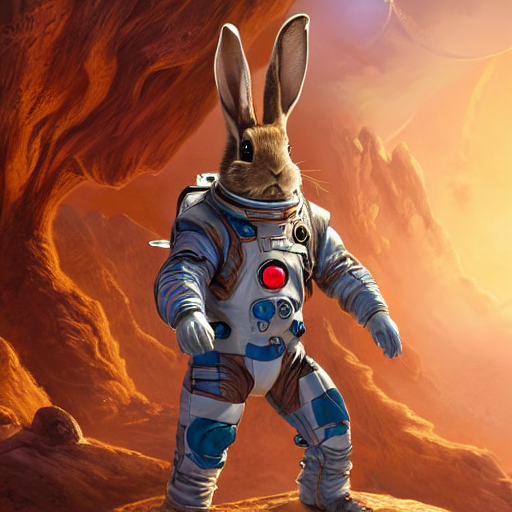
| これからは、通常のカスタムツールと同じようにそれを管理できます。私たちはプロンプトを改善するためにそれを活用します。 | |
| ` a rabbit wearing a space suit`: | |
| ```python | |
| from transformers import HfAgent | |
| agent = HfAgent("https://api-inference.huggingface.co/models/bigcode/starcoder", additional_tools=[tool]) | |
| agent.run("Generate an image of the `prompt` after improving it.", prompt="A rabbit wearing a space suit") | |
| ``` | |
| The model adequately leverages the tool: | |
| ```text | |
| ==Explanation from the agent== | |
| I will use the following tools: `StableDiffusionPromptGenerator` to improve the prompt, then `image_generator` to generate an image according to the improved prompt. | |
| ==Code generated by the agent== | |
| improved_prompt = StableDiffusionPromptGenerator(prompt) | |
| print(f"The improved prompt is {improved_prompt}.") | |
| image = image_generator(improved_prompt) | |
| ``` | |
| 最終的に画像を生成する前に: | |
|  | |
| <img src="https://huggingface.co/datasets/huggingface/documentation-images/resolve/main/transformers/rabbit.png"> | |
| <Tip warning={true}> | |
| gradio-toolsは、さまざまなモダリティを使用する場合でも、*テキスト*の入力と出力が必要です。この実装は画像と音声オブジェクトと連携します。現時点では、これら2つは互換性がありませんが、サポートを向上させるために取り組んでおり、迅速に互換性が向上するでしょう。 | |
| </Tip> | |
| ## Future compatibility with Langchain | |
| 私たちはLangchainを愛しており、非常に魅力的なツールのスイートを持っていると考えています。これらのツールを扱うために、Langchainはさまざまなモダリティで作業する場合でも、*テキスト*の入出力が必要です。これは、オブジェクトのシリアル化バージョン(つまり、ディスクに保存されたバージョン)であることが多いです。 | |
| この違いにより、transformers-agentsとlangchain間ではマルチモダリティが処理されていません。 | |
| この制限は将来のバージョンで解決されることを目指しており、熱心なlangchainユーザーからの任意の支援を歓迎します。 | |
| 私たちはより良いサポートを提供したいと考えています。お手伝いいただける場合は、ぜひ[問題を開いて](https://github.com/huggingface/transformers/issues/new)、お考えのことを共有してください。 | |