

| <!--- | |
| Copyright 2022 The HuggingFace Team. All rights reserved. | |
| Licensed under the Apache License, Version 2.0 (the "License"); | |
| you may not use this file except in compliance with the License. | |
| You may obtain a copy of the License at | |
| http://www.apache.org/licenses/LICENSE-2.0 | |
| Unless required by applicable law or agreed to in writing, software | |
| distributed under the License is distributed on an "AS IS" BASIS, | |
| WITHOUT WARRANTIES OR CONDITIONS OF ANY KIND, either express or implied. | |
| See the License for the specific language governing permissions and | |
| limitations under the License. | |
| ⚠️ Note that this file is in Markdown but contain specific syntax for our doc-builder (similar to MDX) that may not be | |
| rendered properly in your Markdown viewer. | |
| --> | |
| # 安装 | |
| 为你正在使用的深度学习框架安装 🤗 Transformers、设置缓存,并选择性配置 🤗 Transformers 以离线运行。 | |
| 🤗 Transformers 已在 Python 3.6+、PyTorch 1.1.0+、TensorFlow 2.0+ 以及 Flax 上进行测试。针对你使用的深度学习框架,请参照以下安装说明进行安装: | |
| * [PyTorch](https://pytorch.org/get-started/locally/) 安装说明。 | |
| * [TensorFlow 2.0](https://www.tensorflow.org/install/pip) 安装说明。 | |
| * [Flax](https://flax.readthedocs.io/en/latest/) 安装说明。 | |
| ## 使用 pip 安装 | |
| 你应该使用 [虚拟环境](https://docs.python.org/3/library/venv.html) 安装 🤗 Transformers。如果你不熟悉 Python 虚拟环境,请查看此 [教程](https://packaging.python.org/guides/installing-using-pip-and-virtual-environments/)。使用虚拟环境,你可以轻松管理不同项目,避免不同依赖项之间的兼容性问题。 | |
| 首先,在项目目录中创建虚拟环境: | |
| ```bash | |
| python -m venv .env | |
| ``` | |
| 在 Linux 和 MacOs 系统中激活虚拟环境: | |
| ```bash | |
| source .env/bin/activate | |
| ``` | |
| 在 Windows 系统中激活虚拟环境: | |
| ```bash | |
| .env/Scripts/activate | |
| ``` | |
| 现在你可以使用以下命令安装 🤗 Transformers: | |
| ```bash | |
| pip install transformers | |
| ``` | |
| 若仅需 CPU 支持,可以使用单行命令方便地安装 🤗 Transformers 和深度学习库。例如,使用以下命令安装 🤗 Transformers 和 PyTorch: | |
| ```bash | |
| pip install 'transformers[torch]' | |
| ``` | |
| 🤗 Transformers 和 TensorFlow 2.0: | |
| ```bash | |
| pip install 'transformers[tf-cpu]' | |
| ``` | |
| <Tip warning={true}> | |
| M1 / ARM用户 | |
| 在安装 TensorFlow 2.0 前,你需要安装以下库: | |
| ```bash | |
| brew install cmake | |
| brew install pkg-config | |
| ``` | |
| </Tip> | |
| 🤗 Transformers 和 Flax: | |
| ```bash | |
| pip install 'transformers[flax]' | |
| ``` | |
| 最后,运行以下命令以检查 🤗 Transformers 是否已被正确安装。该命令将下载一个预训练模型: | |
| ```bash | |
| python -c "from transformers import pipeline; print(pipeline('sentiment-analysis')('we love you'))" | |
| ``` | |
| 然后打印标签以及分数: | |
| ```bash | |
| [{'label': 'POSITIVE', 'score': 0.9998704791069031}] | |
| ``` | |
| ## 源码安装 | |
| 使用以下命令从源码安装 🤗 Transformers: | |
| ```bash | |
| pip install git+https://github.com/huggingface/transformers | |
| ``` | |
| 此命令下载的是最新的前沿 `main` 版本而不是最新的 `stable` 版本。`main` 版本适用于跟最新开发保持一致。例如,上次正式版发布带来的 bug 被修复了,但新版本尚未被推出。但是,这也说明 `main` 版本并不一定总是稳定的。我们努力保持 `main` 版本的可操作性,大多数问题通常在几个小时或一天以内就能被解决。如果你遇到问题,请提个 [Issue](https://github.com/huggingface/transformers/issues) 以便我们能更快修复。 | |
| 运行以下命令以检查 🤗 Transformers 是否已被正确安装: | |
| ```bash | |
| python -c "from transformers import pipeline; print(pipeline('sentiment-analysis')('I love you'))" | |
| ``` | |
| ## 可编辑安装 | |
| 如果你有下列需求,需要进行可编辑安装: | |
| * 使用源码的 `main` 版本。 | |
| * 为 🤗 Transformers 贡献代码,需要测试代码中的更改。 | |
| 使用以下命令克隆仓库并安装 🤗 Transformers: | |
| ```bash | |
| git clone https://github.com/huggingface/transformers.git | |
| cd transformers | |
| pip install -e . | |
| ``` | |
| 这些命令将会链接你克隆的仓库以及你的 Python 库路径。现在,Python 不仅会在正常的库路径中搜索库,也会在你克隆到的文件夹中进行查找。例如,如果你的 Python 包通常本应安装在 `~/anaconda3/envs/main/lib/python3.7/site-packages/` 目录中,在这种情况下 Python 也会搜索你克隆到的文件夹:`~/transformers/`。 | |
| <Tip warning={true}> | |
| 如果你想继续使用这个库,必须保留 `transformers` 文件夹。 | |
| </Tip> | |
| 现在,你可以使用以下命令,将你克隆的 🤗 Transformers 库轻松更新至最新版本: | |
| ```bash | |
| cd ~/transformers/ | |
| git pull | |
| ``` | |
| 你的 Python 环境将在下次运行时找到 `main` 版本的 🤗 Transformers。 | |
| ## 使用 conda 安装 | |
| 从 conda 的 `conda-forge` 频道安装: | |
| ```bash | |
| conda install conda-forge::transformers | |
| ``` | |
| ## 缓存设置 | |
| 预训练模型会被下载并本地缓存到 `~/.cache/huggingface/hub`。这是由环境变量 `TRANSFORMERS_CACHE` 指定的默认目录。在 Windows 上,默认目录为 `C:\Users\username\.cache\huggingface\hub`。你可以按照不同优先级改变下述环境变量,以指定不同的缓存目录。 | |
| 1. 环境变量(默认): `HUGGINGFACE_HUB_CACHE` 或 `TRANSFORMERS_CACHE`。 | |
| 2. 环境变量 `HF_HOME`。 | |
| 3. 环境变量 `XDG_CACHE_HOME` + `/huggingface`。 | |
| <Tip> | |
| 除非你明确指定了环境变量 `TRANSFORMERS_CACHE`,🤗 Transformers 将可能会使用较早版本设置的环境变量 `PYTORCH_TRANSFORMERS_CACHE` 或 `PYTORCH_PRETRAINED_BERT_CACHE`。 | |
| </Tip> | |
| ## 离线模式 | |
| 🤗 Transformers 可以仅使用本地文件在防火墙或离线环境中运行。设置环境变量 `TRANSFORMERS_OFFLINE=1` 以启用该行为。 | |
| <Tip> | |
| 通过设置环境变量 `HF_DATASETS_OFFLINE=1` 将 [🤗 Datasets](https://huggingface.co/docs/datasets/) 添加至你的离线训练工作流程中。 | |
| </Tip> | |
| 例如,你通常会使用以下命令对外部实例进行防火墙保护的的普通网络上运行程序: | |
| ```bash | |
| python examples/pytorch/translation/run_translation.py --model_name_or_path google-t5/t5-small --dataset_name wmt16 --dataset_config ro-en ... | |
| ``` | |
| 在离线环境中运行相同的程序: | |
| ```bash | |
| HF_DATASETS_OFFLINE=1 TRANSFORMERS_OFFLINE=1 \ | |
| python examples/pytorch/translation/run_translation.py --model_name_or_path google-t5/t5-small --dataset_name wmt16 --dataset_config ro-en ... | |
| ``` | |
| 现在脚本可以应该正常运行,而无需挂起或等待超时,因为它知道只应查找本地文件。 | |
| ### 获取离线时使用的模型和分词器 | |
| 另一种离线时使用 🤗 Transformers 的方法是预先下载好文件,然后在需要离线使用时指向它们的离线路径。有三种实现的方法: | |
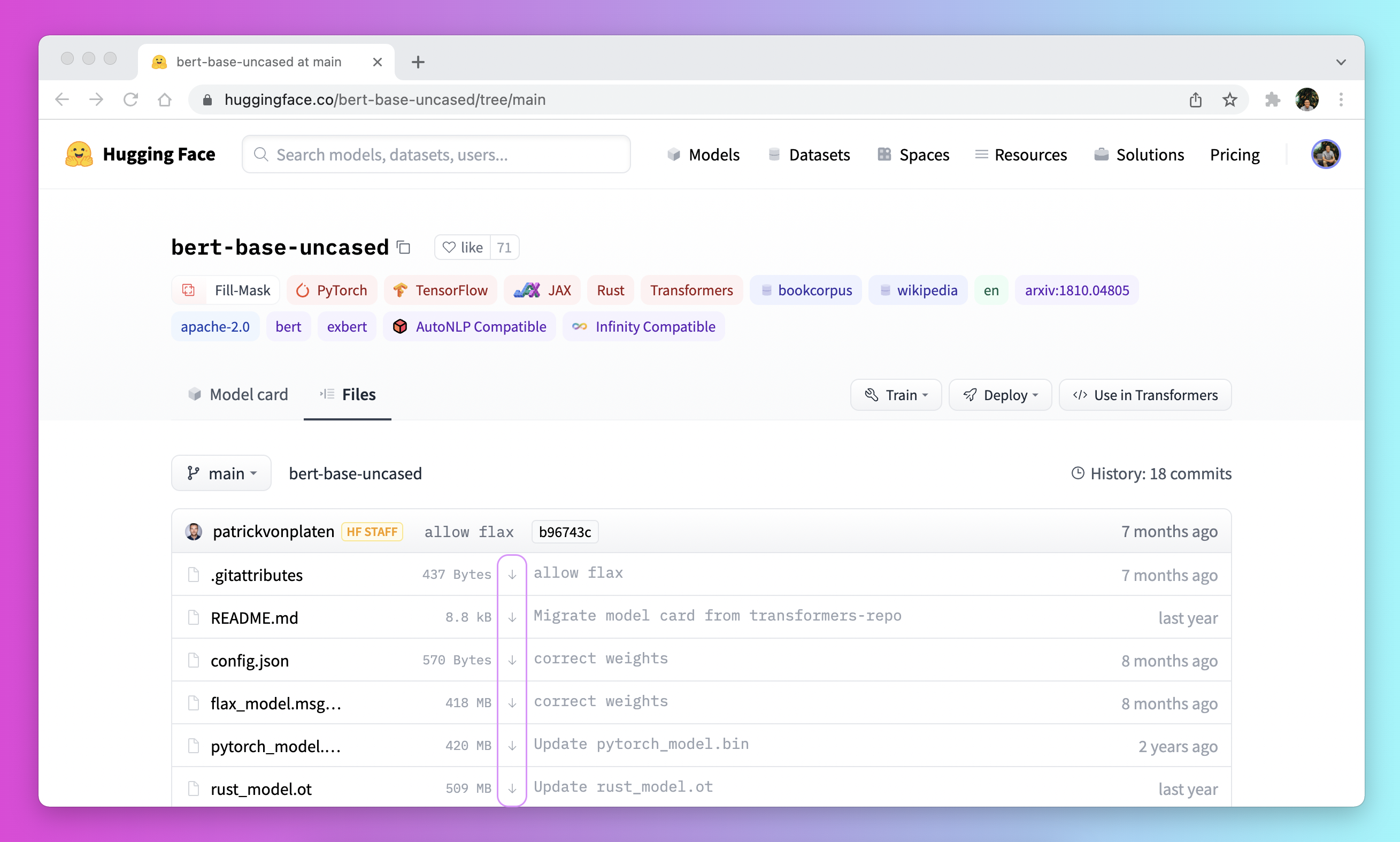
| * 单击 [Model Hub](https://huggingface.co/models) 用户界面上的 ↓ 图标下载文件。 | |
|  | |
| * 使用 [`PreTrainedModel.from_pretrained`] 和 [`PreTrainedModel.save_pretrained`] 工作流程: | |
| 1. 预先使用 [`PreTrainedModel.from_pretrained`] 下载文件: | |
| ```py | |
| >>> from transformers import AutoTokenizer, AutoModelForSeq2SeqLM | |
| >>> tokenizer = AutoTokenizer.from_pretrained("bigscience/T0_3B") | |
| >>> model = AutoModelForSeq2SeqLM.from_pretrained("bigscience/T0_3B") | |
| ``` | |
| 2. 使用 [`PreTrainedModel.save_pretrained`] 将文件保存至指定目录: | |
| ```py | |
| >>> tokenizer.save_pretrained("./your/path/bigscience_t0") | |
| >>> model.save_pretrained("./your/path/bigscience_t0") | |
| ``` | |
| 3. 现在,你可以在离线时从指定目录使用 [`PreTrainedModel.from_pretrained`] 重新加载你的文件: | |
| ```py | |
| >>> tokenizer = AutoTokenizer.from_pretrained("./your/path/bigscience_t0") | |
| >>> model = AutoModel.from_pretrained("./your/path/bigscience_t0") | |
| ``` | |
| * 使用代码用 [huggingface_hub](https://github.com/huggingface/huggingface_hub/tree/main/src/huggingface_hub) 库下载文件: | |
| 1. 在你的虚拟环境中安装 `huggingface_hub` 库: | |
| ```bash | |
| python -m pip install huggingface_hub | |
| ``` | |
| 2. 使用 [`hf_hub_download`](https://huggingface.co/docs/hub/adding-a-library#download-files-from-the-hub) 函数将文件下载到指定路径。例如,以下命令将 `config.json` 文件从 [T0](https://huggingface.co/bigscience/T0_3B) 模型下载至你想要的路径: | |
| ```py | |
| >>> from huggingface_hub import hf_hub_download | |
| >>> hf_hub_download(repo_id="bigscience/T0_3B", filename="config.json", cache_dir="./your/path/bigscience_t0") | |
| ``` | |
| 下载完文件并在本地缓存后,指定其本地路径以加载和使用该模型: | |
| ```py | |
| >>> from transformers import AutoConfig | |
| >>> config = AutoConfig.from_pretrained("./your/path/bigscience_t0/config.json") | |
| ``` | |
| <Tip> | |
| 请参阅 [如何从 Hub 下载文件](https://huggingface.co/docs/hub/how-to-downstream) 部分,获取有关下载存储在 Hub 上文件的更多详细信息。 | |
| </Tip> | |