
Buckets:


| # Using MCP with Local and Open Source Models | |
| In this section, we'll connect MCP with local and open-source models using | |
| Continue, a tool for building AI coding assistants that works with local tools | |
| like Ollama. | |
| ## Setup Continue | |
| You can install Continue from the VS Code marketplace. | |
| > [!TIP] | |
| > *Continue also has an extension for [JetBrains](https://plugins.jetbrains.com/plugin/22707-continue).* | |
| ### VS Code extension | |
| 1. Click `Install` on the [Continue extension page in the Visual Studio Marketplace](https://marketplace.visualstudio.com/items?itemName=Continue.continue) | |
| 2. This will open the Continue extension page in VS Code, where you will need to click `Install` again | |
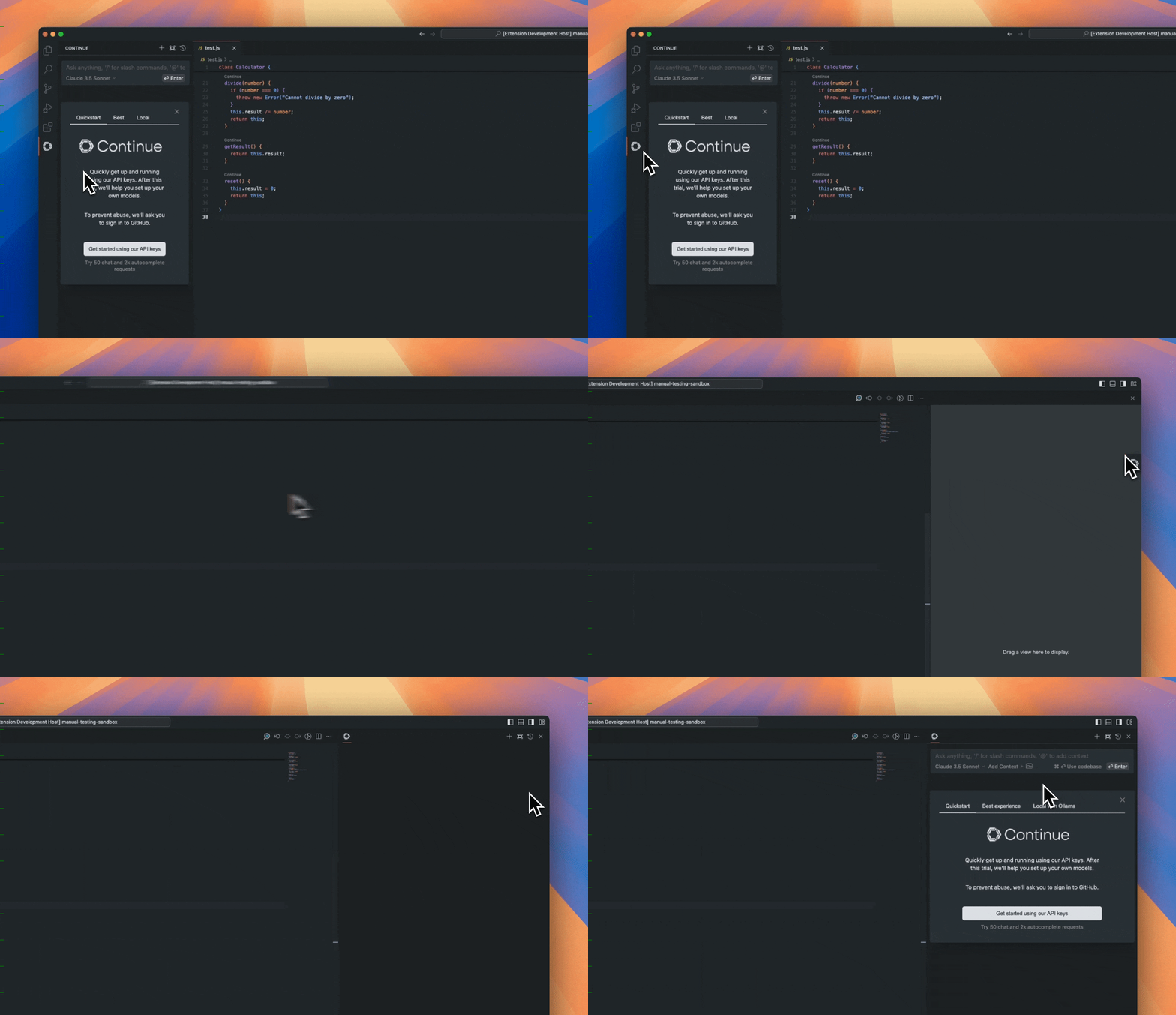
| 3. The Continue logo will appear on the left sidebar. For a better experience, move Continue to the right sidebar | |
|  | |
| With Continue configured, we'll move on to setting up Ollama to pull local models. | |
| ### Local Models | |
| There are many ways to run local models that are compatible with Continue. Three popular options are Ollama, Llama.cpp, and LM Studio. Ollama is an open-source tool that allows users to easily run large language models (LLMs) locally. Llama.cpp is a high-performance C++ library for running LLMs that also includes an OpenAI-compatible server. LM Studio provides a graphical interface for running local models. | |
| You can access local models from the Hugging Face Hub and get commands and quick links for all major local inference apps. | |
|  | |
| Llama.cpp provides `llama-server`, a lightweight, OpenAI API compatible, HTTP server for serving LLMs. You can either build it from source by following the instructions in the [Llama.cpp repository](https://github.com/ggml-org/llama.cpp), or use a pre-built binary if available for your system. Check out the [Llama.cpp documentation](https://github.com/ggerganov/llama.cpp) for more information. | |
| Once you have `llama-server`, you can run a model from Hugging Face with a command like this: | |
| ```bash | |
| llama-server -hf unsloth/Devstral-Small-2505-GGUF:Q4_K_M | |
| ``` | |
| LM Studio is an application for Mac, Windows, and Linux that makes it easy to run open-source models locally with a graphical interface. To get started: | |
| 1. [Click here to open the model in LM Studio](lmstudio://open_from_hf?model=unsloth/Devstral-Small-2505-GGUF). | |
| 2. Once the model is downloaded, go to the "Local Server" tab and click "Start Server". | |
| To use Ollama, you can [install](https://ollama.com/download) it and download the model you want to run with the `ollama run` command. | |
| For example, you can download and run the [Devstral-Small](https://huggingface.co/unsloth/Devstral-Small-2505-GGUF?local-app=ollama) model with: | |
| ```bash | |
| ollama run hf.co/unsloth/Devstral-Small-2505-GGUF:Q4_K_M | |
| ``` | |
| This model is around 14GB in size, so you need to ensure that the machine you are running it on has enough free RAM. Otherwise you might see an error like: model requires more system memory than is available. | |
| > [!TIP] | |
| > Continue supports various local model providers. Besides Ollama, Llama.cpp, and LM Studio you can also use other providers. For a complete list of supported providers and detailed configuration options, please refer to the [Continue documentation](https://docs.continue.dev/customize/model-providers). | |
| It is important that we use models that have tool calling as a built-in feature, i.e. Codestral Qwen and Llama 3.1x. | |
| 1. Create a folder called `.continue/models` at the top level of your workspace | |
| 2. Add a file to this folder to configure your model provider. For example, `local-models.yaml`. | |
| 3. Add the following configuration, depending on whether you are using Ollama, Llama.cpp, or LM Studio. | |
| This configuration is for a `llama.cpp` model served with `llama-server`. Note that the `model` field should match the model you are serving. | |
| ```yaml | |
| name: Llama.cpp model | |
| version: 0.0.1 | |
| schema: v1 | |
| models: | |
| - provider: llama.cpp | |
| model: unsloth/Devstral-Small-2505-GGUF | |
| apiBase: http://localhost:8080 | |
| defaultCompletionOptions: | |
| contextLength: 8192 # Adjust based on the model | |
| name: Llama.cpp Devstral-Small | |
| roles: | |
| - chat | |
| - edit | |
| ``` | |
| This configuration is for a model served via LM Studio. The model identifier should match what is loaded in LM Studio. | |
| ```yaml | |
| name: LM Studio Model | |
| version: 0.0.1 | |
| schema: v1 | |
| models: | |
| - provider: lmstudio | |
| model: unsloth/Devstral-Small-2505-GGUF | |
| name: LM Studio Devstral-Small | |
| apiBase: http://localhost:1234/v1 | |
| roles: | |
| - chat | |
| - edit | |
| ``` | |
| This configuration is for an Ollama model. | |
| ```yaml | |
| name: Ollama Devstral model | |
| version: 0.0.1 | |
| schema: v1 | |
| models: | |
| - provider: ollama | |
| model: unsloth/devstral-small-2505-gguf:Q4_K_M | |
| defaultCompletionOptions: | |
| contextLength: 8192 | |
| name: Ollama Devstral-Small | |
| roles: | |
| - chat | |
| - edit | |
| ``` | |
| By default, each model has a max context length, in this case it is `128000` tokens. This setup includes a larger use of | |
| that context window to perform multiple MCP requests and needs to be able to handle more tokens. | |
| ## How it works | |
| ### The tool handshake | |
| Tools provide a powerful way for models to interface with the external world. | |
| They are provided to the model as a JSON object with a name and an arguments | |
| schema. For example, a `read_file` tool with a `filepath` argument will give the | |
| model the ability to request the contents of a specific file. | |
|  | |
| The following handshake describes how the Agent uses tools: | |
| 1. In Agent mode, available tools are sent along with `user` chat requests | |
| 2. The model can choose to include a tool call in its response | |
| 3. The user gives permission. This step is skipped if the policy for that tool is set to `Automatic` | |
| 4. Continue calls the tool using built-in functionality or the MCP server that offers that particular tool | |
| 5. Continue sends the result back to the model | |
| 6. The model responds, potentially with another tool call, and step 2 begins again | |
| Continue supports multiple local model providers. You can use different models | |
| for different tasks or switch models as needed. This section focuses on | |
| local-first solutions, but Continue does work with popular providers | |
| like OpenAI, Anthropic, Microsoft/Azure, Mistral, and more. You can also run | |
| your own model provider. | |
| ### Local Model Integration with MCP | |
| Now that we have everything set up, let's add an existing MCP server. Below is a quick example of setting up a new MCP server for use in your assistant: | |
| 1. Create a folder called `.continue/mcpServers` at the top level of your workspace | |
| 2. Add a file called `playwright-mcp.yaml` to this folder | |
| 3. Write the following contents to `playwright-mcp.yaml` and save | |
| ```yaml | |
| name: Playwright mcpServer | |
| version: 0.0.1 | |
| schema: v1 | |
| mcpServers: | |
| - name: Browser search | |
| command: npx | |
| args: | |
| - "@playwright/mcp@latest" | |
| ``` | |
| Now test your MCP server by prompting the following command: | |
| ``` | |
| 1. Using playwright, navigate to https://news.ycombinator.com. | |
| 2. Extract the titles and URLs of the top 4 posts on the homepage. | |
| 3. Create a file named hn.txt in the root directory of the project. | |
| 4. Save this list as plain text in the hn.txt file, with each line containing the title and URL separated by a hyphen. | |
| Do not output code or instructions—just complete the task and confirm when it is done. | |
| ``` | |
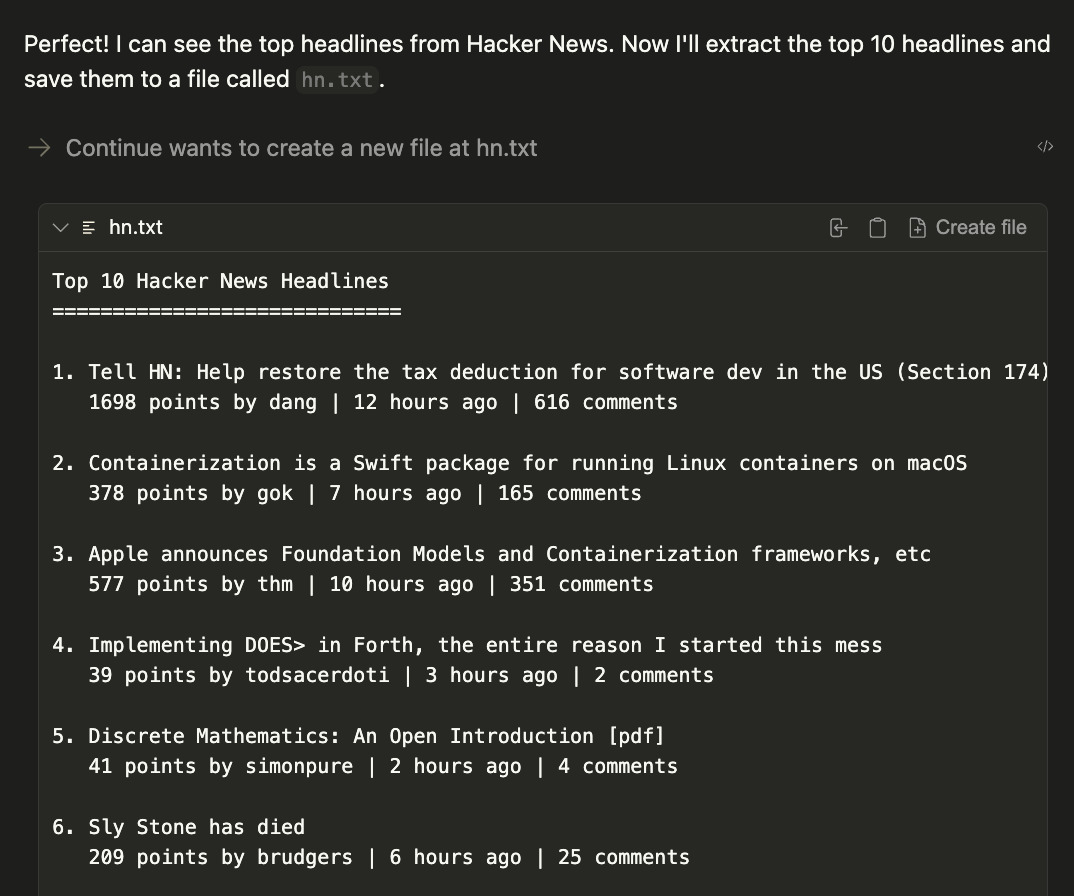
| The result will be a generated file called `hn.txt` in the current working directory. | |
|  | |
| ## Conclusion | |
| By combining Continue with local models like Llama 3.1 and MCP servers, you've | |
| unlocked a powerful development workflow that keeps your code and data private | |
| while leveraging cutting-edge AI capabilities. | |
| This setup gives you the flexibility to customize your AI assistant with | |
| specialized tools, from web automation to file management, all running entirely | |
| on your local machine. Ready to take your development workflow to the next | |
| level? Start by experimenting with different MCP servers from the [Continue Hub | |
| MCP explore page](https://hub.continue.dev/explore/mcp) and discover how | |
| local AI can transform your coding experience. | |
Xet Storage Details
- Size:
- 8.53 kB
- Xet hash:
- 15a2c6c5cdb9dfd5440aec5b6487ddbeb122bc1de9cc683a9a2d98e9a4737cd0
·
Xet efficiently stores files, intelligently splitting them into unique chunks and accelerating uploads and downloads. More info.